
PowerShell For 循环与 While 循环:掌握系统自动化
Mar 2, 2025
PowerShell 循环可使用 For、ForEach、While、Do-While 和 Do-Until 等结构来自动化重复任务与批量操作。每种循环类型都支持不同的使用场景:从遍历数组到监控进程或筛选日志。将循环与 Break、Continue、Try-Catch 和管道结合使用,可提升效率并增强错误处理能力。对于大型数据集,ForEach-Object 支持更具内存效率的处理方式,这对于企业自动化和云端运维至关重要。
PowerShell 是为系统管理员设计的跨平台命令行 Shell 和脚本语言。可以将 PowerShell 命令组合成脚本,以自动化重复任务并高效处理大型数据集。
在脚本编写中,循环(loops)通过提供一种结构化方式来反复执行代码块,因此扮演着重要角色。本文将深入探讨可用的各种循环类型,包括针对许多常见用例的示例脚本、平滑处理错误的方法、提升脚本效率的策略,以及确保可读性与可维护性的最佳实践。
为什么循环(loops)在 PowerShell 中很有价值
循环(loops)是一种编程控制结构,会在满足指定条件之前反复执行代码块。它们对于自动化重复性任务、处理数据集合以及执行批量操作至关重要。
PowerShell 循环(loops)类型概览
PowerShell 提供了多种循环类型,用于自动化重复性任务。每种循环都有各自的优势,因此适用于不同的场景。下面是各循环类型的概览:
- For — 当你知道希望循环执行的次数时,PowerShell 的 For 循环是理想的选择。然后你只需设置一个计数器变量,并在每次迭代之后将其增加 1。
- ForEach — ForEach 循环用于遍历一组项目,例如数组或列表中的元素。例如,你可以遍历一个姓名列表,并将每个名称输出到控制台。
- While — PowerShell 的 While 循环会在指定条件变为假之前不断执行一段代码,因此适用于迭代次数未知的场景。例如,你可以在某个标志被设置为 True 的情况下持续执行代码。请注意,条件会在第一次执行之前进行检查,因此代码块可能根本不会运行。
- Do-While — Do-While 循环与 While 循环类似,但有一个关键区别:会在检查条件之前先执行代码块,因此它至少会运行一次。
- Do-Until — Do-Until 循环也类似于 PowerShell 中的 While 循环,但循环会一直执行,直到条件变为 true。
在业务自动化中使用循环的实际应用
循环在诸如处理数据、生成报表、检查软件更新以及验证服务状态等任务中扮演着重要角色。例如,可以使用循环持续对服务器列表执行 ping,以检查它们的可用性;一旦发现任何服务器变得无法访问或无响应,就会自动通知 IT 团队。循环还可用于批量操作,例如在 Active Directory 中创建或修改用户帐户,或为安全审计处理日志文件。
PowerShell 中的循环类型及其使用时机
For 循环
PowerShell 中的 For 循环具有以下语法:
      for ([Initialization]; [Condition]; [Increment/Decrement]) {

  # Code to be executed in each iteration

}
- 初始化 — 这一部分定义计数器变量并设置初始值。在循环开始时执行。
- 条件 — 这一部分指定一个条件:只要它保持为真,循环就会继续迭代。
- 增量/减量 — 这一部分在每次迭代之后执行;通常用于更新计数器变量的值。
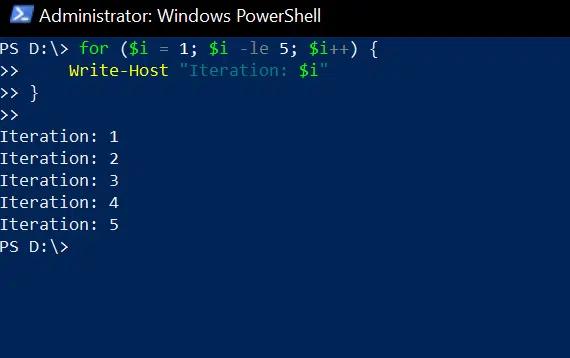
在这个示例中,变量 $i 初始化为 1,只要 $i 小于或等于 5,并且 $i 在每次迭代后增加 1:
      for ($i = 1; $i -le 5; $i++) {

    Write-Host "Iteration: $i"

}
For 循环的常见用途包括:
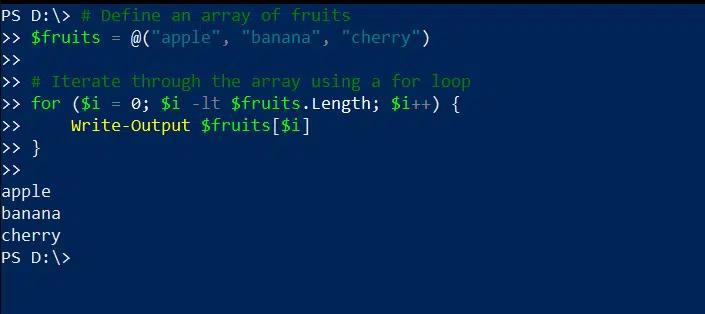
- 遍历数组 — 在下面的 For 循环示例中,PowerShell 会遍历数组,并将每个元素输出到控制台:
      # Define an array of fruits

$fruits = @("apple", "banana", "cherry")

# Iterate through the array using a for loop

for ($i = 0; $i -lt $fruits.Length; $i++) {

    Write-Output $fruits[$i]

}
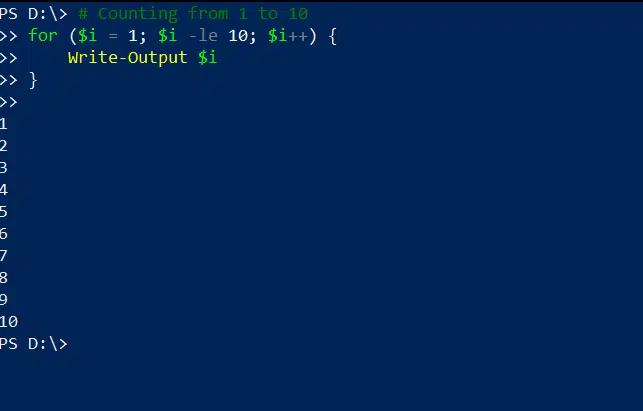
- 计数 — 以下是使用 for 循环打印 1 到 10 的数字的方法:
      # Counting from 1 to 10

for ($i = 1; $i -le 10; $i++) {

    Write-Output $i

}
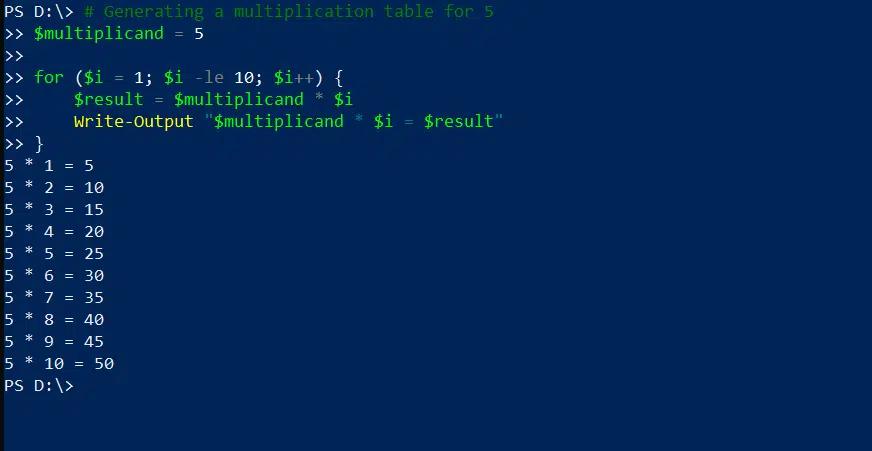
- 生成表格 — 下面的脚本会生成一个表格,展示如何乘以 5:
      # Generating a multiplication table for 5

$multiplicand = 5

for ($i = 1; $i -le 10; $i++) {

    $result = $multiplicand * $i

    Write-Output "$multiplicand * $i = $result"

}
ForEach 循环
ForEach 循环会对集合中的每个项执行一段代码。下面这个简单示例创建一个包含三个名称的数组($names),并将每个名称写入控制台:
      $names = "Alice", "Bob", "Charlie"

foreach ($name in $names) {

  # Code to execute for each item in the collection

  Write-Host "Hello, $name!"

}
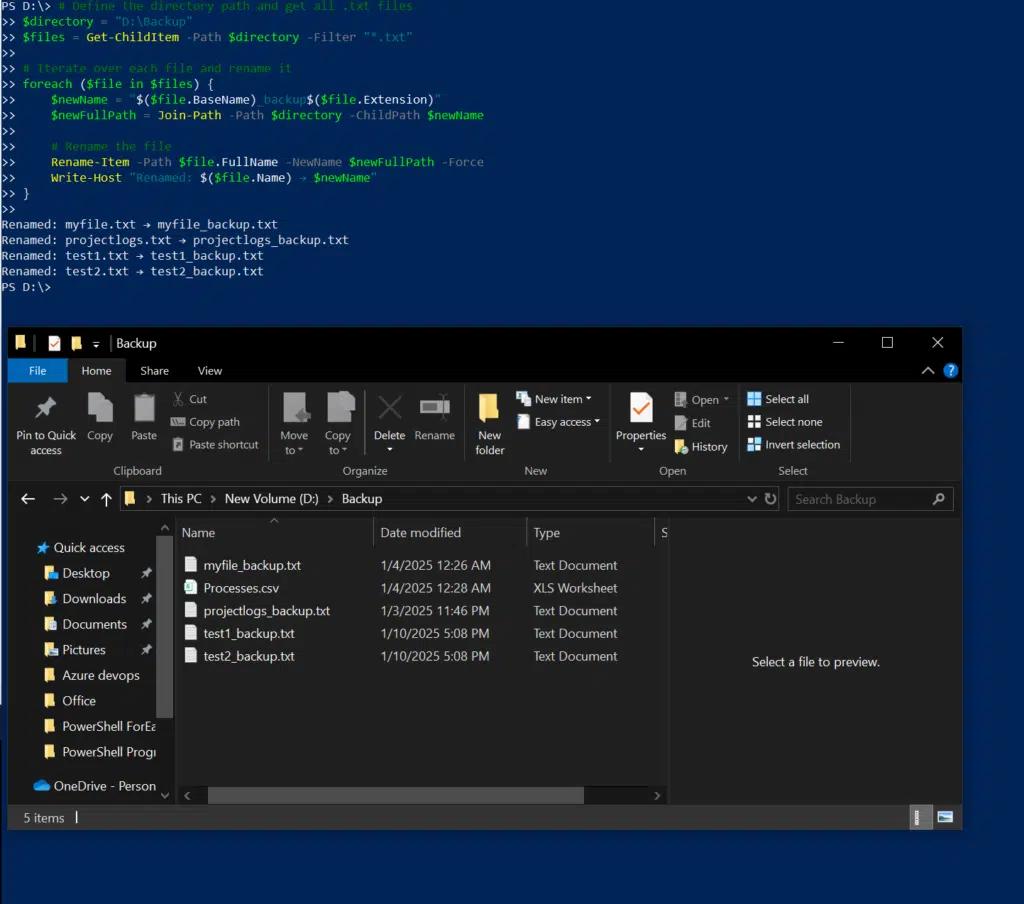
以下脚本会从某个目录中获取所有文本文件,并以新的名称将它们保存到同一目录中,以表明这些文件是备份:
      # Define the directory path and get all .txt files

$directory = "D:\Backup"

$files = Get-ChildItem -Path $directory -Filter "*.txt"

# Iterate over each file and rename it

foreach ($file in $files) {

    $newName = "$($file.BaseName)_backup$($file.Extension)"

    $newFullPath = Join-Path -Path $directory -ChildPath $newName

    # Rename the file

    Rename-Item -Path $file.FullName -NewName $newFullPath -Force

    Write-Host "Renamed: $($file.Name) ? $newName"

}
While 循环、Do-While 循环和 Do-Until 循环
While 循环和 Do-While 循环
While 和 Do-While 循环会在满足指定条件的情况下重复执行一段代码,这使得当你事先不知道循环需要运行多少次时,它们非常有用。
如前所述,While 和 Do-While 之间的关键区别在于检查条件的时机:PowerShell 中的 While 循环会在执行代码之前先检查条件,而 Do-While 循环则会在检查条件之前先执行一次循环。因此,即使条件一开始为假,代码也会运行。
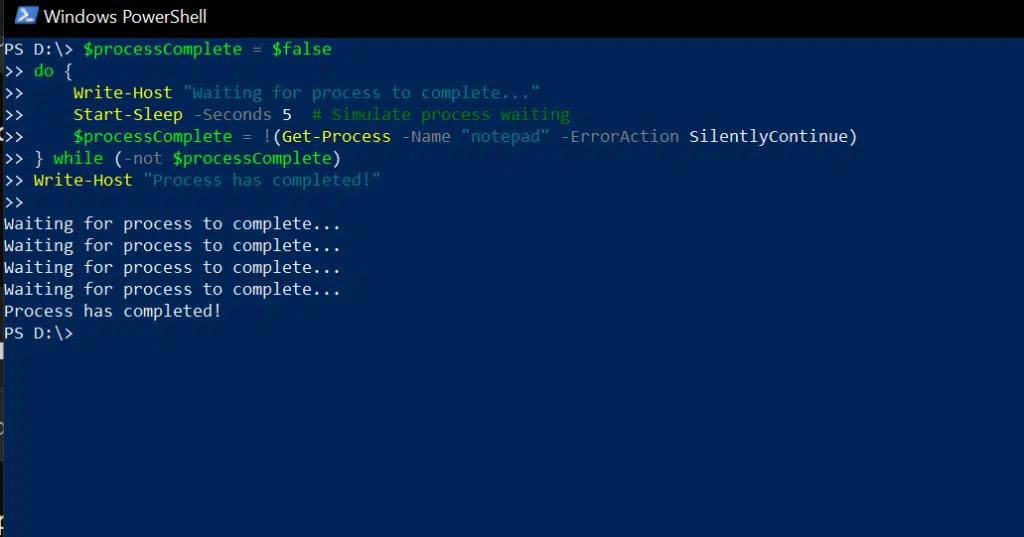
例如,下面的脚本使用 Do-While 循环来在进程关闭之前,每 5 秒检查一次记事本进程的状态:
      $processComplete = $false

do {

    Write-Host "Waiting for process to complete..."

    Start-Sleep -Seconds 5  # Simulate process waiting

    $processComplete = !(Get-Process -Name "notepad" -ErrorAction SilentlyContinue)

} while (-not $processComplete)

Write-Host "Process has completed!"
Do-Until 循环
Do-Until 循环类似于 Do-While;不过,Do-While 循环只要条件为真就会继续,而 Do-Until 循环只要条件为假就会继续。因此,当你正在等待某个事件发生时,Do-Until 更高效。
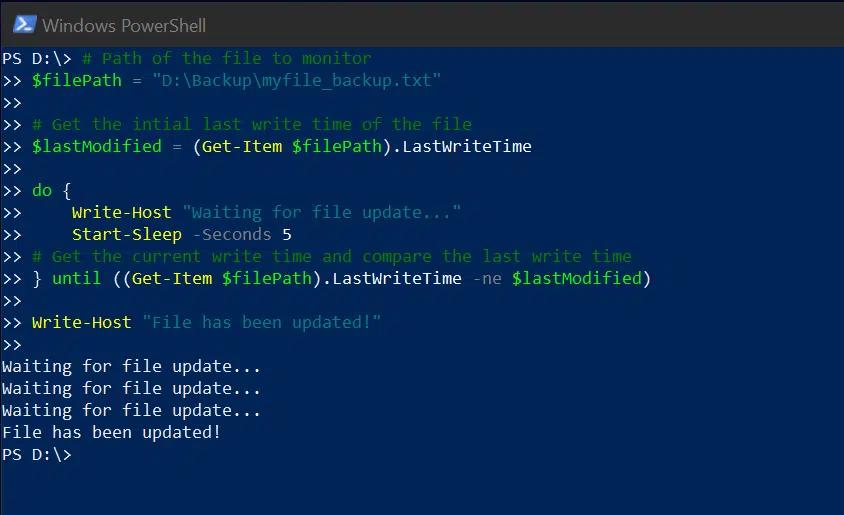
例如,下面的脚本使用 Do-Until 循环等待文件更新发生。每 5 秒,它会将当前的最后写入时间与 $lastModified 变量进行比较;一旦两者不相同,就会输出一条消息,说明该文件已被更新。
      # Path of the file to monitor

$filePath = "D:\Backup\myfile_backup.txt"

# Get the initial last write time of the file

$lastModified = (Get-Item $filePath).LastWriteTime

do {

    Write-Host "Waiting for file update..."

    Start-Sleep -Seconds 5

# Get the current write time and compare the last write time

} until ((Get-Item $filePath).LastWriteTime -ne $lastModified)

Write-Host "File has been updated!"
用于增强自动化的高级循环技术
将循环与 If-Else 条件语句结合使用
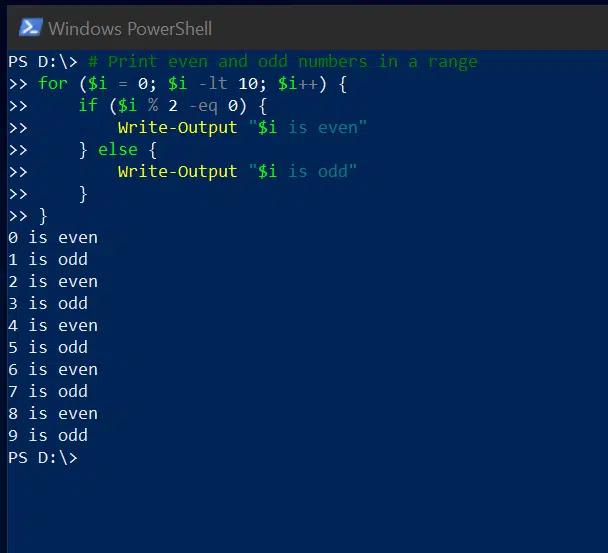
使用 If 和 Else 语句可以根据在循环中定义的条件来有条件地执行代码。 例如,下面的代码会从 0 迭代到 9,并报告每个数字是偶数还是奇数:
      # Print even and odd numbers in a range

for ($i = 0; $i -lt 10; $i++) {

    if ($i % 2 -eq 0) {

        Write-Output "$i is even"

    } else {

        Write-Output "$i is odd"

    }

}
使用 Break 提前退出循环
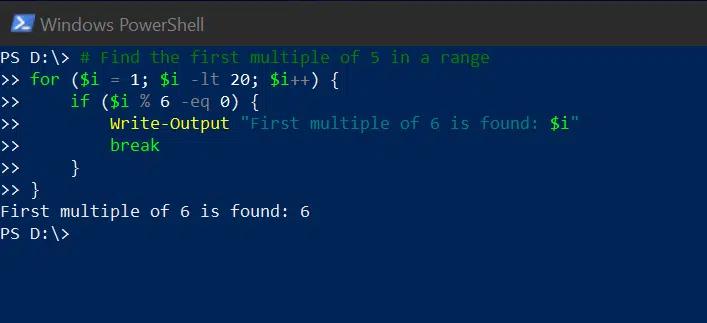
Break 语句用于在满足指定条件时退出循环;循环中的其余代码不会被执行。
在下面的示例中,for 循环被设置为从 1 遍历到 19;但是如果找到 6 的倍数,它将打印出该项并退出循环:
使用 Continue 跳过不必要的迭代
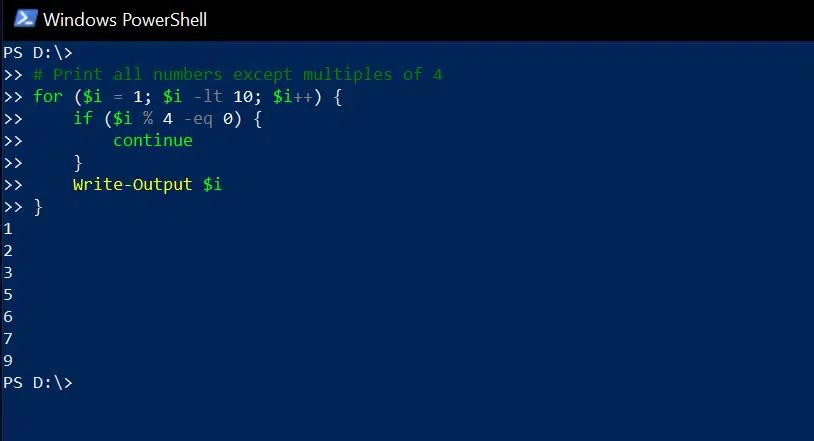
Continue 语句会跳过当前循环迭代中其余的代码,并转到下一次迭代。下面的示例会遍历 1 到 9 的数字,打印除 4 的倍数以外的所有数字:
      # Print all numbers except multiples of 4

for ($i = 1; $i -lt 10; $i++) {

    if ($i % 4 -eq 0) {

        continue

    }

    Write-Output $i

}
循环中的内存管理
使用 ForEach-Object cmdlet 降低内存使用
当你想遍历集合中的对象时,可以使用 ForEach 循环,但也有一些情况更适合使用 ForEach-Object cmdlet:
- ForEach 循环 会遍历存储在变量中的内存集合。适用于集合已在内存中、并且需要快速结果的场景。
- ForEach-object cmdlet 会在数据通过管道的过程中一次处理一个条目,从而显著降低内存使用。它特别适用于逐行处理大型日志文件。
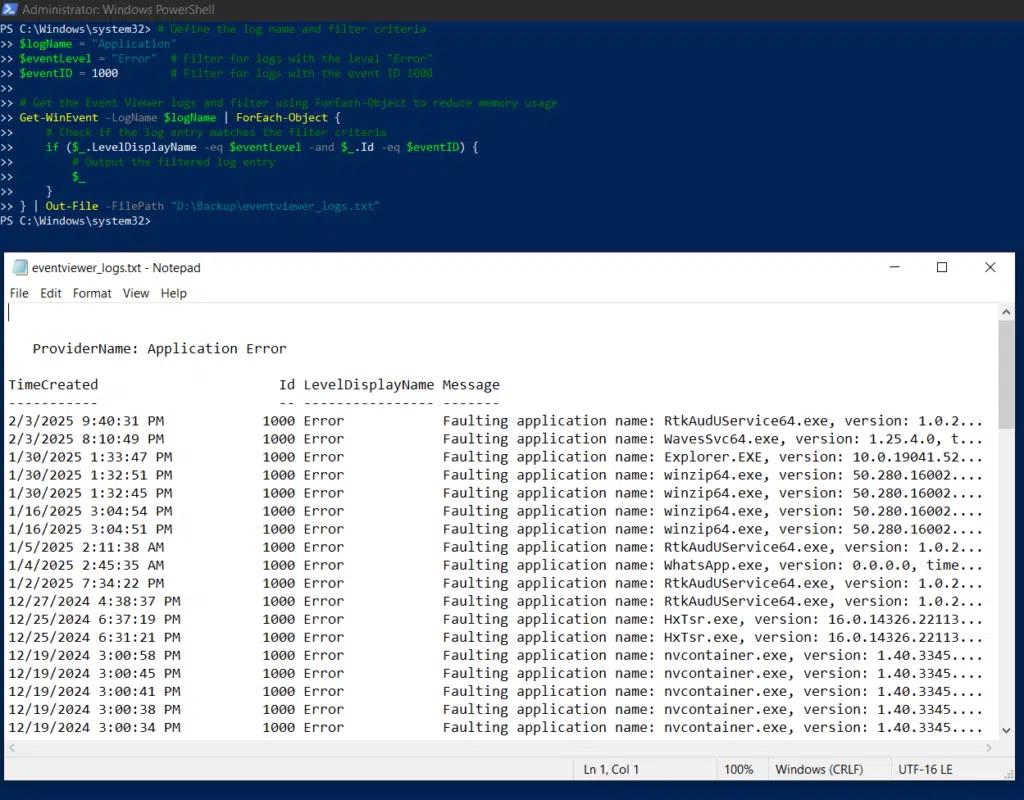
下面的脚本使用 ForEach-Object cmdlet 查找具有特定事件 ID 的事件查看器日志条目,并将这些事件存储到文本文件中:
      # Define the log name and filter criteria

$logName = "Application"

$eventLevel = "Error"  # Filter for logs with the level "Error"

$eventID = 1000        # Filter for logs with the event ID 1000

# Get the Event Viewer logs and filter using ForEach-Object to reduce memory usage

Get-WinEvent -LogName $logName | ForEach-Object {

    # Check if the log entry matches the filter criteria

    if ($_.LevelDisplayName -eq $eventLevel -and $_.Id -eq $eventID) {

        # Output the filtered log entry

        $_

    }

} | Out-File -FilePath "D:\Backup\eventviewer_logs.txt"
用于复杂数据处理的嵌套循环
PowerShell 允许你将一个 For 循环嵌套到另一个 For 循环中。你可以将这种技术用于诸如:
- 高效处理多维数据,例如数组的数组或矩阵
- 处理诸如 JSON、XML 以及嵌套哈希表之类的层级结构
- 对结构化数据执行重复任务,例如批量处理日志文件
示例:创建多层数据结构
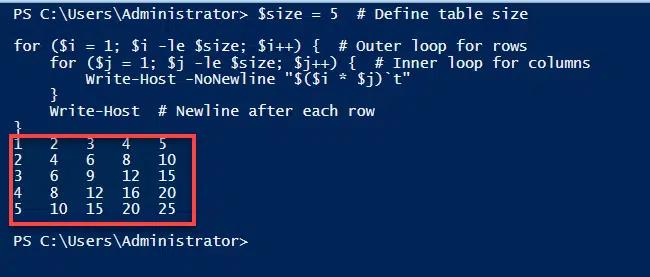
下面的脚本使用嵌套的 For 循环来生成乘法表:
      $size = 5  # Define table size

for ($i = 1; $i -le $size; $i++) {  # Outer loop for rows

    for ($j = 1; $j -le $size; $j++) {  # Inner loop for columns

        Write-Host -NoNewline "$($i * $j)`t"

    }

    Write-Host  # Newline after each row

}
示例:处理层级数据(嵌套哈希表)
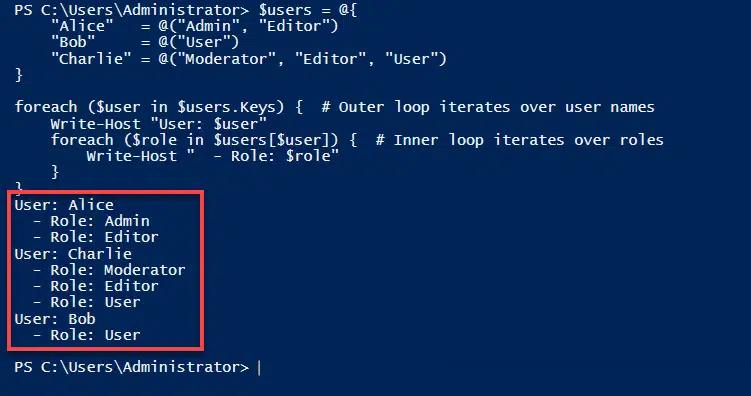
其他类型的循环(例如 ForEach 循环)也可以嵌套,如下面用于处理层级数据的脚本所示:
      $users = @{

    "Alice"   = @("Admin", "Editor")

    "Bob"     = @("User")

    "Charlie" = @("Moderator", "Editor", "User")

}

foreach ($user in $users.Keys) {  # Outer loop iterates over usernames

    Write-Host "User: $user"

    foreach ($role in $users[$user]) {  # Inner loop iterates over roles

        Write-Host "  - Role: $role"

    }

}
循环中的错误处理与调试
Try-Catch 对稳健脚本执行的重要性
当 PowerShell 脚本可能遇到诸如文件未找到、权限被拒绝或网络问题等失败情况时,错误处理至关重要。使用 Try-Catch 块进行恰当的错误处理,可确保脚本通过显示有意义的错误信息来妥善处理此类异常,并继续运行或安全终止。
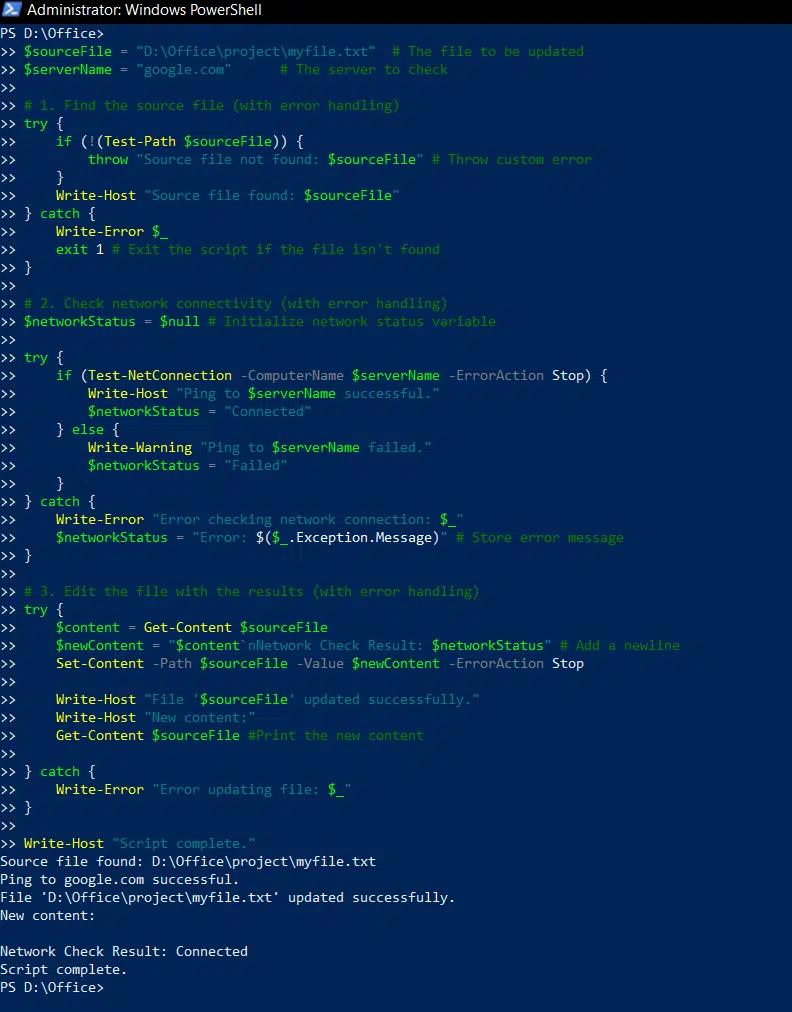
下面用于更新文件的脚本使用 Try-Catch,以便在找不到文件或无法与服务器建立连接的情况下能够顺畅处理:
      $sourceFile = "D:\Office\project\myfile.txt"  # The file to be updated

$serverName = "google.com"      # The server to check

# 1. Find the source file (with error handling)

try {

    if (!(Test-Path $sourceFile)) {

        throw "Source file not found: $sourceFile" # Throw custom error

    }

    Write-Host "Source file found: $sourceFile"

} catch {

    Write-Error $_

    exit 1 # Exit the script if the file isn't found

}

# 2. Check network connectivity (with error handling)

$networkStatus = $null # Initialize network status variable

try {

    if (Test-NetConnection -ComputerName $serverName -ErrorAction Stop) {

        Write-Host "Ping to $serverName successful."

        $networkStatus = "Connected"

    } else {

        Write-Warning "Ping to $serverName failed."

        $networkStatus = "Failed"

    }

} catch {

    Write-Error "Error checking network connection: $_"

    $networkStatus = "Error: $($_.Exception.Message)" # Store error message

}

# 3. Edit the file with the results (with error handling)

try {

    $content = Get-Content $sourceFile

    $newContent = "$content`nNetwork Check Result: $networkStatus" # Add a newline

    Set-Content -Path $sourceFile -Value $newContent -ErrorAction Stop

    Write-Host "File '$sourceFile' updated successfully."

    Write-Host "New content:"

    Get-Content $sourceFile #Print the new content

} catch {

    Write-Error "Error updating file: $_"

}

Write-Host "Script complete."
PowerShell 循环的性能优化提示
以下策略可在使用 For 循环时减少执行时间并降低资源消耗。
减少不必要的迭代。
为减少不必要的循环迭代,请在进入循环之前先过滤数据,并在满足特定条件时使用 Break 和 Continue 退出循环。
避免在循环中进行不必要的计算。
在 PowerShell 中提升循环效率的关键最佳实践是避免在循环内部进行不必要的计算。相反,尽可能在循环外计算这些值。例如,如果某个函数或命令在迭代过程中获取的数据不会改变,那么它应当在进入循环之前执行一次。
提高循环的可读性和可维护性。
为了让循环更容易理解和维护,请务必:
- 使用清晰的变量名,并保持一致的缩进。
- 采用模块化设计,将复杂逻辑拆分到不同的函数中。
- 当已知迭代次数时使用 For 循环;当需要基于条件进行重复时使用 While 循环。
- 保持循环简洁,避免不必要的嵌套。
尽量减少控制台输出。
避免不必要地使用 Write-Host 语句。
有效使用管道以减少脚本开销。
处理大型数据集时,请使用管道将数据从一个 cmdlet 流式传输到下一个 cmdlet。这样可以避免将大量中间结果存储在内存中,从而显著降低开销。
明智地使用 ForEach 循环以及 ForEach-Object cmdlet。
如前所述,ForEach-Object cmdlet 的内存需求比 ForEach 循环更少,因此在适当的情况下,建议修改脚本以使用 ForEach-Object。
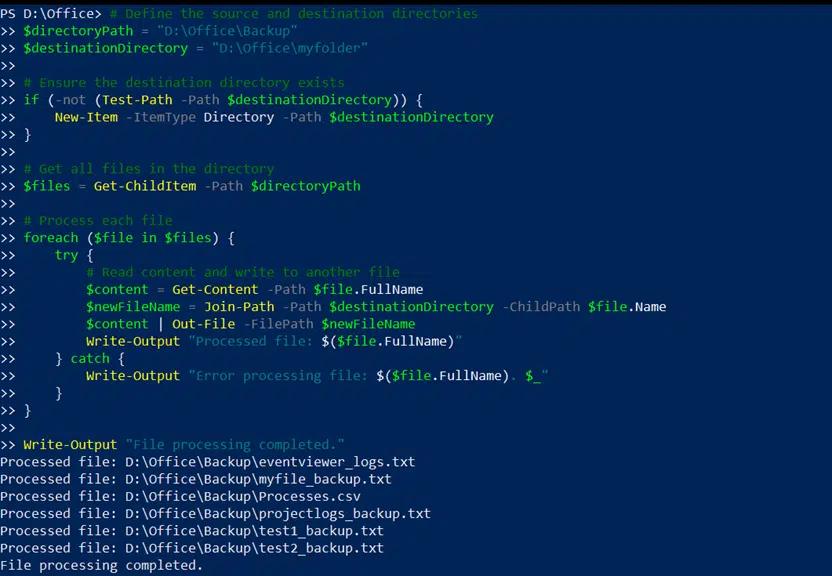
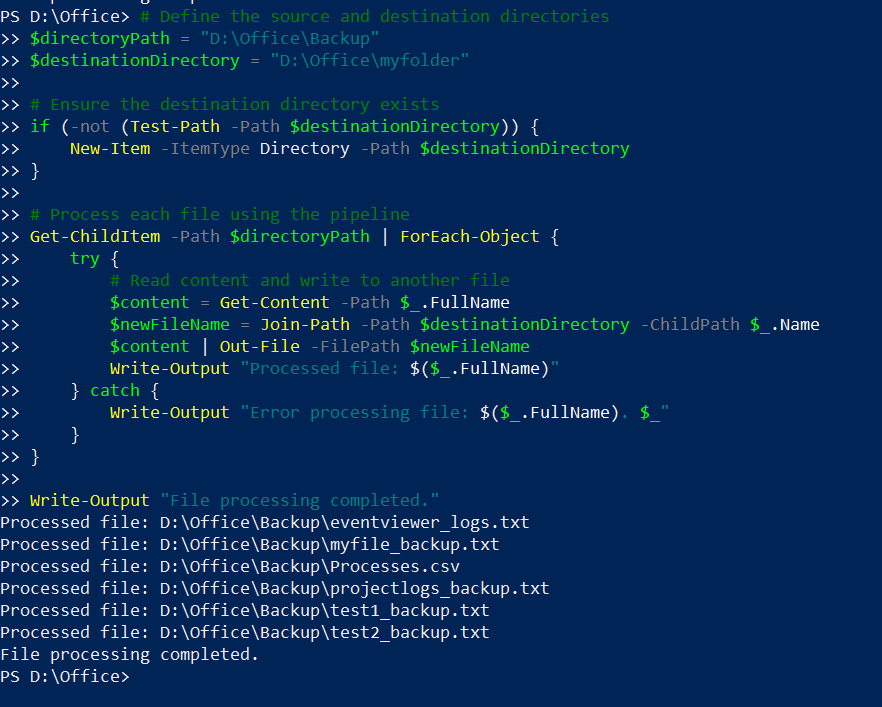
例如,下面先给出一个脚本:使用 foreach 循环将文件从一个目录复制到另一个目录;随后给出一个脚本:使用 foreach-object cmdlet 达成相同的目标。
使用 ForEach 循环
      # Define the source and destination directories

$directoryPath = "D:\Office\Backup"

$destinationDirectory = "D:\Office\myfolder"

# Ensure the destination directory exists

if (-not (Test-Path -Path $destinationDirectory)) {

    New-Item -ItemType Directory -Path $destinationDirectory

}

# Get all files in the directory

$files = Get-ChildItem -Path $directoryPath

# Process each file

foreach ($file in $files) {

    try {

        # Read content and write to another file

        $content = Get-Content -Path $file.FullName

        $newFileName = Join-Path -Path $destinationDirectory -ChildPath $file.Name

        $content | Out-File -FilePath $newFileName

        Write-Output "Processed file: $($file.FullName)"

    } catch {

        Write-Output "Error processing file: $($file.FullName). $_"

    }

}

Write-Output "File processing completed."
使用 ForEach-Object cmdlet
      # Define the source and destination directories

$directoryPath = "D:\Office\Backup"

$destinationDirectory = "D:\Office\myfolder"

# Ensure the destination directory exists

if (-not (Test-Path -Path $destinationDirectory)) {

    New-Item -ItemType Directory -Path $destinationDirectory

}

# Process each file using the pipeline

Get-ChildItem -Path $directoryPath | ForEach-Object {

    try {

        # Read content and write to another file

        $content = Get-Content -Path $_.FullName

        $newFileName = Join-Path -Path $destinationDirectory -ChildPath $_.Name

        $content | Out-File -FilePath $newFileName

        Write-Output "Processed file: $($_.FullName)"

    } catch {

        Write-Output "Error processing file: $($_.FullName). $_"

    }

}

Write-Output "File processing completed."
PowerShell 循环的真实应用场景
自动化系统管理任务
管理员可以使用循环,对集合中的每个对象执行特定操作,例如一组文件、目录或用户帐户。比如,可以使用循环将安全补丁应用到网络中的所有服务器;监控系统资源,并在需要时重启服务或发送通知;以及修改或删除 Active Directory 对象。
使用 ForEach-Object Cmdlet 自动化服务器检查
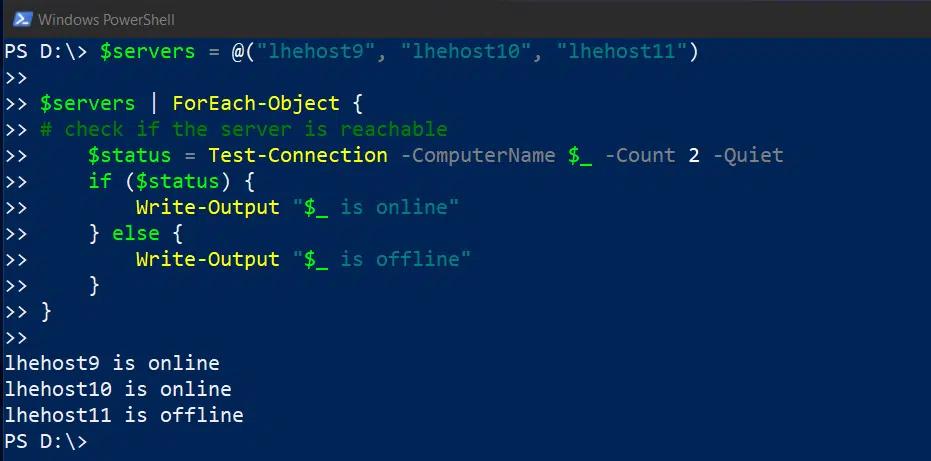
以下脚本会报告服务器是否在线:
      $servers = @("lhehost9", "lhehost10", "lhehost11")

$servers | ForEach-Object {

# check if the server is reachable

    $status = Test-Connection -ComputerName $_ -Count 2 -Quiet

    if ($status) {

        Write-Output "$_ is online"

    } else {

        Write-Output "$_ is offline"

    }

}
使用 While 循环调度系统任务
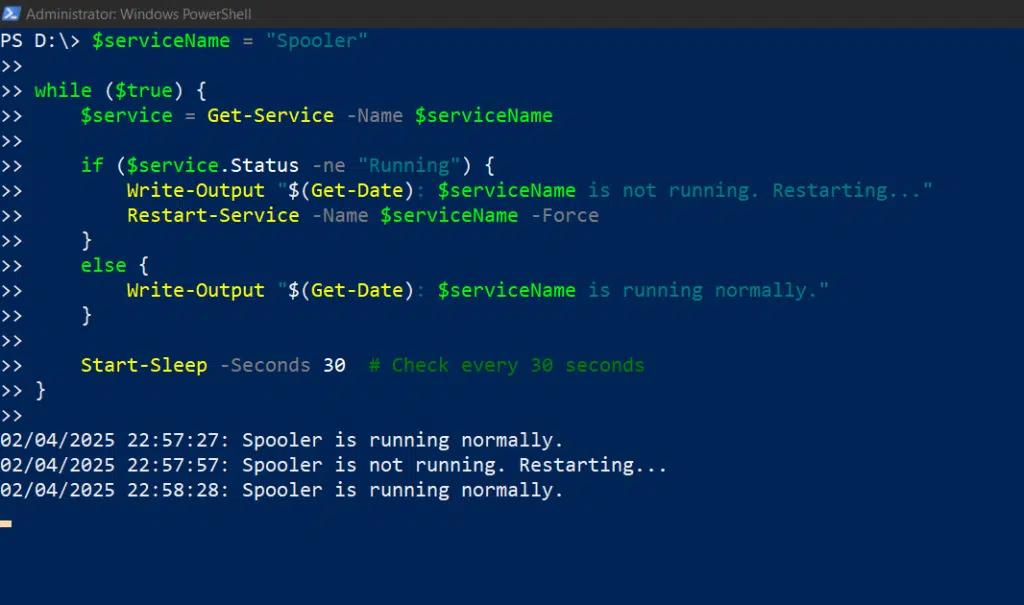
该脚本会监控 Spooler 服务的状态,并在必要时重新启动:
      $serviceName = "Spooler"

while ($true) {

    $service = Get-Service -Name $serviceName

    if ($service.Status -ne "Running") {

        Write-Output "$(Get-Date): $serviceName is not running. Restarting..."

        Restart-Service -Name $serviceName -Force

    }

    else {

        Write-Output "$(Get-Date): $serviceName is running normally."

    }

    Start-Sleep -Seconds 30  # Check every 30 seconds

}
企业环境中的数据处理
在企业环境中,数据处理往往需要处理来自各种来源的大量数据,例如数据库、日志文件和系统资源。循环可以遍历这些大型数据集,以简化报表制作、分析事件日志并筛除无关数据。
使用循环自动生成报表
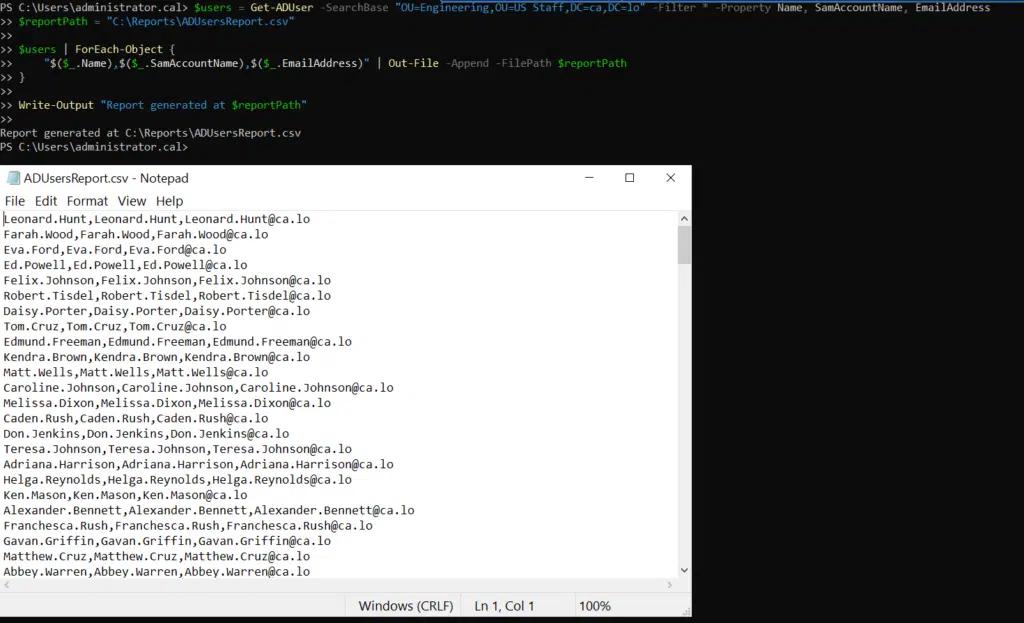
下面的脚本会创建一个 .csv 文件,用于列出特定组织单位(OU)中的所有 Active Directory 用户:
      $users = Get-ADUser -SearchBase "OU=Engineering,OU=US Staff,DC=ca,DC=lo" -Filter * -Property Name, SamAccountName, EmailAddress

$reportPath = "C:\Reports\ADUsersReport.csv"

$users | ForEach-Object {

    "$($_.Name),$($_.SamAccountName),$($_.EmailAddress)" | Out-File -Append -FilePath $reportPath

}

Write-Output "Report generated at $reportPath"
使用循环来筛选日志
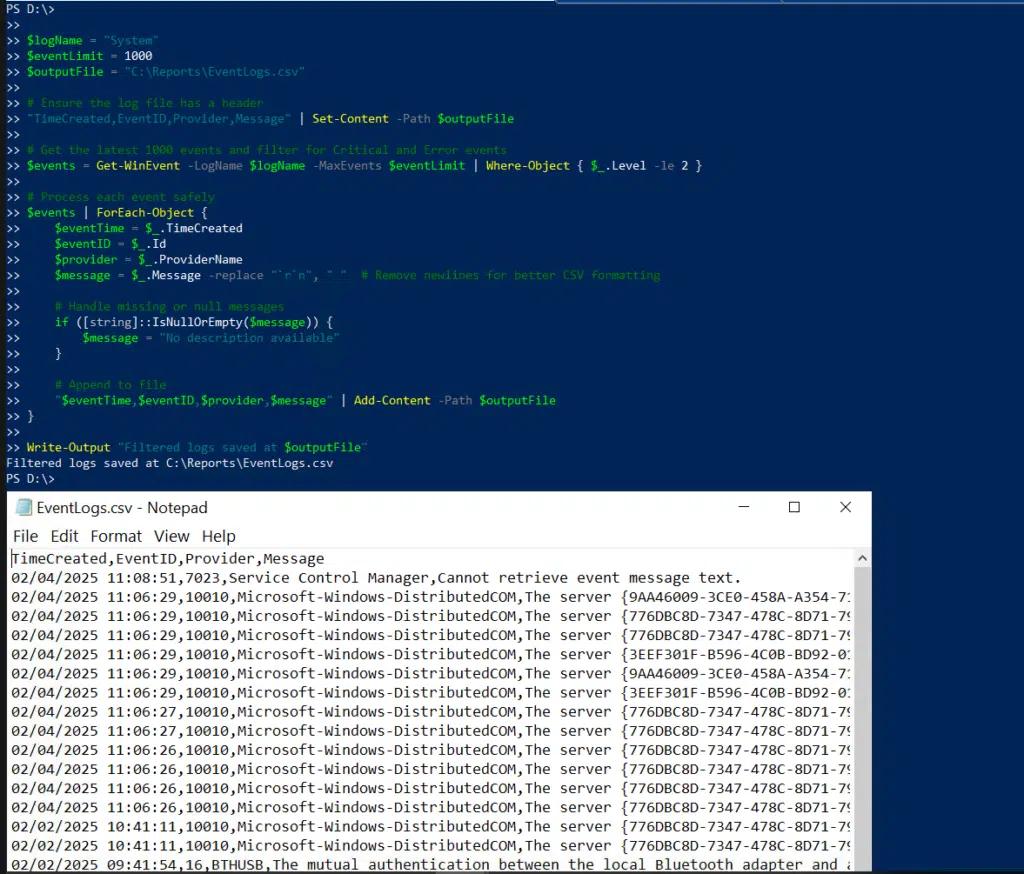
该脚本从系统日志中获取最近的 1,000 条记录,并创建一个 .csv 文件,用于列出关键事件:
      $logName = "System"

$eventLimit = 1000

$outputFile = "C:\Reports\EventLogs.csv"

# Ensure the log file has a header

"TimeCreated,EventID,Provider,Message" | Set-Content -Path $outputFile

# Get the latest 1000 events and filter for Critical and Error events

$events = Get-WinEvent -LogName $logName -MaxEvents $eventLimit | Where-Object { $_.Level -le 2 }

# Process each event safely

$events | ForEach-Object {

    $eventTime = $_.TimeCreated

    $eventID = $_.Id

    $provider = $_.ProviderName

    $message = $_.Message -replace "`r`n", " "  # Remove newlines for better CSV formatting

    # Handle missing or null messages

    if ([string]::IsNullOrEmpty($message)) {

        $message = "No description available"

    }

    # Append to file

    "$eventTime,$eventID,$provider,$message" | Add-Content -Path $outputFile

}

Write-Output "Filtered logs saved at $outputFile"
用于 DevOps 和云运维的 PowerShell 循环
面向云基础设施管理的基于循环的自动化
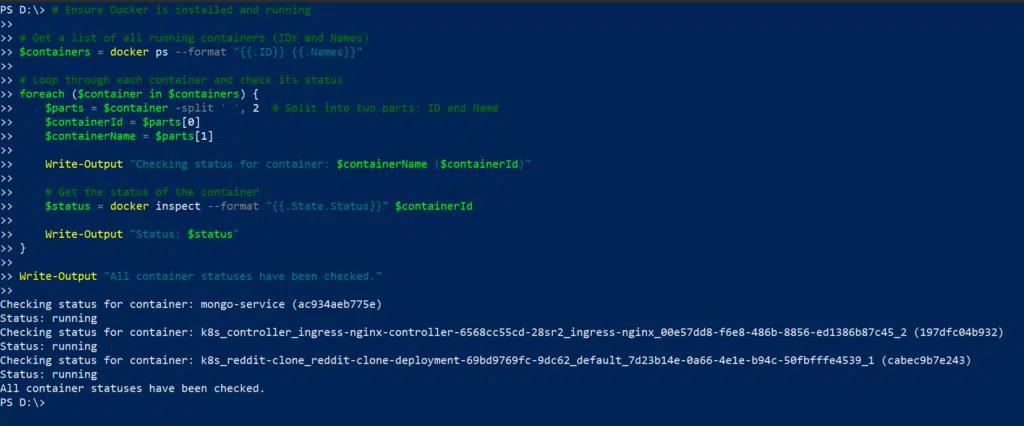
在现代 DevOps 和云环境中,PowerShell 循环在管理和扩展基础设施方面发挥着重要作用。管理员可以自动化诸如更新虚拟机和 docker 容器、以及在整个云基础设施中应用安全补丁等重复性任务。循环可以遍历诸如 Azure Resource group 之类云基础设施中的虚拟机,以检查其健康状态,并启动任何意外停止的虚拟机。同样地,在容器化环境中,循环也有助于自动化诸如拉取更新后的 docker 镜像、重启已停止的容器以及确保服务可用性等任务。
通过循环遍历虚拟机或容器以进行更新或检查
下面的脚本使用 ForEach 循环来检查每个 Docker 容器的状态,提取其 ID 和名称,并将其状态打印到控制台:
      # Ensure Docker is installed and running

# Get a list of all running containers

$containers = docker ps --format "{{.ID}} {{.Names}}"

# Loop through each container and check its status

foreach ($container in $containers) {

    $containerId, $containerName = $container -split ' '

    Write-Output "Checking status for container: $containerName ($containerId)"

    # Get the status of the container

    $status = docker inspect --format "{{.State.Status}}" $containerId

    Write-Output "Status of container $containerName: $status"

}

Write-Output "All container statuses have been checked."
结论
PowerShell 提供多种循环类型,用于创建可满足广泛使用场景的脚本,包括 For、ForEach、While、Do-While 和 Do-Until 循环。Try-Catch 块以及 Break-Continue 语句能够实现对错误情况的顺畅处理,并提升脚本效率。为提升你在循环方面的技能,欢迎在此处尝试实验这些代码示例。
常见问题
ForEach 和 ForEach-Object 有什么区别?
ForEach 循环用于遍历内存中的数据集合,而 foreach-object cmdlet 用于处理来自管道的数据。foreach-object 具备更高的内存效率:它会逐个处理通过管道流式传输的每个项目。相比之下,foreach 更适合用于较小的数据集,性能更快。
如何为大规模数据集优化 PowerShell 循环?
处理大规模数据集时,你可以在进入循环之前先对数据进行筛选,使用 foreach-object cmdlet 而不是 foreach 循环,并在循环之外预先计算需要的值,以避免每次迭代中重复执行运算。这样可以最大限度地减少内存使用和执行时间。
是否可以提前退出 PowerShell ループ?
可以。你可以使用 Break 和 Continue 语句来退出循环,或者仅退出当前迭代。Break 语句会立即终止整个循环,并将控制权转移到下一条语句;而 Continue 语句会跳过当前迭代中剩余的语句,继续执行下一次迭代。
在 PowerShell 中调试循环的最佳方法是什么?
在 PowerShell 中调试循环的一个好方法是使用 Write-Host、Write-Debug 或 Write-Output,在每次迭代期间打印变量的值。
分享到
了解更多
关于作者

Tyler Reese
产品管理副总裁,CISSP
凭借在软件安全行业超过二十年的经验,Tyler Reese 对当今企业面临的快速演变的身份与安全挑战非常熟悉。目前,他担任 Netwrix Identity and Access Management 组合的产品总监;他的职责包括评估市场趋势、确定 IAM 产品线的发展方向,并最终满足终端用户的需求。他的职业经历从为财富 500 强公司提供 IAM 咨询,到在一家大型直销面向消费者(direct-to-consumer)的公司担任企业架构师,涵盖范围十分广泛。 目前,他持有 CISSP 认证。