
How to set up and manage SharePoint permission groups
Aug 26, 2025
SharePoint group permissions reduce access sprawl by assigning consistent rights to groups instead of individual users. This approach simplifies onboarding, offboarding, and permission changes across growing sites and libraries. Effective management requires group-based least privilege, controlled inheritance, scheduled membership reviews, and change auditing to identify and correct permission drift over time.
Most organizations don't remove access to sensitive data automatically and immediately once it's no longer needed. The Netwrix 2026 Data and Identity Security Report puts the number at 76%.
For SharePoint group permissions specifically, that gap becomes harder to close as environments grow from a single team site into hundreds of sites, libraries, subsites, and shared folders.
Groups are the primary lever for governing that growth. SharePoint team sites created from the team site template automatically include three default groups: Owners, Members, and Visitors.
Administrators can also create custom groups to match least-privilege needs, managing them from the Gear icon → Site permissions, using the full permissions settings page for custom groups and permission levels.
That structure reduces individual permission entries, but it still drifts when owners add people without documenting why or grant elevated access for a temporary task. An unreviewed Owners group is how a departed contractor keeps admin rights for months after the project ends.
How SharePoint permission groups work
A SharePoint group applies one permission level to everyone in it. Assign the level once, and every current and future member gets exactly that access until someone removes them or the level changes.
A group turns one permission level into shared access
A SharePoint group is a set of users who all share assigned permission levels on a site. Each permission level bundles related permissions together, and assigning that level to a group extends it to every member. When administrators add users to the group, those users inherit whatever the group can do, and removing them takes away that access in one step.
That inheritance also separates two related but different things: the site's permission set, which lists every group and any individual grants, and each group's own permission set, which comes from the levels assigned to that group.
That access is only as good as who's in the group
Group membership can come from several identity sources: individual SharePoint users, plus users or security groups from Active Directory Domain Services (AD DS), Microsoft Entra ID, Lightweight Directory Access Protocol version 3 (LDAPv3)-based directories, application-specific databases, and identity models such as Microsoft account. You can organize users into any number of groups depending on the size and complexity of your organization or site.
One structural limit shapes how that membership gets organized: SharePoint groups can't contain other SharePoint groups, so administrators must configure any nesting upstream, in Active Directory (AD) or Entra ID security groups, before adding those groups to SharePoint.
That limit is what produces two ways to grant access
That nesting limit leaves administrators with two ways to grant permissions to a site through groups. The first is to add a user directly to a SharePoint group. The second is to give an Active Directory security group access to the site, either by granting it a permission level directly or by placing it inside a SharePoint group that already holds one.
The second approach centralizes membership management in the directory, which pays off when the same people need access to more than one site.
Default group types
Site templates can include predefined groups at the site level, and administrators can assign permissions to them within their site collection. Depending on the modern team site template and configuration, the groups and their permission levels can include:
- Visitors: Read
- Members: Edit
- Owners: Full Control
- Viewers: View Only
The Owners group can change site settings, manage membership, and alter permissions. Members can view, add, update, and delete list items and documents. Visitors can open pages and download documents without changing anything.
Older SharePoint Server templates can include legacy groups such as Enterprise Readers, Enterprise Members, Designers, Editors, and Enterprise Owners, with Read, Contribute, Page Design, List Editing, and Full Control capabilities. Administrators of classic on-premises farms may encounter these groups, and they can change any built-in group by assigning it a different permission level.
Netwrix Auditor records before-and-after values for access and change events across hybrid Microsoft environments. Download a free trial
How permission levels map to groups
Permission levels are the building blocks behind every group. Each level is a named bundle of individual permissions, and administrators can assign one or more levels to a group at a site, list, or library scope. The default levels in Microsoft's reference are:
- View Only: View pages, items, and documents, though downloading is restricted. Default group: Viewers.
- Read: View pages and items, and open and download documents. Default group: Visitors.
- Contribute: View, add, update, and delete list items and documents. Default group: Members (on some templates).
- Edit: Everything Contribute allows, plus add, edit, and delete lists. Default group: Members.
- Design: View, add, update, delete, approve, and customize site pages. Default group: Designers, on legacy templates.
- Full Control: Manage every permission, including site settings, users, and permissions. Default group: Owners.
Work with the default levels where possible, and plan a permission strategy before creating custom ones, accounting for dependent permissions and lockdown mode if the strategy spans many sites. Permission inheritance determines how child sites, lists, and items receive permissions from their parent until an administrator breaks that inheritance.
SharePoint groups vs. Microsoft 365 groups
Team sites connected to Microsoft Teams or Outlook carry two membership systems side by side. The site still has its classic SharePoint groups (Owners, Members, Visitors), and it also has a Microsoft 365 group that controls access across multiple apps.
Modern (Microsoft 365) groups and SharePoint groups grant different access to the site. Adding someone to the team in Teams adds them to the Microsoft 365 group, which in turn lands them in the site's Members group. Adding someone only to a SharePoint group gives them site access without a Teams membership.
This distinction controls access to files or folders uploaded from Teams. Teams stores standard-channel files in the connected SharePoint site, where team members reach them through the Members group.
To restrict a folder to a subset of the team, work in the SharePoint site itself. Open the library or folder's permission settings, stop inheriting permissions from the parent, and grant a custom SharePoint group the level you want. Apply unique permissions at the narrowest scope that meets the documented access requirement, and note which folders have unique permissions.
Where to view SharePoint groups
Site groups live in one place. From any page on the site, click the Gear icon in the top-right corner and select Site permissions. The panel that opens lists the Owners, Members, and Visitors groups and their current members.
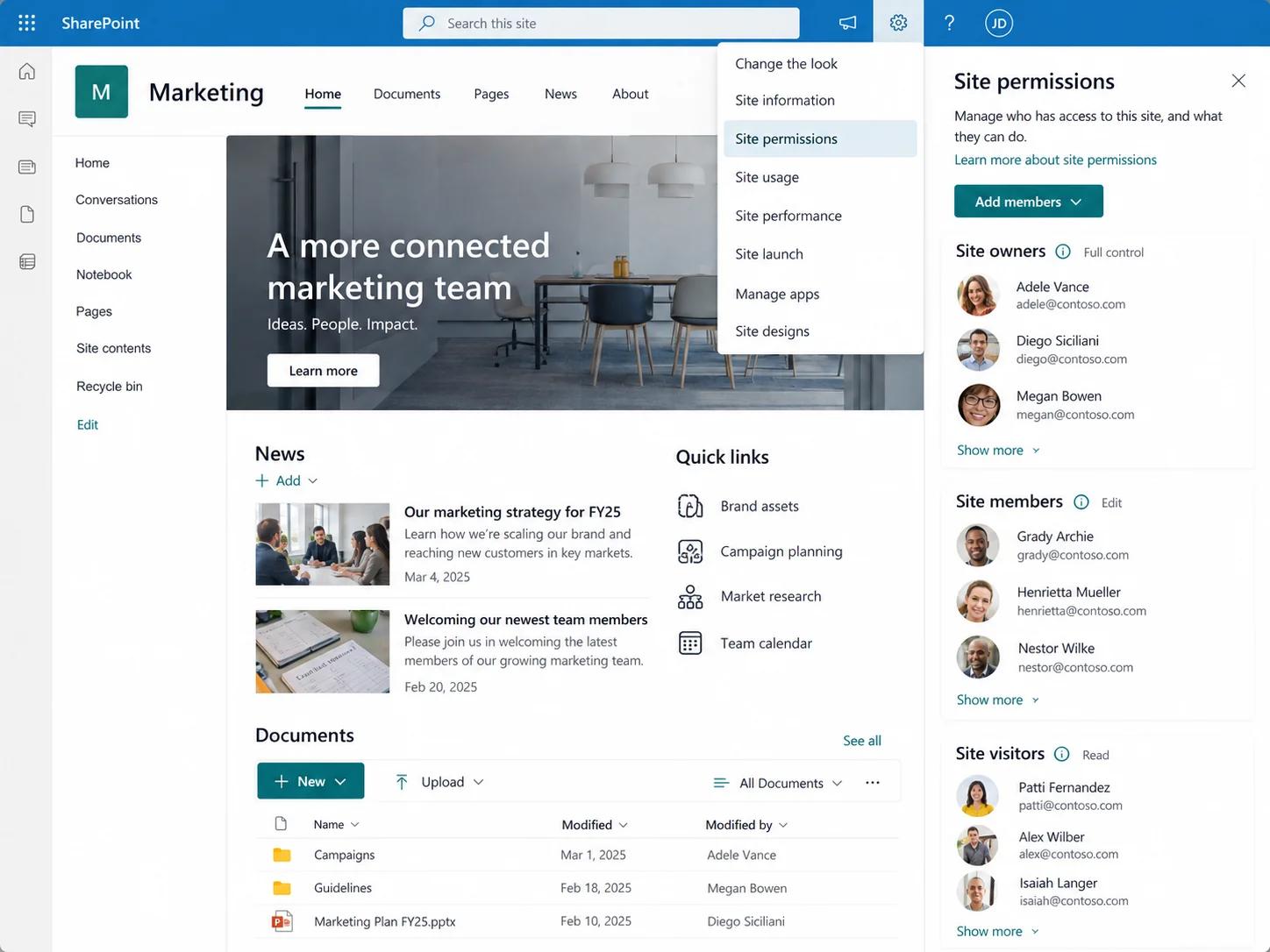
For the full picture, including custom groups and any Active Directory security groups with direct grants, open the full permissions settings page. The People and Groups page in that view lists every group on the site in the left pane, and selecting a group shows its members and settings. A SharePoint Online permissions report turns this live view into a full, exportable record instead.
The same place shows your current level. With Read, you can see content, but you can't edit anything; with Contribute, you can add and change items, but site settings are unavailable. With Full Control, you see the full Site settings menu. If the site refuses to open at all, you have no permission level on it, and the access-denied page lets you request access from the site owner.
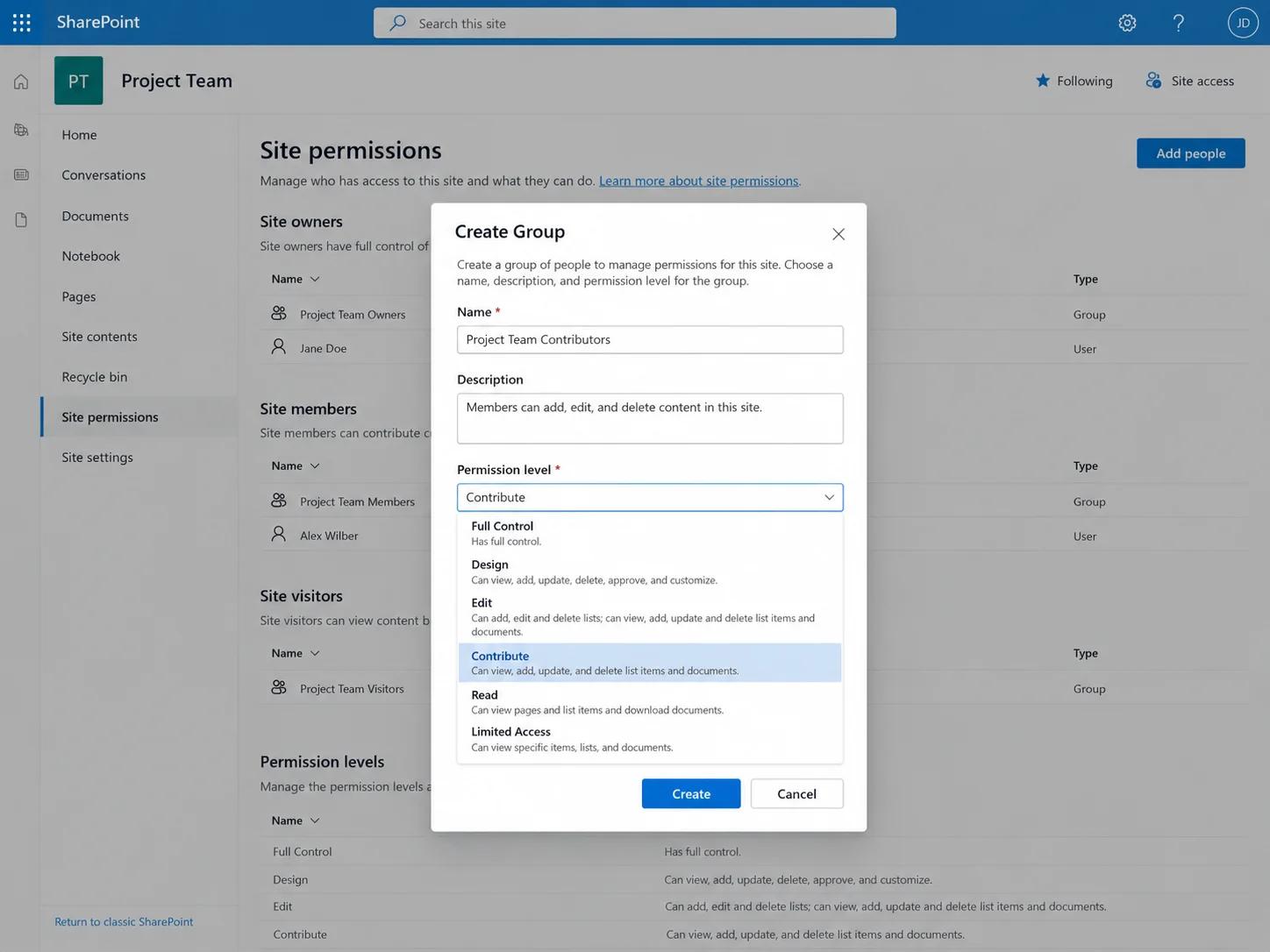
How to create a SharePoint group
Create a custom group when the three defaults can't express a real access boundary, for instance, a review team limited to Contribute access on one library.
1. Open the group creation page
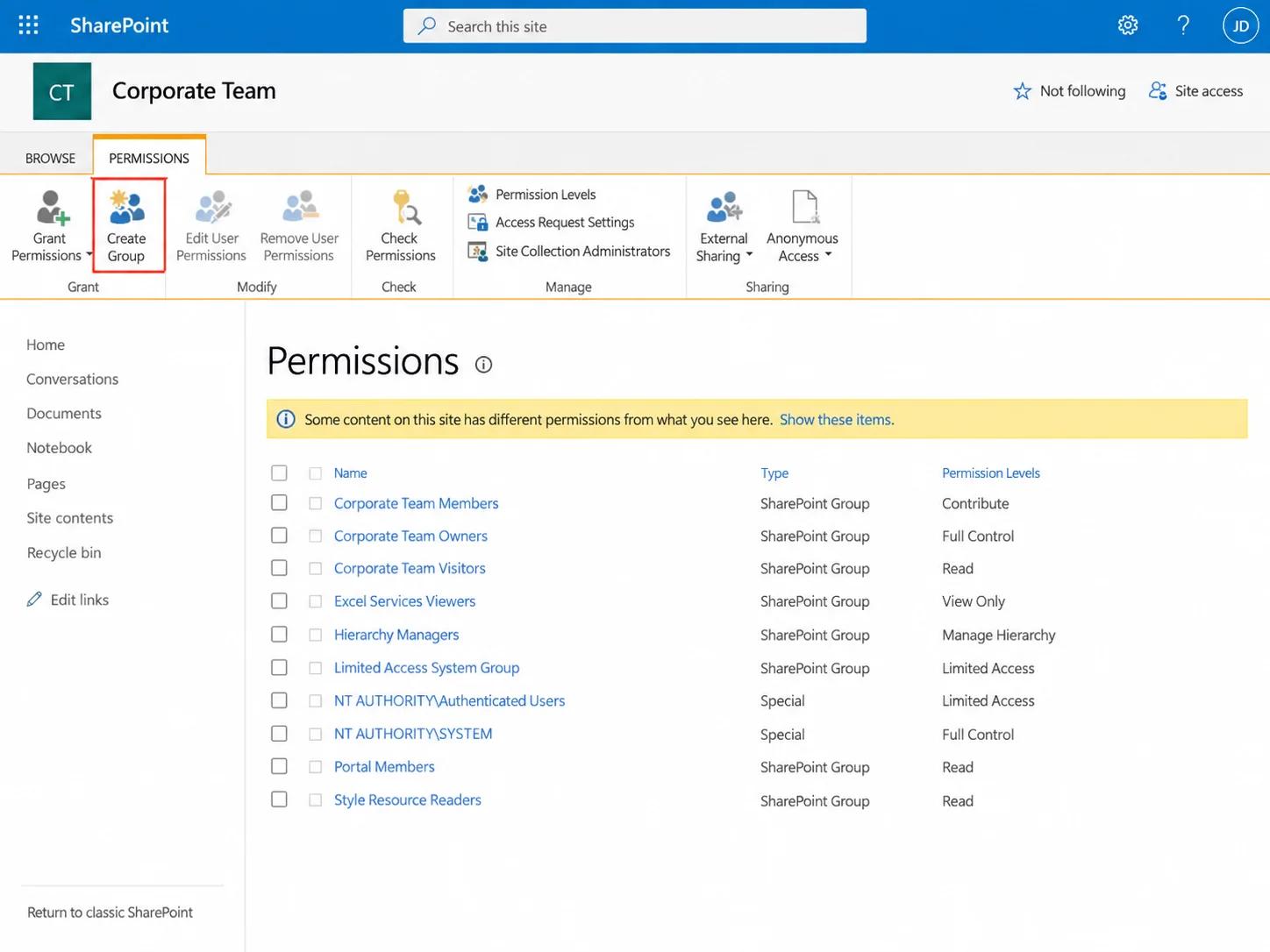
Click the Gear icon, select Site permissions, and then open the full permissions settings page. On the ribbon, choose Create Group.
2. Name the group and set its owner
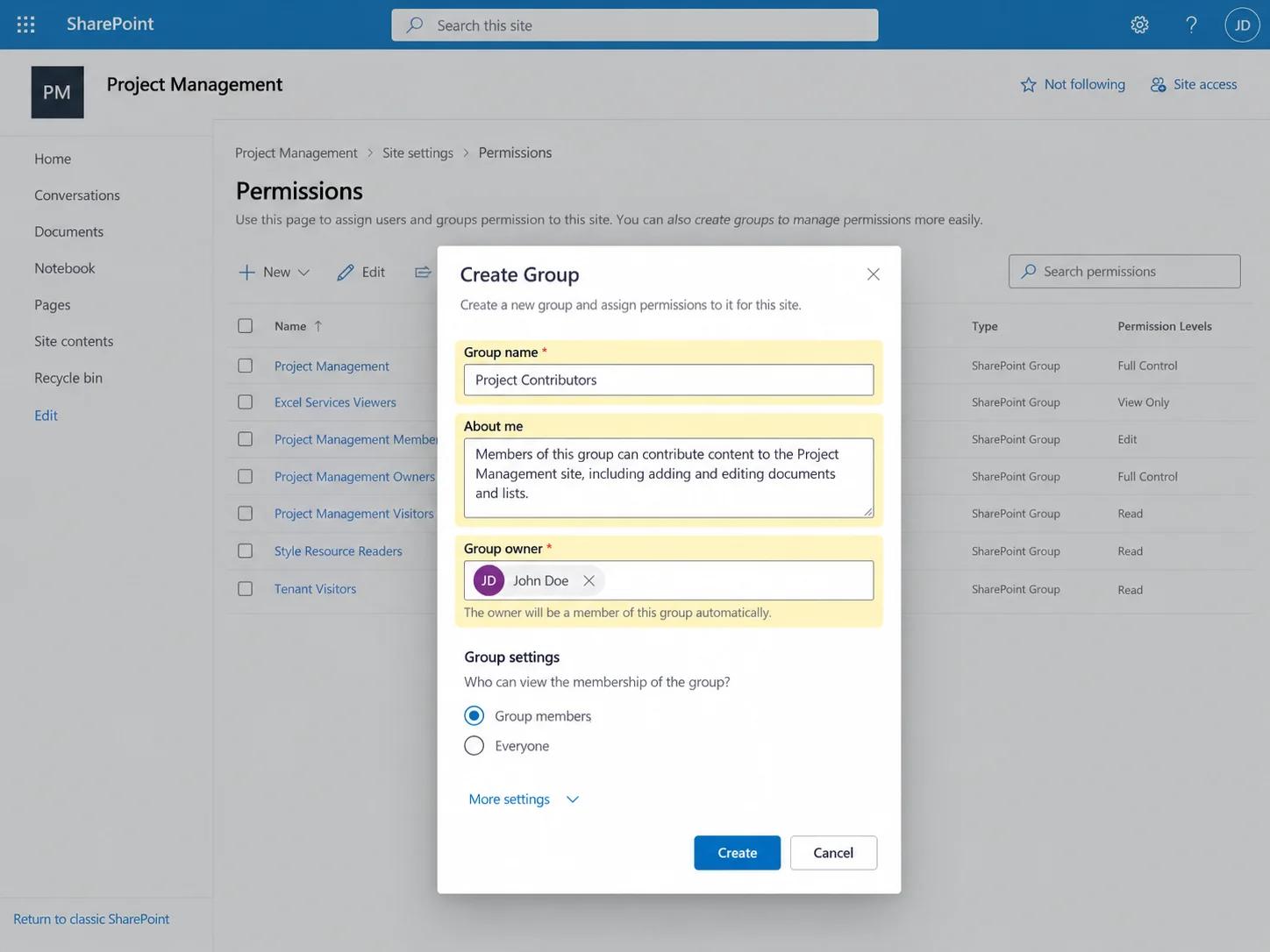
Enter a name and description. Use a name that reflects the business function ("Finance-Contracts-Reviewers") rather than a person or a project code that will mean nothing in a year. Set the group owner. This account can manage membership later, so assign ownership to a role account or a named data owner.
3. Decide who can see and edit membership
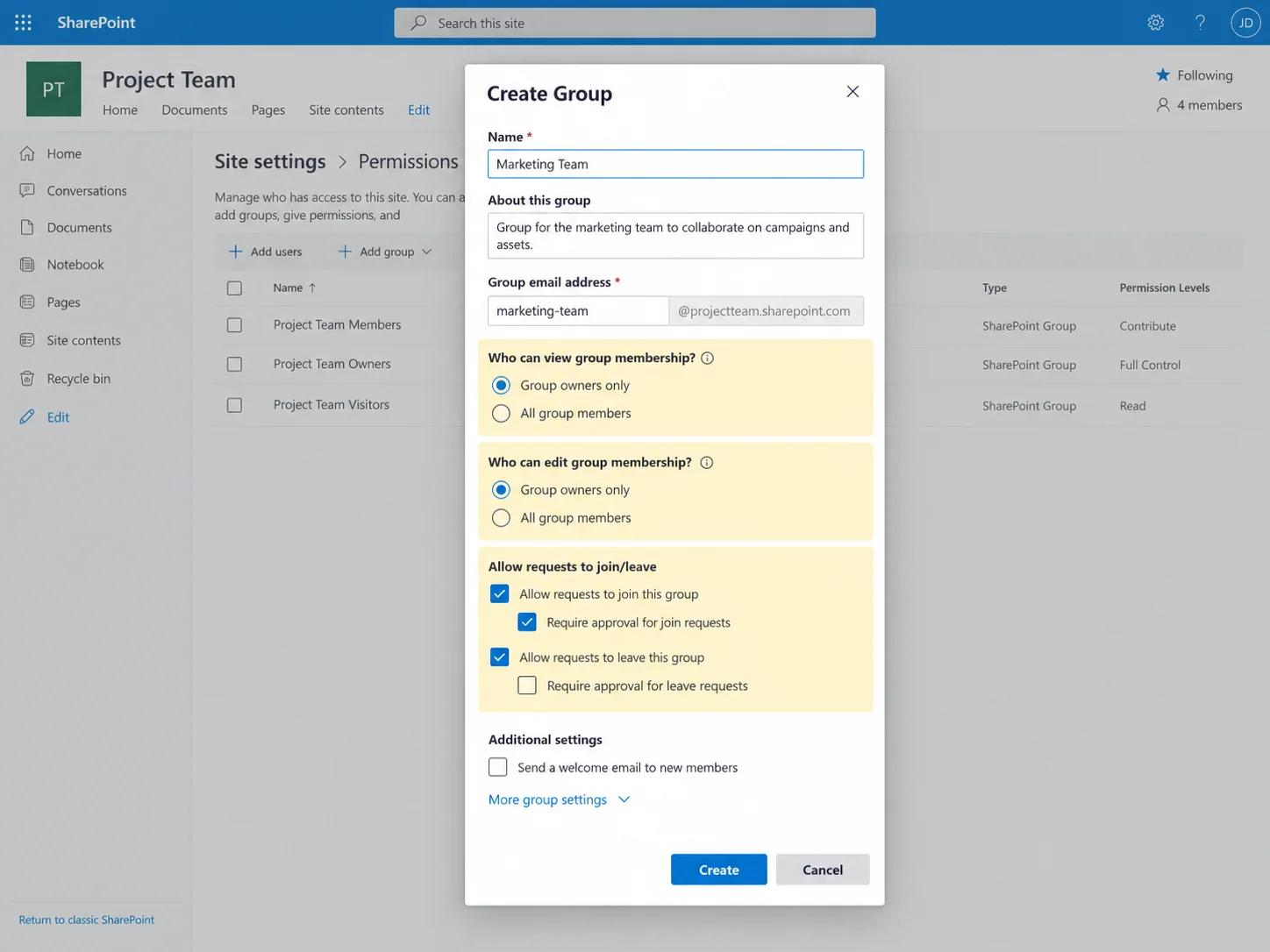
Choose whether only the owner or all group members can view and edit the group's membership. Then decide whether users can request to join or leave the group and whether the owner must approve those requests. Leave auto-accept off for anything above Read.
4. Assign a permission level and create the group
Under the site permissions section, select the permission level the group should hold. Click Create. The new group appears in People and Groups immediately, and any user the owner adds to it gets the assigned level on the site.
How to change SharePoint group membership
Membership edits are the most frequent group task, and they're also where drift begins. Adding and removing users, granting site access to a group, assigning a new permission level, and managing site admins are each handled as a separate action below.
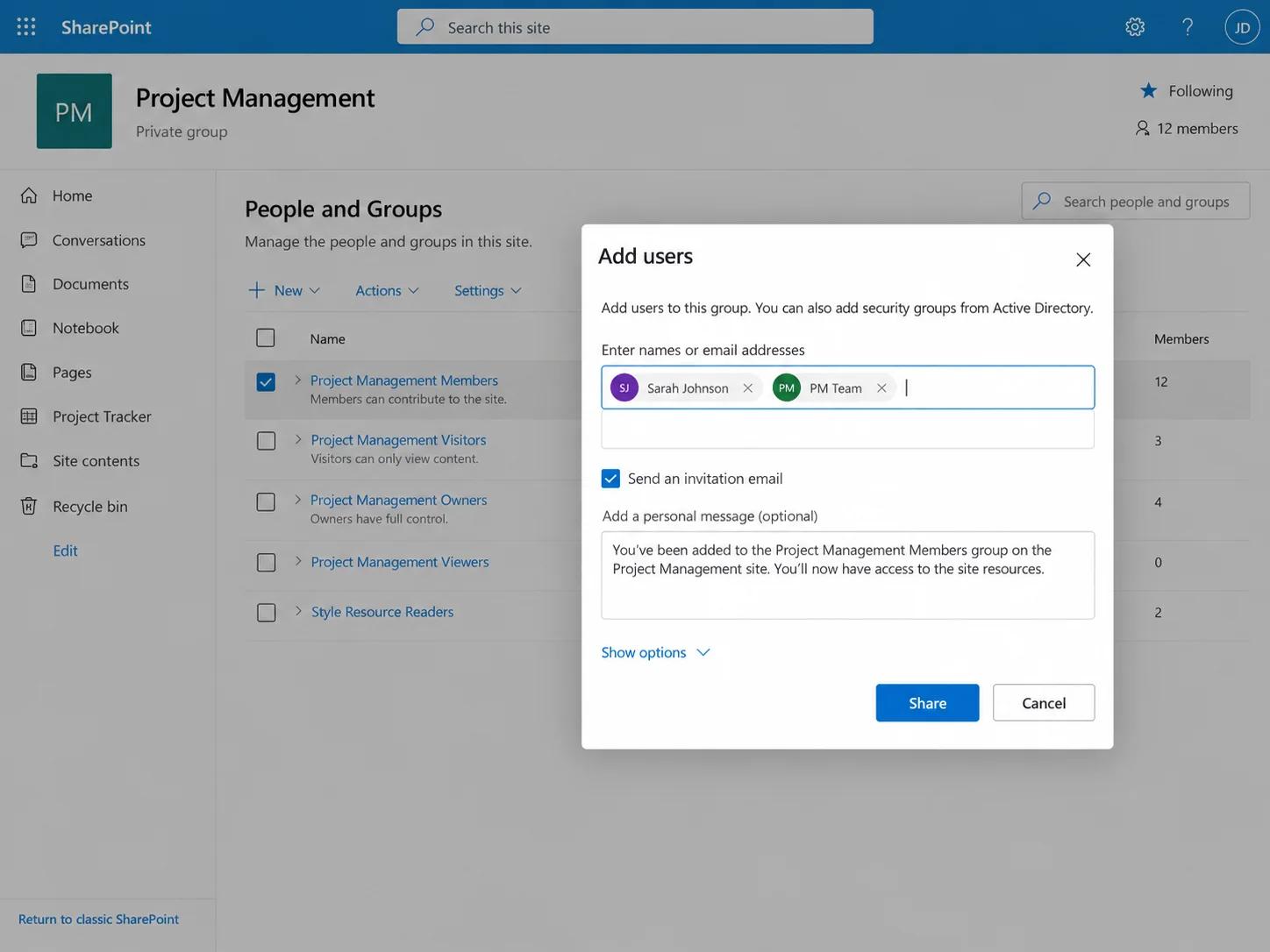
1. Add users to a group
From People and Groups, click the group name in the left pane, then click New and Add Users. Enter one or more usernames or AD security group names, and click Share. SharePoint sends an invitation email by default; disable it if the addition is routine.
2. Remove users from a group
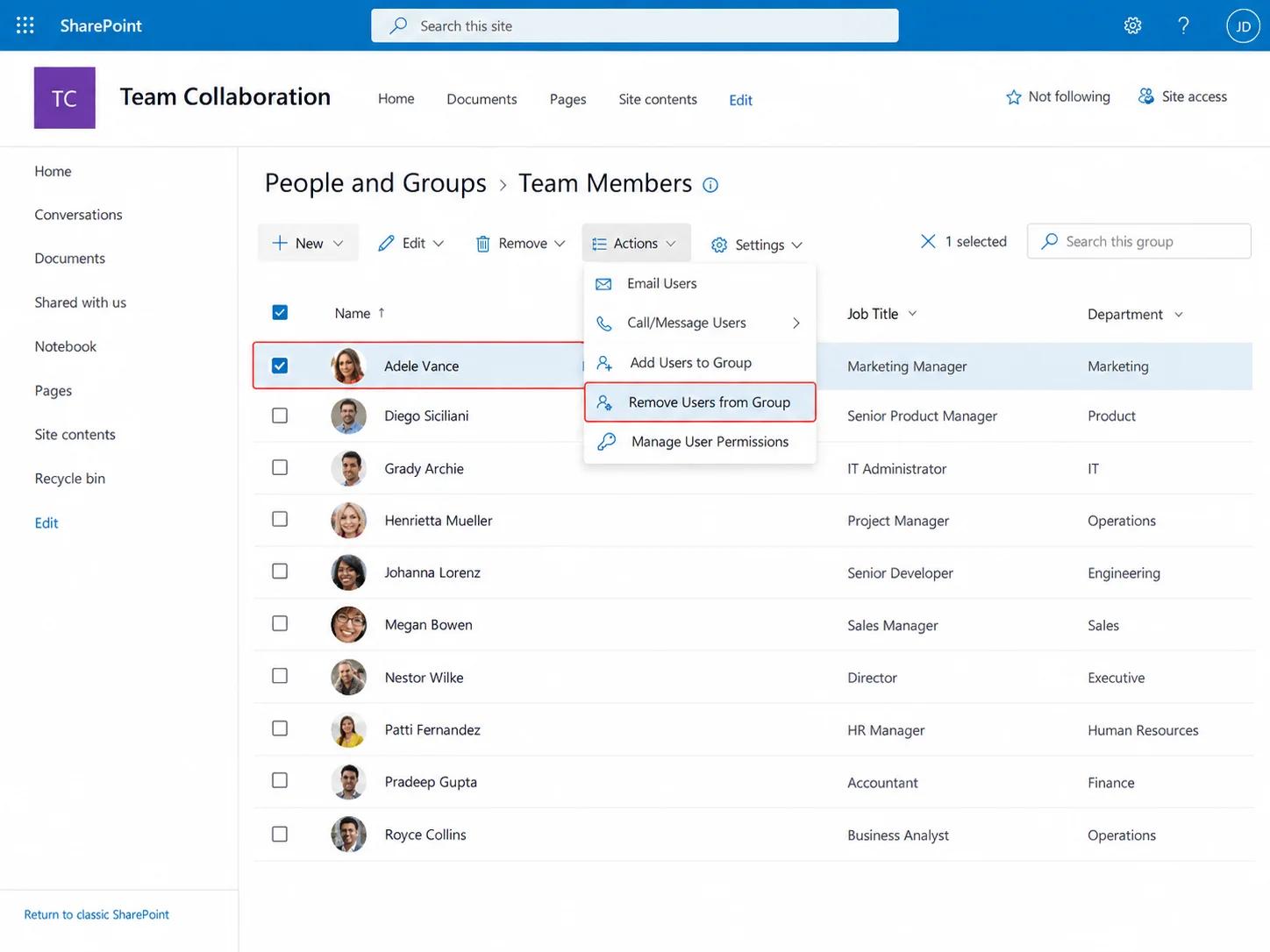
Open the group, tick the checkbox next to each user you want to remove, click Actions, and then Remove Users from Group. Removal revokes access granted through that group.
3. Change the permission level assigned to a group
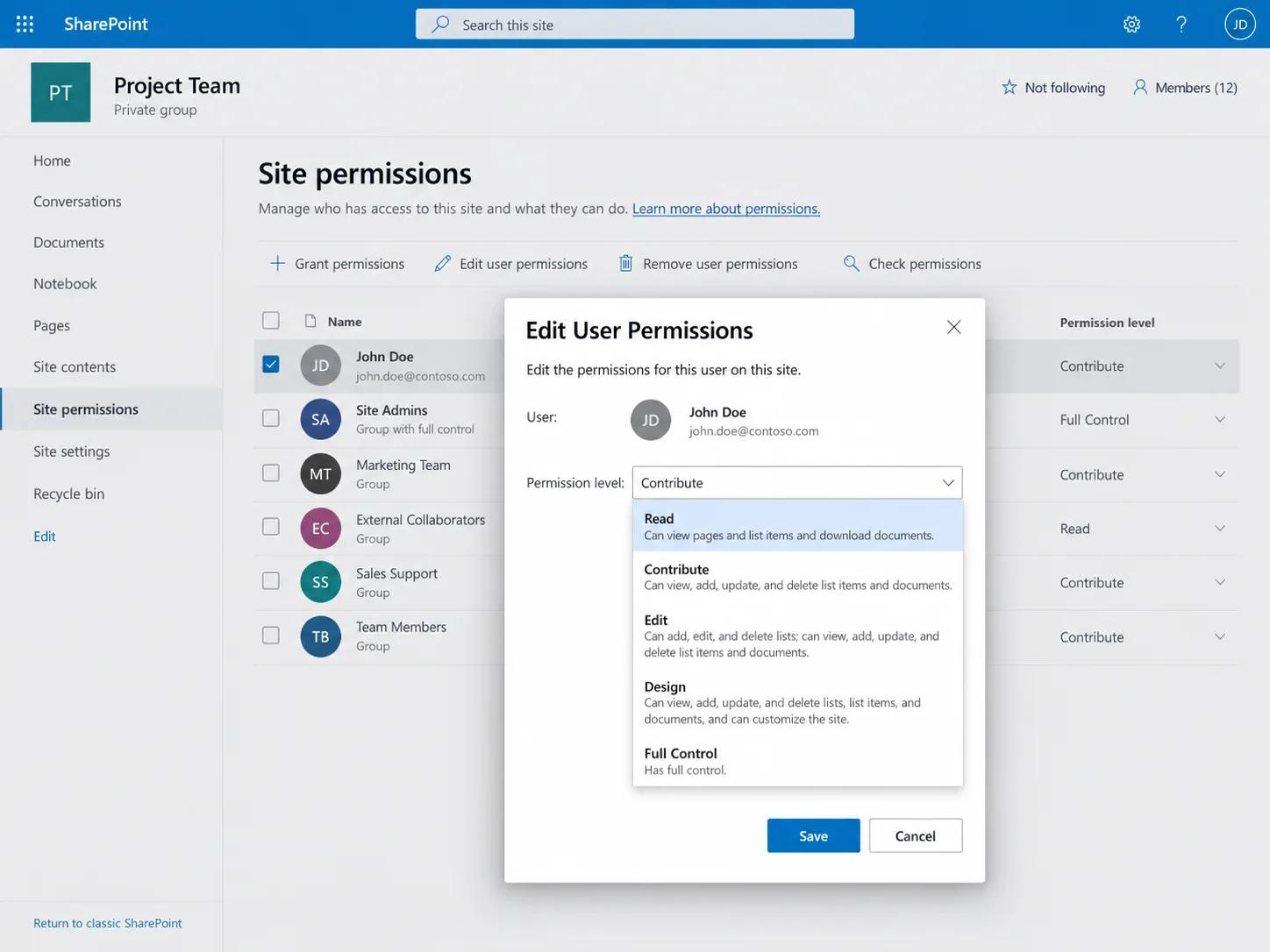
On the full permissions settings page, tick the checkbox next to the group and click Edit User Permissions. Select the new permission level and click OK. Every member of the group now holds the new level. Because this changes access for everyone in the group at once, treat it as a governed change, and prefer creating a second group over promoting an existing one when only some members need more access.
4. Grant an existing group access to a site
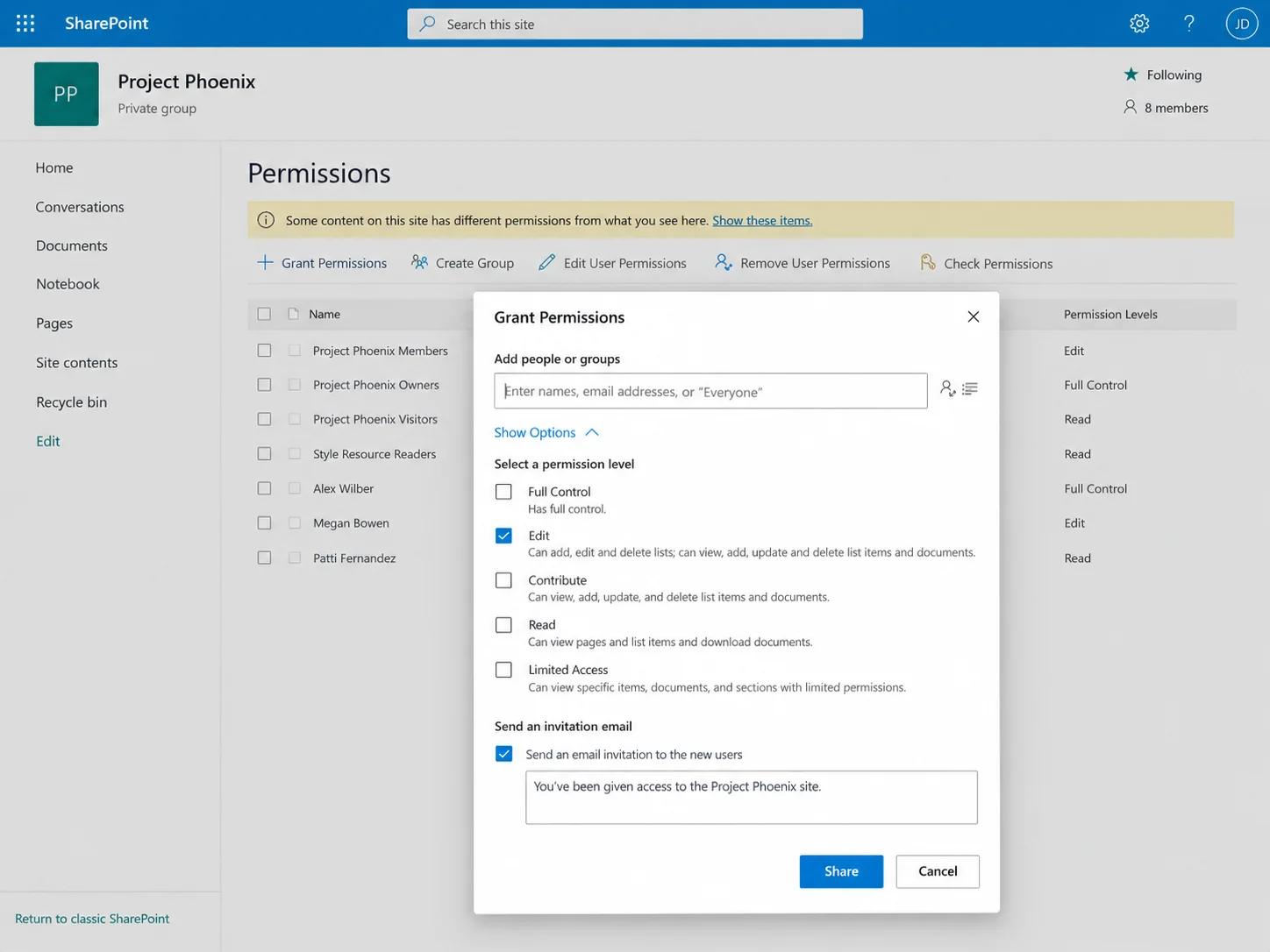
Administrators can grant an existing SharePoint group access to that site's lists and libraries. They can also grant an AD or Entra ID security group access to any site. On the full permissions settings page, click Grant Permissions, enter the group name, expand Show Options, and pick the permission level. Clear the invitation option for security groups.
5. Add, change, or remove a site admin
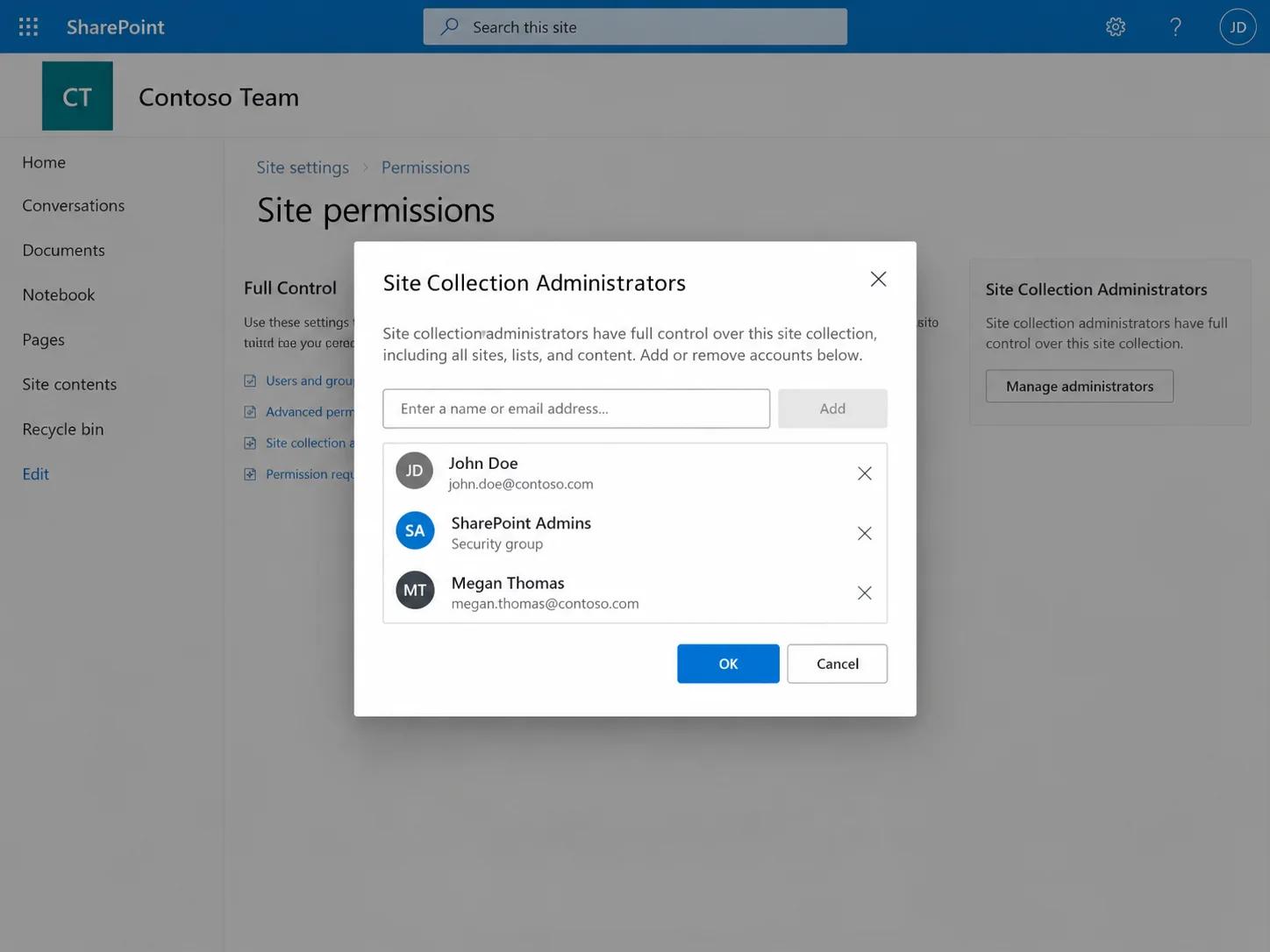
Site collection administrators hold Full Control on every site in the collection, above the access that the Owners group provides. From the Full Permissions settings page, click Site Collection Administrators, add or remove accounts, then click OK. Keep this list to two or three named accounts and review it whenever an admin leaves the organization.
6. Leave a group
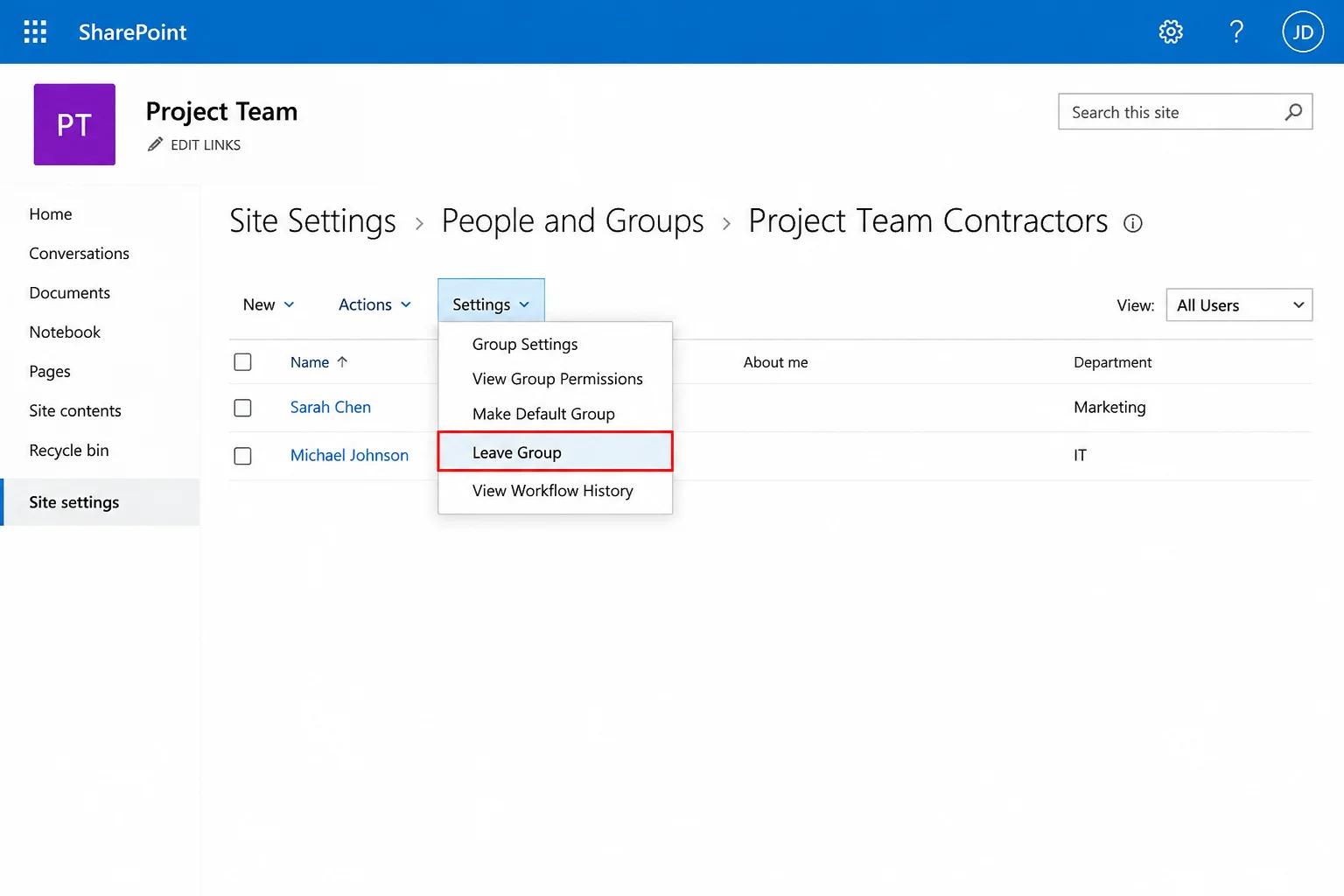
If the group owner enabled leave requests when creating the group, a user can open People and Groups, select the group, and choose Leave Group from the Settings menu. Otherwise, the owner removes them using the steps above. Leaving a group removes only the access the group grants; any direct grant to the user on the site or on individual items stays in place.
How to delete a SharePoint group
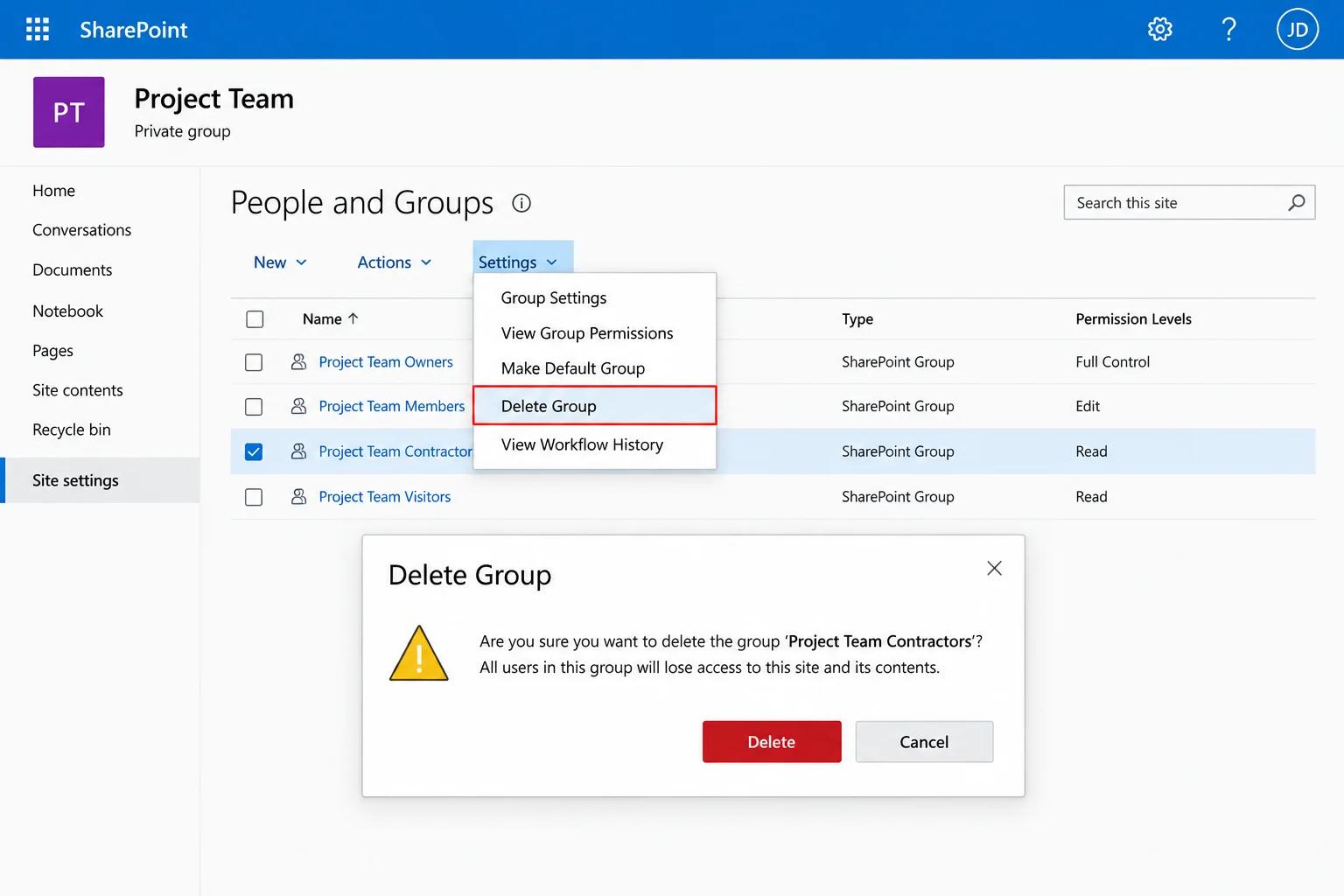
Delete a group when its purpose has ended, for example, a project group whose site has been archived. From Site permissions, open the full permissions settings page and then People and Groups. Select the group, open Settings, choose Group Settings, and click Delete.
Before you confirm, check two things. First, verify the group isn't the only path a current employee uses to reach content they still need. Second, export or screenshot the membership list so you retain a record of who was in it before removal.
Best practices for managing SharePoint permission groups
Group-based access stays defensible only when administrators apply these practices consistently, not just when a group is first created:
- Trust the defaults: Visitors are for readers, Members are for users who create or edit content, and Owners are the two or three people accountable for the site. This model limits custom permission paths and keeps responsibility for site settings, users, and permissions with the Owners group.
- Grant access through groups, not individual items: A group gives collaborators one set of permissions on the site rather than assigning permissions individually to content, per SharePoint group management guidance; using individual grants also complicates membership reviews.
- Keep inheritance intact at the site level: Breaking inheritance on a site or subsite creates a second permission tree that administrators must review separately from the parent and that stops receiving changes made above it. If a subset of content needs different access, break inheritance on the specific library or folder, record why, and decide that structure up front rather than after content is already in place.
- Plan for un-sharing before sharing: Ad hoc shares can create follow-up work for Owners, so establish who is responsible for retracting access. Limit who can share, using a site permissions setting, and train Members to route access requests through the group owner.
- Source membership from AD or Entra ID security groups where you can: A synchronized security group placed inside a SharePoint group means joiner, mover, and leaver changes flow from the directory, and one membership review covers every site the group touches.
- Name groups after business functions and review membership on a fixed schedule: Review more often for sites holding regulated data. If a review finds an unexpected member in Owners, ask who added them and when. Change auditing supplies that answer; the current membership page only shows who's there now.
How Netwrix helps manage SharePoint permission groups
Everything above governs group membership at a point in time; it doesn't show who changed what, or when. Netwrix Auditor is an on-premises change-auditing platform that fills that gap, providing continuous auditing of SharePoint group membership and permissions alongside interactive search and compliance reporting. It deploys in 30 minutes, with first reports within hours.
Tracking who changed group membership, and when
Netwrix Auditor records additions to and removals from SharePoint groups, including the affected user, the group, the timestamp, and the account that made the change. It also audits permission-level reassignments and inheritance breaks.
This supplements the current-state view on the People and Groups page. A site owner who finds an unfamiliar account in Members can search the recorded changes instead of asking around.
Alerting on high-risk group changes
Configured alerts can notify teams about audited high-risk changes, such as adding a user to a privileged group, raising a group's permission level, or adding a site collection administrator. This visibility helps the security team review a potential escalation before the next scheduled membership review. Administrators can focus their review on sites that hold regulated data, which keeps attention on the changes that matter.
Reviewing group membership history over longer periods
When native audit retention or search constraints limit access to an earlier group change, Netwrix Auditor's recorded change history can support the investigation. An auditor can search available retained records to see who held Owner rights on a site eighteen months ago.
Historical membership reports also make quarterly access reviews faster because reviewers can compare current membership against recorded changes since the last review.
CoastHills Credit Union, whose full Netwrix Auditor deployment included SharePoint, saved 10 hours each month on auditing procedures. Reclaiming that time lowers audit labor costs and frees the IT team for higher-value security priorities.
Tracing how an account gained unauthorized access after an incident
After a compromise or a suspected insider event, investigators need to determine how the account reached the data. Netwrix Auditor's membership-change trail records membership updates, such as when someone added the account to a group, which group was involved, and who made the change.
Netwrix also audits SharePoint permission-level changes separately. Audited activity can also show what happened after the access change. Investigators can search recorded SharePoint activity and relevant Active Directory or Entra ID changes instead of reviewing each log separately.
The bottom line on managing SharePoint permission groups
A sustainable SharePoint permission model needs clear ownership, group-based access, limited inheritance breaks, scheduled reviews, and searchable change records. Start by inventorying custom groups and unique permissions, assigning an owner to each exception, and deciding how long the organization must retain evidence of access changes.
Request a demo to see how Netwrix can connect your current SharePoint permissions with retained change history and help you correct drift before it becomes an audit finding.
Frequently asked questions about how to set up and manage SharePoint permission groups
Share on
Learn More
About the author

Jeff Melnick
Director of Systems Engineering
Jeff is a former Director of Global Solutions Engineering at Netwrix. He is a long-time Netwrix blogger, speaker, and presenter. In the Netwrix blog, Jeff shares lifehacks, tips and tricks that can dramatically improve your system administration experience.
Learn more on this subject
Bring Your Own Vault: Why "rip and replace" isn't the only option
Beyond the vault: Zero standing privilege defeats more than password attacks
The password was never the only problem: Legacy PAM vs. modern PAM
The hidden cost of over-permissioned service accounts
Uncovering indirect attack paths to virtualized domain controllers in Azure