
ネイティブ監査
- ファイルサーバーで PowerShell ISE を開き → 次のコードで新しいスクリプトを作成します:
      $search_folder = "\\share\path\"

$out_file = "C:\temp\directpermissionsexport.csv"
$out_error = "C:\temp\errors.csv"

$items = Get-ChildItem -Path $search_folder -recurse

$found = @()
$errors = @()

ForEach ($item in $items) {

try {
$acl = Get-Acl $item.fullname

ForEach ($entry in $acl.access) {
If (!$entry.IsInherited) {
$found += New-Object -TypeName PSObject -Property @{
Folder = $item.fullname
Access = $entry.FileSystemRights
Control = $entry.AccessControlType
User = $entry.IdentityReference
Inheritance = $entry.IsInherited

}
}
}
} catch {

$errors += New-Object -TypeName PSObject -Property @{
Item = $item.fullname
Error = $_.exception
}

}
}

$found |
Select-Object -Property Folder,User,Control,Access,Inheritance |
Export-Csv -NoTypeInformation -Path $out_file

$errors |
Export-Csv -NoTypeInformation -Path $out_err
- 下のパラメータを指定して、スクリプトを実行してください:
- $search_folder: 直接権限を確認したい共有フォルダーへのパスを入力してください
- $out_file: 結果が入ったファイルへのパスを入力してください
- $out_error: エラーログファイルへのパスを入力してください
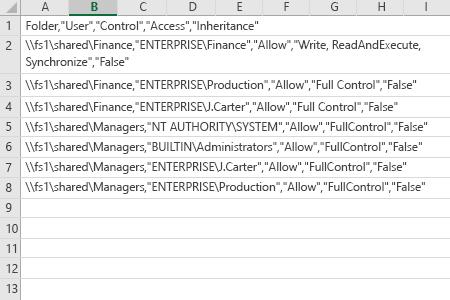
- スクリプトによって生成されたファイルを MS Excel で開きます。
Netwrix Auditor for Windows File Servers
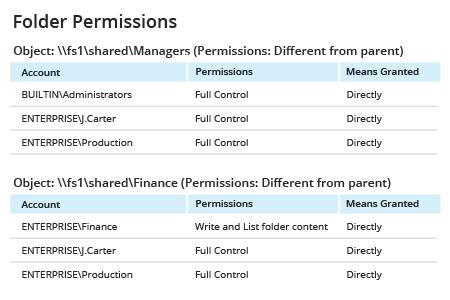
- Netwrix Auditor を実行 → “Reports”に移動 → “File Servers”セクションを展開 → “File Servers - State-in-Time”に移動 → “Folder Permissions”を選択 → “View”をクリック → “Expand Group Membership”フィルターを“No”に設定 → “View Report”をクリックします。
- レポートを保存するには、「Export」ボタンをクリック → ドロップダウン メニューから形式を選択 → 「Save」をクリックします。
共有する