
Netwrix Auditor for Exchange
Netwrix Auditor を実行 → 「Reports」をクリック → Exchange Online を選択 → State-in-Time Reports を選択 → 「 Mailbox Non-Owner Permission Details」を選択 → 「View」をクリック。
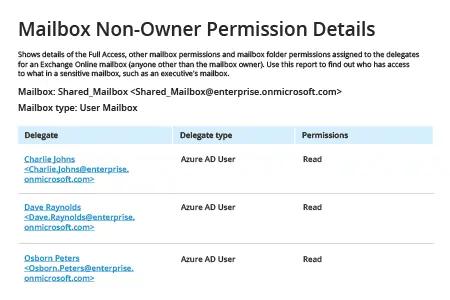
ネイティブ ソリューション
1. 管理者として PowerShell ISE を実行し、次のコマンドを実行して Office 365 PowerShell に接続します:
Set-ExecutionPolicy RemoteSigned
2. 次のコマンドを実行して、Windows PowerShell の資格情報を要求します:
$Cred = Get-Credential
アカウントとパスワードを入力してから [OK] をクリックします。
3. 次のコマンドを使用してセッションを作成し、–ConnectionUri パラメーターを Exchange Online の配置(ロケーション)に基づいて変更します:
$Session = New-PSSession -ConfigurationName Microsoft.Exchange -ConnectionUri https://outlook.office365.com/PowerShell-liveid/ -Credential$Cred -Authentication Basic –AllowRedirection
4. Exchange Online に接続します:
Import-PSSession$Session -DisableNameChecking
5. ユーザー権限レポートを生成するには、次のいずれかを実行します:
- ユーザーの権限を完全に要約するには、次の Get-Mailbox コマンドを使用します。
Get-Mailbox -resultsize unlimited | Get-MailboxPermission | Select Identity, User, Deny, AccessRights, IsInherited| Export-Csv -Path "c:\temp\mailboxpermissions.csv" –NoTypeInformation
- 特定のユーザーに関するレポートが必要な場合は、-identity パラメーターを使用し、-resultsize unlimited の代わりにします。
- フル アクセス権を持つユーザーを絞り込むには、次のパラメーターを使用します。where {($_.accessrights -contains "FullAccess")}:
Get-Mailbox -resultsize unlimited | Get-MailboxPermission| where {($_.accessrights -contains "Fullaccess")} | Select AccessRights,Deny,InheritanceType,User,Identity,IsInherited | Export-Csv -Path "c:\temp\fullaccess.csv" -NoTypeInformation
- 既定では、所有者以外のアクセスも含めたユーザーの完全な一覧が取得されます。直接のユーザー権限に関する情報だけを取得するには、{($_.user -ne "NT AUTHORITY\SELF")} または {($_.user -like '*@*')} を使用します。
Get-Mailbox -resultsize unlimited | Get-MailboxPermission | Select Identity, User, Deny, AccessRights, IsInherited| Where {($_.user -ne "NT AUTHORITY\SELF")}| Export-Csv -Path "c:\temp\NonOwnerPermissions.csv" -NoTypeInformation
- 「Send As」の権限に関する情報を表示するには、Get-RecipientPermission コマンドレットを使用します。
Get-Mailbox -resultsize unlimited | Get-RecipientPermission| where {($_.trustee -ne "NT AUTHORITY\SELF")}|select Identity,Trustee,AccessControlType,AccessRights,IsInherited | Export-Csv -Path "c:\temp\sendaspermissions.csv" –NoTypeInformation
- 「Send on Behalf」の権限を持つメールボックスをレポートするには、次のスクリプトを使用します:
      $GrantSendOn= Get-Mailbox-resultsize unlimited| where {($_.GrantSendOnBehalfTo -ne "")}

$Out=foreach ($user in $GrantSendOn.GrantSendOnBehalfTo) {

$obj= New-Object System.Object

$obj|Add-MemberNoteProperty eMail$GrantSendOn.WindowsEmailAddress

$obj|Add-Member NoteProperty DisplayName $GrantSendOn.DisplayName

$obj|Add-Member NoteProperty User $user

$obj }

$Out| Export-Csv -Path "c:\temp\sendonbehalfpermissions.csv" –NoTypeInformation
6. レポートを確認:
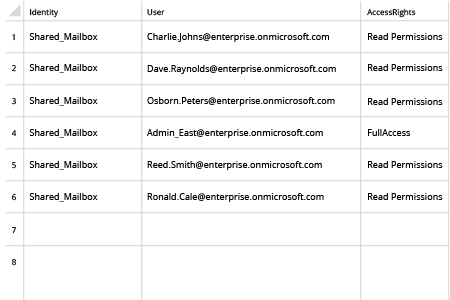
7. 次のコマンドを使用してセッションを終了します:
Remove-PSSession$Session
共有する