
检查、更新并选择 PowerShell 版本
Aug 25, 2025
PowerShell 已从仅限 Windows(5.1)发展为跨平台的 PowerShell 7,基于 .NET,支持 Windows、macOS 和 Linux。了解你的版本对于兼容性、安全性以及访问并行处理等现代功能至关重要。你可以用以下方式检查版本: $PSVersionTable.PSVersion 或通过注册表查询。Windows PowerShell 5.1 仍会预先安装,但 PowerShell 7 需要通过 Microsoft Store、Winget 或 MSI 手动安装。将两者并行运行有助于维护传统与现代的工作流程。
你可能想知道计算机上安装的 PowerShell 版本。虽然新手用户可能会去控制面板中的“程序”查看 PowerShell 版本,但当他们发现这里并没有将 PowerShell 列为程序时,往往会感到很失望。相反,你需要改用其他方法来查找 PowerShell 版本。
本文提供了一份全面指南,用于检查你正在运行的 PowerShell 版本。
面向初学者的 Windows PowerShell 脚本教程(PDF)
了解更多PowerShell 版本简介
PowerShell 已从 Windows 管理工具发展为可在不同平台上使用的多用途 Shell。尤其是 PowerShell Core 6.x 和 PowerShell 7.x 让它成为强大的跨平台自动化与脚本框架。
PowerShell 版本从 1.0 到 7.x 的演进
2006 年,Microsoft 将 PowerShell 1.0 作为面向 Windows 操作系统的 .NET 框架的一部分推出,其中包括 Windows XP(SP2)、Windows Server 2003(r2 SP1)和 Windows Vista。它引入了 Get-Process 和 Get-Service 等 cmdlet,并旨在自动化 Windows 环境中的任务。
Version | Description |
|---|---|
|
PowerShell 2.0 |
PowerShell 2.0 came in 2009. Amongst other things, it introduced remoting (via WinRM) to run commands on remote machines and the Integrated Scripting Environment (ISE) application. |
|
PowerShell 3.0 |
PowerShell 3.0, released in 2012, introduced workflows, new cmdlets and scheduled jobs for task automation. |
|
PowerShell 4.0 |
PowerShell 4.0 (2013), 5.0 (2016), and 5.1 (2016) had improvements in cmdlets, performance, and DSC. Classes and Enums were added to the scripting language. With PowerShell 5.1, there was a shift towards open-source and PowerShell Core. |
|
PowerShell Core 6.x |
Then PowerShell Core 6.x (2018) was open-sourced and moved to GitHub. It was cross-platform, running on Windows, macOS, and Linux. Not only that, but it was also built for heterogeneous environments and the hybrid cloud. |
|
PowerShell 7.x |
PowerShell 7.x (2020) is the most recent version. It unifies Windows PowerShell and PowerShell Core into a single version stream, supports pipeline parallelization, and improves error handling amongst other things. |
为什么要识别正确的 PowerShell 版本
在日常任务中使用 PowerShell 之前,你可能会问自己一个问题:我当前安装的是哪个版本的 PowerShell?回答这个问题很重要,因为你的 PowerShell 版本决定了你可以使用哪些 cmdlet 和函数。出于这个原因以及许多其他原因,你必须确定需要使用哪一个 PowerShell 版本来管理你的任务。
- 兼容性。某些脚本或模块需要特定的 cmdlet 或功能,而这些只在最新的 PowerShell 版本中才可用。现代 PowerShell 版本支持旧脚本,但对于已过时的功能会给出弃用警告(deprecation warnings)。
- 结果的准确性。 某些 PowerShell 版本可能无法得到你所期望的准确结果,例如当你必须满足特定要求或前置条件才能运行命令或加载模块时。
- 跨平台支持。 对于 Linux 或 macOS,你需要 PowerShell Core 或 PowerShell 7.x。
- 高级功能。 较旧的版本不支持最新功能,例如 PowerShell 7.x 中提供的管道并行、??(空合并运算符)以及 ForEach-Object -Parallel。
- 云与 DevOps 集成。 较新的 PowerShell 版本可与云平台(例如 Azure、AWS))、DevOps 工具以及 CI/CD 管道实现更深度的集成,从而便于进行基于云的管理。
- 安全要求。 出于安全和合规方面的考虑,建议使用最新的 PowerShell 版本。
- 环境配置。 要在整个环境中使用工具或自动化流程,了解版本有助于确保各系统之间的兼容性。
Windows PowerShell 与 PowerShell Core 的区别
Windows PowerShell 和 PowerShell Core 的主要区别包括:
Feature | Windows PowerShell | PowerShell Core |
|---|---|---|
|
Platform |
Windows-only |
Cross-platform (Windows, macOS, Linux) |
|
Version |
Last major version: 5.1 |
Ongoing releases (7.x and beyond) |
|
Framework |
Based on .NET Framework |
Based on .NET Core (now .NET) |
|
Release Model |
Only bug/security fixes |
Active development with new features |
|
Installation |
Is pre-installed with Windows OS |
Has to be downloaded separately from GitHub or package managers |
|
Backward Compatibility |
Tight integration with Windows (e.g., WMI, COM) |
May have limited Windows-specific features |
|
Performance |
Faster in some Windows-native scenarios |
Better performance on multiple platforms |
|
Module Compatibility |
Supports many legacy modules |
Some older modules may not be compatible |
|
Cloud/Container Support |
Limited support for containers and cloud environments |
Better support for containers and cloud |
|
Open Source |
Proprietary |
Open-source (MIT license) |
如果你使用传统的、仅适用于 Windows 的功能或模块,那么 Windows PowerShell 是更好的选择。但如果是跨平台开发以及基于云的工作流,PowerShell Core 则更合适。
如何查看 PowerShell 版本
了解已安装的 PowerShell 版本出于多种实际原因非常重要,因为你的版本决定了可供使用的 cmdlet 和函数。不同版本可能会对不同脚本、模块和平台提供不同程度的支持。为了实现 PowerShell 的顺畅运行,你必须知道自己正在使用的 PowerShell 版本、其限制以及其核心功能。
查看 PowerShell 版本的方法很简单。检查 PowerShell 版本的最简单方式是通过 PowerShell 本身来完成。例如,你可以通过 PSVersionTable.PSVersion 或 Get-Host cmdlet 来显示你正在使用的 PowerShell 版本。
PowerShell 版本命令:$PSVersionTable.PSVersion
这也是获取 PowerShell 版本的最可靠方法,因为它会专门返回有关 PowerShell 引擎版本的信息。
$PSVersionTable.PSVersion

此 cmdlet 会显示已安装的 PowerShell 的主版本、次版本以及构建(补丁)版本。如适用,还会显示修订号(revision number)。
如果你想查看比仅版本更多的详细信息,请尝试以下 cmdlet:
$PSVersionTable
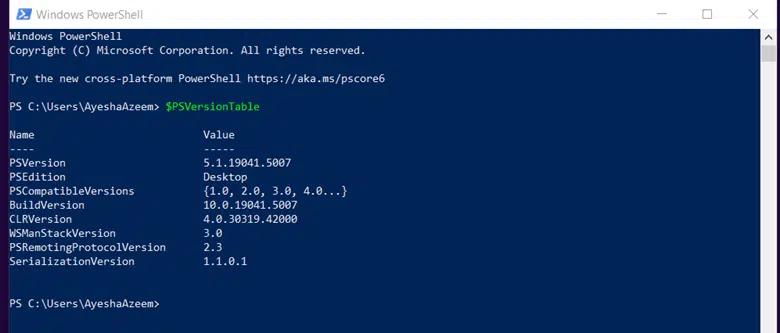
$PSVersionTable 除了版本之外,还会显示若干与环境相关的属性。
- PSVersion – 显示 PowerShell 的版本
- PSEdition – 显示它是 Desktop(Windows PowerShell)还是 Core(PowerShell Core / PowerShell 7+)
- WSManStackVersion – 显示 WS-Management(用于远程)的版本
- PSRemotingProtocolVersion – 远程(Remoting)协议版本
- SerializationVersion – 用于在远程会话中保持与旧版本的兼容性
使用 Get-Host 命令获取 PowerShell 版本的方法
主机(host)是用于承载 PowerShell 引擎的程序。而且你可以使用版本与 PowerShell 无关的主机。
下面的 cmdlet 会输出你正在运行的 PowerShell 版本,但这个版本可能并不准确,因为它反映的是主机版本,而不是引擎版本。
Get-Host

在很多情况下,PowerShell 版本与主机(host)的版本相同。除了主机版本外,这个 cmdlet 还会显示主机名称、当前区域设置(current culture)以及 UI 区域设置(UI culture)。
Get-Host 命令在远程环境中无法工作,并且始终返回版本 1.0.0.0。
$Host 和 $Host.Version 命令
$host 是一个自动变量,用于显示与 Get-Host cmdlet 相同的信息。
$host

如果你想查找 PowerShell 的版本,那么出于与 Get-Host 相同的原因,不建议使用 $host。$host.Version 也是同样的情况。
$host.Version

它会以不同的格式显示正在运行当前 PowerShell 会话的宿主应用程序版本。
注册表编辑器
您可以通过注册表编辑器,使用以下任一种方式检查 PowerShell 版本:
- 使用 Get-ItemProperty cmdlet 查询注册表,以获取已安装的 PowerShell 版本。
- 打开注册表编辑器,并手动查找 PowerShell 版本详细信息的路径。
通过 Cmdlets
适用于 PowerShell 版本 5
你可以使用 ‘Get-ItemProperty’ cmdlet 查看 PowerShellVersion 注册表项,其内容如下:
(Get-ItemProperty -Path HKLM:\SOFTWARE\Microsoft\PowerShell\3\PowerShellEngine -Name 'PowerShellVersion').PowerShellVersion
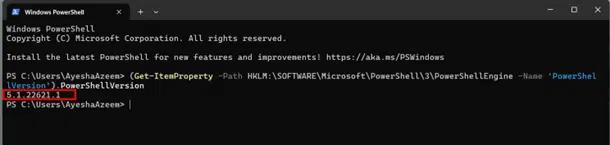
适用于 PowerShell 版本 7
如果你已安装 PowerShell 7 或更高版本,请使用以下 cmdlet:
Get-ItemProperty -Path 'HKLM:\SOFTWARE\Microsoft\PowerShellCore' | Select-Object -Property PSVersion
手动方法
你可以在“注册表编辑器”中获取 PowerShell 的配置和版本信息。
适用于 PowerShell 版本 5
在“注册表编辑器”中,展开 Computer > HKEY-LOCAL-MACHINE > SOFTWARE > Microsoft > PowerShell >3 > PowerShellEngine。在相邻窗格中,你将看到包括 PowerShell 版本号在内的信息。

适用于 PowerShell 版本 7
如果已安装 PowerShell 7,请在注册表编辑器中转到以下路径以检查版本:
计算机 > HKEY_LOCAL_MACHINE > SOFTWARE > Microsoft > PowerShellCore > InstalledVersions > 31ab5147-9a97-4452-8443-d9709f0516e1
用于版本识别的高级技术
在远程系统上查找 PowerShell 版本
先决条件
在远程计算机上检查 PowerShell 版本之前,必须满足以下先决条件。
- 远程计算机上已安装并启用 Windows Management Framework (WMF)。
- WinRM(Windows Remote Management)在本地和远程计算机上都已配置并正在运行。
运行“winrm quickconfig”,以准备计算机,使其可以通过 PowerShell 进行远程访问。 - 你在远程计算机上拥有所需的权限。
在远程计算机上检查 PowerShell 版本
使用带有 $PSVersionTable 的 Invoke-Command cmdlet,检查远程计算机上安装的 PowerShell 版本。
      Invoke-Command `
  -ComputerName WS16-DC1 `
  -ScriptBlock { $PSVersionTable.PSVersion } `
  -Credential $cred
注意:
- 在此命令中,将 ComputerName(WS16-DC1)替换为你的特定计算机名称,并将 $cred 下方的凭据替换为有效的用户名和密码。
- 通过使用逗号分隔值,你可以一次有效地处理多个远程计算机。
在上面的 cmdlet 中:
- Invoke-Command 用于在远程计算机上运行命令。
- ComputerName WS16-DC1 指定远程计算机的名称(本例中为 WS16-DC1)。
- ScriptBlock {$PSVersionTable.PSVersion} 是在远程计算机上运行的脚本块,用于检索 PowerShell 版本信息。
- Credential $cred 指定用于在远程计算机上进行身份验证的凭据,其中 $cred 是包含有效凭据的对象(例如用户名和密码)。
不同 Windows 操作系统中的 PowerShell 版本对比
此表列出了不同 Windows 操作系统中预先安装的 PowerShell 版本:
PowerShell Version | Release Date | Windows OS Supported by Default |
|---|---|---|
|
PowerShell 1.0 |
November 2006 |
Windows Server 2003 SP1 |
|
PowerShell 2.0 |
October 2009 |
Windows Server 2008 R2 |
|
PowerShell 3.0 |
September 2012 |
Windows Server 2012 |
|
PowerShell 4.0 |
October 2013 |
Windows Server 2012 R2 |
|
PowerShell 5.0 |
February 2016 |
Windows Server 2016 |
|
PowerShell 5.1 |
August 2016 |
Windows Server 2016 |
|
PowerShell Core 6.0 |
January 2018 |
Windows Server 2012 R2 |
来源:https://superops.com/powershell-version
PowerShell 5.1 是 Windows 客户端和服务器默认安装的最后一个版本。它已被 PowerShell Core(现为 PowerShell 7)取代,后者是一个独立的产品。PowerShell Core 不会预先安装,需要手动安装。
安装较新的版本不会替换默认预先安装的版本。例如,PowerShell 7.x 和 Windows PowerShell 5.1 可以并存。
更新或安装更新的 PowerShell 版本
要在 Windows 10 和 11 上保持 Windows PowerShell 5.1 的最新状态,请始终运行系统更新,以确保你的电脑是最新的。
PowerShell Core(版本 7)是与 Windows PowerShell 不同的产品,必须通过以下任意方法手动安装:
- 下载并运行安装程序文件
- 在计算机上通过 PowerShell 运行命令
建议你在计算机上同时保留 Windows PowerShell 和 PowerShell Core,以充分发挥 PowerShell 的功能。请注意:较旧的脚本可能无法在较新的版本中运行,而当前的脚本可能无法在较旧的版本中运行。
你可以通过以下任意方式下载并安装更新的 PowerShell 版本。
使用 Microsoft Store 安装 PowerShell
在 Windows 10 和 Windows 11 上,打开 Microsoft Store 并搜索 PowerShell。
PowerShell 应用的最新版本会在搜索结果中显示为 PowerShell(由 Microsoft Corporation 发布)。单击它可查看详细信息,在此处您也可以单击 Get 以下载并安装。

使用 Winget 安装 PowerShell
WinGet 包管理器可通过命令行安装最新版本的 PowerShell。
使用 Winget 搜索 PowerShell
要查看与 PowerShell 相关的包列表(包含版本号和 ID),请使用以下 cmdlet:
winget search PowerShell
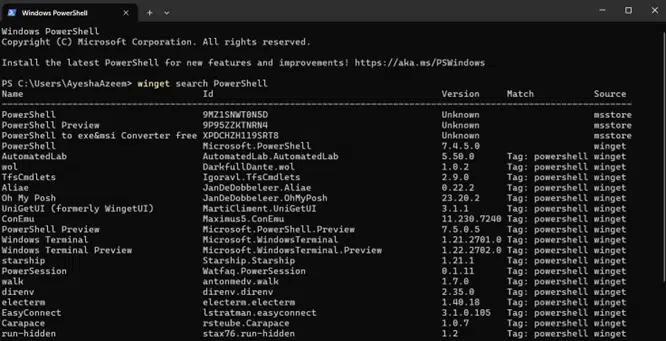
安装 PowerShell
找到所需的 PowerShell 软件包,并使用其 ID 进行安装。PowerShell 的 ID 为 Microsoft.PowerShell。
要安装最新的 PowerShell 版本,请使用以下 cmdlet:
winget install Microsoft.PowerShell

使用 MSI 软件包安装 PowerShell
另一种方法是从 GitHub 下载 PowerShell,然后使用 MSI 进行安装。访问官方 PowerShell GitHub release page 以找到最新的 PowerShell 版本(例如 PowerShell 7.x)。向下滚动到该版本的 Assets 部分并下载 MSI 软件包。
该软件包需要一些时间进行下载。下载完成后,运行安装程序以安装 PowerShell。
管理多个 PowerShell 版本
您可以在同一台机器上同时使用经典的 Windows PowerShell(通常是 5.1 版本)和现代的 PowerShell Core(6.x 和 7.x 版本),且不会发生冲突。
管理多个 PowerShell 版本的常见场景是:不同的环境或脚本需要特定的版本。
下面介绍如何在系统上管理多个 PowerShell 版本。
从“运行”对话框或命令行运行指定版本
打开“运行”对话框,并指定要启动的 PowerShell 版本的 exe 文件路径(请参见下方示例)。
您还可以像下面的示例所示,在 PowerShell 中指定该版本的路径来运行特定的 PowerShell 版本。请注意,此方法仅适用于 PowerShell 7,在该版本中您可以在不同版本之间切换。
示例:
- PowerShell 5.1
C:\Windows\System32\WindowsPowerShell\v1.0\powershell.exe
- PowerShell 7
C:\Program Files\PowerShell\7\pwsh.exe
PowerShell 配置文件与配置
PowerShell 配置文件(profile)是一个 PowerShell 脚本,只要你启动 PowerShell,它就会运行;但在你使用 -NoProfile 标志时则不会运行。
每个 PowerShell 版本都有自己的配置文件(profile)。如果你希望某些特定的设置或配置只在一个版本中生效而在另一个版本中不生效,你可以选择分别为每个版本单独配置 profile。
手动查找配置文件(profile)
- PowerShell 5.1 的配置文件可能位于:C:\Users\<username>\Documents\WindowsPowerShell\Microsoft.PowerShell_profile.ps1
- PowerShell 7+ 的配置文件可能位于:C:\Users\<username>\Documents\PowerShell\Microsoft.PowerShell_profile.ps1
通过 PowerShell 查找配置文件
你也可以直接使用 PowerShell 本身来获取 PowerShell 配置文件。只需使用 $Profile 来定位配置文件路径,因为 $Profile 变量会存储该路径。
$Profile

这会显示当前用户的 PowerShell 宿主应用程序配置文件路径。你可以将 $Profile 变量通过管道传递给 Get-Member cmdlet,以获取其他路径。
$Profile | Get-Member -MemberType NoteProperty

测试与旧脚本和旧模块的兼容性
在升级到较新版本或集成遗留代码时,务必在 PowerShell 中测试与旧脚本和旧模块的兼容性。
以下是测试与旧脚本和旧模块兼容性的几种方法。
并行使用 Windows PowerShell 和 PowerShell Core
你可以在同一台机器上同时运行 Windows PowerShell 和 PowerShell Core。为确保兼容性,请在这两个环境中都测试你的脚本或模块。请记住:5.1 是 Windows PowerShell 的最后一个主要版本,而 7 是 PowerShell Core 的当前版本。
示例如下:
./your_script.ps1
./ 表示脚本位于当前目录中,而 your_script.ps1 是你要运行的脚本。 .ps1 是 PowerShell 脚本文件的默认扩展名。
检查 PowerShell 版本
建议你了解脚本最初是为哪个版本的 PowerShell 编写的,以及你正尝试在哪个版本的 PowerShell 中运行它。
使用 Test-ModuleManifest Cmdlet
Test-ModuleManifest cmdlet 用于验证 PowerShell 模块清单(.psd1 文件)是否有效且配置正确。它还会检查该文件的依赖项以及是否存在兼容性问题。
Test-ModuleManifest -Path "C:\Path\To\YourModule.psd1"
-Path 参数用于指定 .psd1 文件的路径。
使用 Get-Command Cmdlet 检查 Cmdlet 是否可用
某些 cmdlet 和参数可能在一个 PowerShell 版本中受支持,但在另一个版本中不受支持。使用 Get-Command cmdlet 来验证你所使用的 cmdlet 是否可用以及其语法是否正确。下面是一个示例:
Get-Command -Name Invoke-RestMethod -Module Microsoft.PowerShell.Utility
用于静态代码分析的 PSScriptAnalyzer
PSScriptAnalyzer 是一款用于检查最佳实践并识别兼容性问题的工具。使用以下 cmdlet 安装并运行它:
      Install-Module -Name PSScriptAnalyzer
Invoke-ScriptAnalyzer -Path "C:\Path\To\YourScript.ps1"
这是一种在运行时之前发现脚本问题或已弃用 cmdlet 的好方法。
检查 .NET 兼容性
Windows PowerShell(5.1)构建在 .NET Framework 上,而 PowerShell Core(6+)和 PowerShell 7+ 构建在 .NET Core/.NET 上。如果你的脚本或模块依赖于 .NET 程序集,请确保它们同时兼容 .NET Core/.NET 和 .NET Framework。
你可以使用以下 cmdlet 测试脚本中使用的 .NET 程序集:
[System.Reflection.Assembly]::LoadFile("C:\Path\To\YourAssembly.dll")
结论
了解你的计算机上安装了哪个版本的 PowerShell 出于多种原因都很重要。不同版本会带来新的 cmdlet、功能和语法,因此了解版本有助于确保你的脚本与当前运行环境中的版本兼容。PowerShell Core 引入了跨平台兼容性,因此知道已安装的版本对于使用正确的平台特定功能和模块至关重要。
在所有用于确定你计算机上正在运行的 PowerShell 版本的方法中,$PSVersionTable 强烈建议使用它。它不仅是最可靠的方法,也是在版本识别方面最准确的方式。它提供了对 PowerShell 环境的全面概览,帮助你确保脚本与特定版本和环境兼容。
你必须定期更新 PowerShell,以确保安装能够防护早期版本中发现的漏洞的关键安全补丁。此外,定期更新还能让你及时获得最新功能,例如新的 cmdlet 以及跨平台增强。它还可以保证性能得到提升、执行策略更加健壮,并增强对并行和异步执行的支持。总之,升级到最新的 PowerShell 版本有助于创建更安全、更高效且可扩展的自动化解决方案,同时降低与过时或不受支持版本相关的风险。
Netwrix Directory Manager
常见问题
如何查看 PowerShell 版本?
查看 PowerShell 版本最简单的方法是直接通过 PowerShell 本身。你可以例如通过 PSVersionTable.PSVersion 或使用 Get-Host cmdlet 来显示你正在使用的 PowerShell 版本。
分享到
了解更多
关于作者

Tyler Reese
产品管理副总裁,CISSP
凭借在软件安全行业超过二十年的经验,Tyler Reese 对当今企业面临的快速演变的身份与安全挑战非常熟悉。目前,他担任 Netwrix Identity and Access Management 组合的产品总监;他的职责包括评估市场趋势、确定 IAM 产品线的发展方向,并最终满足终端用户的需求。他的职业经历从为财富 500 强公司提供 IAM 咨询,到在一家大型直销面向消费者(direct-to-consumer)的公司担任企业架构师,涵盖范围十分广泛。 目前,他持有 CISSP 认证。