
在用户能够登录到计算机并访问基于网络和域的资源之前,该计算机必须是 Active Directory 环境的成员。本指南将告诉你如何自动化与计算机帐户相关的日常任务,例如如何轻松创建、重命名和删除帐户。
总之,你将学习如何使用 PowerShell 执行以下计算机帐户管理任务:
- 将计算机加入域
- 将多台计算机加入域
- 使用 PowerShell 将计算机从域中移除
- 在 AD 中创建计算机对象
- 从 CSV 文件创建计算机帐户
- 从 AD 中删除计算机
- 使用列表删除计算机帐户
- 使用 PowerShell 移除 Active Directory 中过期的计算机帐户
- 重命名计算机
- 重命名计算机并将其加入域
- 禁用 AD 计算机帐户
- 使用列表禁用计算机帐户
- 重置 AD 计算机帐户
PowerShell ISE 是用于处理 PowerShell 脚本的最佳工具。按下 “Windows+R”,在“运行”(Run)窗口中输入 “runas /profile /user:Administrator PowerShell_ISE”,即可用管理员权限启动 PowerShell ISE 工具。(或者,你也可以右键单击 PowerShell ISE 图标,并选择“以管理员身份运行”。)在提示时输入管理员密码。
在你开始使用 AD 及其对象之前,你需要导入用于 Windows PowerShell 的 Active Directory 模块。在 Microsoft Windows Server 2008 R2 中,你需要通过运行以下命令来启用该模块:
Import-Module ActiveDirectory
在 Microsoft Windows Server 2012 及更高版本中,此模块默认启用。
将计算机加入到域
最常见的任务是将计算机加入到域控制器。要将一台 PC 加入到 Active Directory 域,请在本地运行以下 PowerShell 脚本:
      $dc = "ENTERPRISE" # Specify the domain to join.
$pw = "Password123" | ConvertTo-SecureString -asPlainText –Force # Specify the password for the domain admin.
$usr = "$dcT.Simpson" # Specify the domain admin account.
$creds = New-Object System.Management.Automation.PSCredential($usr,$pw)
Add-Computer -DomainName $dc -Credential $creds -restart -force -verbose # Note that the computer will be restarted automatically.
计算机会重新启动,然后加入域;它将被添加到默认容器中。
要远程将计算机加入到 DC,您需要按如下方式增强此脚本:
      $dc = "ENTERPRISE"
$pw = "Password123" | ConvertTo-SecureString -asPlainText -Force
$usr = "$dcT.Simpson"
$pc = "R07GF" # Specify the computer that should be joined to the domain.
$creds = New-Object System.Management.Automation.PSCredential($usr,$pw)
Add-Computer -ComputerName $pc -LocalCredential $pcadmin -DomainName $dc -Credential $creds -Verbose -Restart -Force
$pc 变量以及 –LocalCredential 参数用于对计算机向域进行身份验证。请注意,要使用此方法,您必须禁用本地计算机上的防火墙。
将多台计算机加入到域
您可以通过两种方式将多台计算机添加到域:要么在命令行中以逗号分隔列表的形式指定它们,要么从文本文件导入它们的名称。
下面说明如何在逗号分隔列表中指定计算机:
      $dc = "ENTERPRISE"
$pw = "Password123" | ConvertTo-SecureString -asPlainText -Force
$usr = "$dcT.Simpson"
$pc = "WKS034, WKS052, WKS057" # Specify the computers that should be joined to the domain.
$creds = New-Object System.Management.Automation.PSCredential($usr$pw)
Add-Computer -ComputerName $pc -LocalCredential $pcadmin -DomainName $dc -Credential $creds -Restart -Force
下面介绍如何使用包含应加入(加入到域)的计算机列表的文本文件:
      $dc = "ENTERPRISE"
$pw = "Password123" | ConvertTo-SecureString -asPlainText -Force
$usr = "$dcT.Simpson"
$pc = Get-Content -Path C:Computers.txt # Specify the path to the computers list.
$creds = New-Object System.Management.Automation.PSCredential($usr,$pw)
Add-Computer -ComputerName $pc -LocalCredential $pcadmin -DomainName $dc -Credential $creds -Restart -Force
使用 PowerShell 从域中移除计算机
要远程将计算机从域中移除,请使用 Remove-Computer cmdlet。在这里,我们是在从域中移除计算机,因此不需要本地凭据,我们可以跳过 ?LocalCredential 参数:
      $dc = "ENTERPRISE"
$pw = "Password123" | ConvertTo-SecureString -asPlainText -Force
$usr = "$dcT.Simpson"
$pc = "R07GF"
$creds = New-Object System.Management.Automation.PSCredential($usr,$pw)
Remove-Computer -ComputerName $pc -Credential $creds –Verbose –Restart –Force

要使用 TXT 文件中的列表移除多台计算机,请使用上面用于将计算机加入到 DC 的脚本,将 Add-Computer cmdlet 替换为 Remove-Computer。请注意,完成此“取消加入(unjoin)”操作时,你仍需要域管理员凭据。
在 AD 中创建计算机对象
要创建计算机对象,请使用 New-ADComputer cmdlet。例如,执行以下 cmdlet 参数,以创建计算机对象,并将其名称设置为“WKS932”,同时使用默认的 LDAP 路径值:
New-ADComputer –Name “WKS932” –SamAccountName “WKS932”
从 CSV 文件创建计算机帐户
如果你有一份需要导入到 Active Directory 的计算机列表,请将该列表保存为 CSV 文件:将标题设置为“computer”,并在其下方的列中填写计算机名称列表。在你的域控制器上运行以下 PowerShell 脚本,从 CSV 文件中添加计算机;同时确保正确设置“Path”和“File”变量:
      $File="C:scriptsComputers.csv" # Specify the import CSV position.
$Path="OU=Devices,DC=enterprise,DC=com" # Specify the path to the OU.
Import-Csv -Path $File | ForEach-Object { New-ADComputer -Name $_.Computer -Path $Path -Enabled $True}
从 AD 删除计算机
要从 AD 删除计算机帐户,请使用 Remove-ADObject cmdlet。-Identity 参数用于指定要移除哪一台 Active Directory 计算机。你可以使用计算机的专有名称(distinguished name)、GUID、安全标识符(SID)或 Security Accounts Manager(SAM)账户名来指定该计算机。
Remove-ADObject -Identity "WKS932"
系统将提示你确认删除。
使用列表删除计算机账户
如果你有一个包含旧计算机列表的文本文件,可以使用 PowerShell 简化将其移除的任务。下面的脚本会从 TXT 文件读取计算机名称,并通过一系列命令(或管道 pipeline)删除对应的账户:
Get-Content C:scriptscomputersfordeletion.txt | % { Get-ADComputer -Filter { Name -eq $_ } } | Remove-ADObject -Recursive
申请 Netwrix Directory Manager 免费试用,提升群组管理效果
使用 PowerShell 从 Active Directory 移除过期的计算机账户
Active Directory 中的过期账户可能会被攻破,从而导致安全事件,因此必须密切关注这些账户。此 PowerShell 脚本会查询 Active Directory,并返回过去 30 天内未登录过的所有计算机;你可以在脚本中轻松更改此默认值。它还会移除这些账户,以保持你的 AD 干净整洁。
      $stale = (Get-Date).AddDays(-30) # means 30 days since last logon, can be changed to any number.

Get-ADComputer -Property Name,lastLogonDate -Filter {lastLogonDate -lt $stale} | FT Name,lastLogonDate

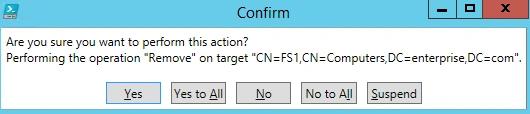
Get-ADComputer -Property Name,lastLogonDate -Filter {lastLogonDate -lt $stale} | Remove-ADComputer
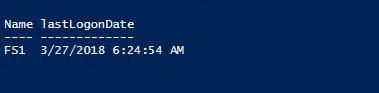
有一台计算机 FS1 在超过 30 天内未登录。系统在从域中删除之前会先提示你进行确认:
如果你想禁用而不是删除不活跃的计算机账户,请将 Remove-ADComputer cmdlet 替换为 Set-ADComputer 并使用 -Enabled $false 参数和值。
重命名计算机
要更改计算机名称,请使用 Rename-Computer cmdlet。注意:计算机必须处于在线状态,并且已连接到 Active Directory。
Rename-Computer –ComputerName "FS1" -NewName "FS2"
如果你要在本地运行此脚本,将会如下所示:
Rename-Computer -NewName "newname" -DomainCredential "DomainAdministrator"
重命名计算机并将其加入域
你可以通过在重命名的同时将计算机加入域,并放入指定的 OU(组织单位)来改进该重命名脚本。脚本应在目标计算机上运行,而不是在域控制器上运行。
      $NewComputerName = "Server3" # Specify the new computer name.

$DC = "contoso.com" # Specify the domain to join.

$Path = "OU=TestOU,DC=contoso,DC=com" # Specify the path to the OU where to put the computer account in the domain.
Add-Computer -DomainName $DC -OUPath $Path -NewName $NewComputerName –Restart –Force
脚本会提示输入具备将计算机加入域权限的帐户凭据,然后将计算机重命名、重新启动并加入到域。
禁用 AD 计算机帐户
使用 Disable-ADAccount cmdlet 来禁用 Active Directory 的用户、计算机和服务帐户。如果指定计算机帐户名称,请记得在名称末尾追加美元符号($);否则,脚本执行后将出现错误。
Disable-ADAccount -Identity fs1$
使用列表禁用计算机帐户
也可以使用文本文件中的列表批量禁用计算机帐户:
      $Pclist = Get-Content C:scriptsComputer.txt # Specify the path to the computers list.
Foreach($pc in $Pclist)
{
Disable-ADAccount -Identity "$pc"
Get-ADComputer -Identity "$pc" | Move-ADObject -TargetPath “OU=Disabled Computers,DC=enterprise,DC=com”
}
重置 AD 计算机帐户
与用户帐户类似,计算机帐户通过密码与 Active Directory 进行交互。但对于计算机帐户,默认情况下会每 30 天发起一次密码更改,而且该密码会被豁免于域的 password policy。密码更改由客户端(计算机)发起,而不是由 AD 发起。
由于计算机会随机设置凭据,用户通常不知道计算机凭据。但您可以设置自己的密码;下面是用于此目的的 PowerShell 脚本:
      $pc = read-host –Prompt “Input computer name to reset“ # Specify the computer name.
$pw = read-host –Prompt “Input random characters for temp password“ –AsSecureString # Specify the password.
Get-ADComputer $pc | Set-ADAccountPassword –NewPassword:$pw -Reset:$true
结论
现在您已经学会如何使用 PowerShell 管理 Active Directory 计算机帐户。您可以根据自己的目的自行增强并完善这些脚本,使其更贴合您的需求。
请记住,必须密切跟踪计算机帐户的所有更改,这样才能快速发现任何不期望的修改,并采取恰当的响应措施。
Active Directory 组管理最佳实践
Active Directory 组管理最佳实践分享到
了解更多
关于作者

Jeff Melnick
系统工程总监
Jeff 是 Netwrix 的前 Global Solutions Engineering 总监。他是一位长期的 Netwrix 博主、演讲者和讲解员。在 Netwrix 博客中,Jeff 分享各种生活技巧,以及可以显著提升您系统管理体验的提示与技巧。