
简介
如果你编写 Windows PowerShell 脚本,理解如何有效使用 PowerShell 注释非常重要。本文可以帮助你。它将解释在脚本中添加注释的关键方式,并提供每种方法适用场景的指导。文章还会介绍注释的常见用例,并提供应该遵循的最佳实践以及需要避免的常见错误。
理解 PowerShell 中的注释
PowerShell 中的注释具有多种有价值的用途。注释对于让脚本更易于理解和维护至关重要。使用注释来详细说明脚本或特定代码段的目的、逻辑或功能,对于任何需要使用、修改或排查脚本的人来说都非常有帮助。注释还能促进与其他团队成员的协作,并减少对口头解释的需求。它们也能帮助 PowerShell 经验较少的人跟上脚本内容,并提升其技能水平。
注释还能帮助开发和测试团队临时禁用一行或多行代码。PowerShell 解释器会忽略注释,因此只需把代码改成注释即可禁用。由于代码被注释掉而不是删除,后续可以轻松恢复。详细的注释还能在更新和排查问题时提供决策背后的原因背景,从而避免混淆。
PowerShell 中的注释类型
如何在 PowerShell 中添加注释
PowerShell 中最基本的两种注释类型是单行注释和多行(块)注释。
单行注释
要在 PowerShell 中创建单行注释,只需使用井号符号(#)——井号符号后面的所有文本都会被 PowerShell 解释器忽略。下面是单行注释的示例:
      # The following script narrow down the users who having logged in for 90 days.

$InactiveUsers = Get-ADUser -Filter {LastLogonDate -lt (Get-Date).AddDays(-90)}
      # This is another example of a single-line comment.

Get-Process -Name Notepad
何时使用单行注释
下面是单行注释的几个常见用例:
- 说明其后跟随的代码行或代码块的用途,例如:函数:
      # Calculate the factorial of a number using recursion.

function Get-Factorial {

    param ([int]$number)

    if ($number -le 1) {

        return 1

    }

return $number * (Get-Factorial -number ($number - 1))

}
- 记录变量的用途:
      # Store the list of server names to be checked for connectivity

$servers = @("Server1", "Server2", "Server3")
- 解释为何临时添加了代码或将其注释掉:
      # Debugging: Output the current value of the counter

# Write-Output "Counter value is $counter"
多行(块)注释
PowerShell 注释块可让你添加跨多行的说明性注释。块注释以标签 <# 开始,并以 #> 结束;这两个标签之间的所有文本都会被 PowerShell 解释器忽略。
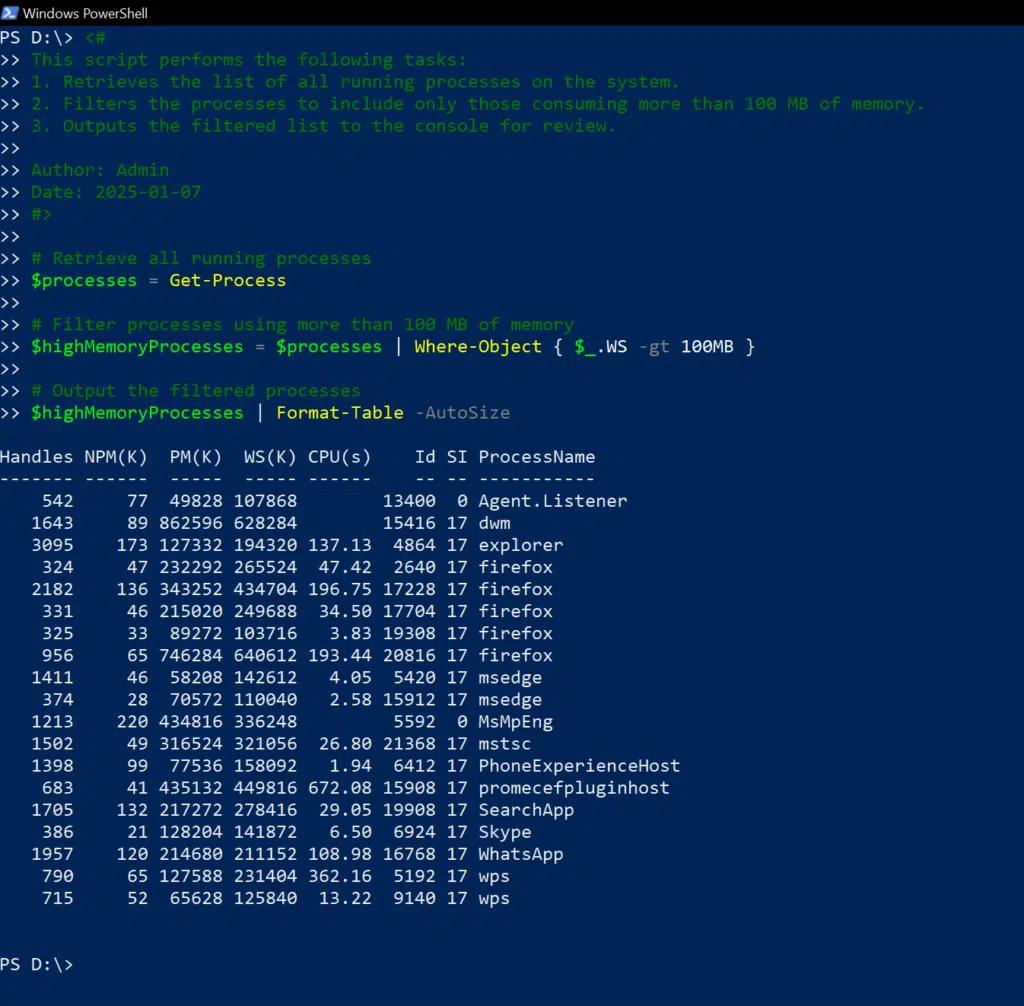
下面是一个 PowerShell 多行注释示例,用于提供有关脚本的详细信息:
      <#

This script performs the following tasks:

1. Retrieves the list of all running processes on the system.

2. Filters the processes to include only those consuming more than 100 MB of memory.

3. Outputs the filtered list to the console for review.

Author: Admin

Date: 2025-01-07

#>

# Retrieve all running processes

$processes = Get-Process

# Filter processes using more than 100 MB of memory

$highMemoryProcesses = $processes | Where-Object { $_.WS -gt 100MB }

# Output the filtered processes

$highMemoryProcesses | Format-Table -AutoSize
何时使用块注释
当你需要提供长而详细的说明时,PowerShell 的块注释非常理想。虽然你可以用哈希符号开始每一条语句,但使用块注释可以让脚本更整洁、更易读。
下面是多行注释的一些主要用途:
- 提供脚本的元数据:
      <#

Script Name: Cleanup-TempFiles.ps1

Author: Jon Mill

Description: This script deletes temporary files older than 30 days

             from specified directories to free up disk space.

Last Modified: 2025-01-07

#>
- 解释复杂逻辑,或为代码某个部分提供背景信息:
      <#

The following block of code checks the connectivity status of multiple servers.

If a server is unreachable, it logs the error and skips to the next one,

ensuring the script doesn't terminate unexpectedly.

#>

foreach ($server in $servers) {

    if (-Not (Test-Connection -ComputerName $server -Count 1 -Quiet)) {

        Write-Output "$server is unreachable" >> error.log

        continue

    }

    # Proceed with the next task

}
- 使用注释标签,在调试或测试期间临时禁用一大段代码:
      <#

# Commented out the block below for debugging purposes

Write-Output "Starting debugging session"

$debugVar = $true

#>
高级注释技巧
诸如行内注释、基于注释的帮助以及分节标题等高级注释技巧,可以使脚本更专业且更易于使用。
行内注释
你可以通过在同一行代码前用井号符号开始来添加注释。井号符号之后的 # 符号都将被视为注释。
行内注释最适用于对逻辑或其他细节进行简短说明,帮助他人快速理解关键点,同时不打断脚本的执行流程。下面是一个简单示例:
      for ($i = 0; $i -lt 5; $i++) { # Loop from 0 to 4

Write-Output "Iteration $i" }
适用于脚本和函数的基于注释的帮助
基于注释的帮助提供了一种在代码中对脚本进行文档化的结构化方式。通过在多行注释中使用特殊的注释标签,你可以使用 Get-Help cmdlet 指定要提供的脚本信息。例如,你使用 .SYNOPSIS 标签提供的描述会在用户对你的函数或脚本运行 Get-Help 时显示。该方法会生成自包含的文档化代码,从而减少对单独文档的需求。
预定义的标签包括以下内容:
- .SYNOPSIS — 使用此标签以简要概述脚本或函数的作用:
      .SYNOPSIS

Copies files from one directory to another.
- .DESCRIPTION — 使用此标签可对脚本的功能进行详细说明,并补充任何与使用相关的重要注意事项:
      .DESCRIPTION

This function copies files from a source directory to a destination directory.

It allows users to copy files recursively and optionally overwrite existing files.
- .PARAMETER — 使用此 标签定义脚本接受的每个参数,包括它的作用、类型以及关于应如何使用的任何特定规则:
      .PARAMETER Source

The path of the source directory from which the files will be copied. The source must be a valid directory path.

.PARAMETER Destination

    The path to the destination directory where the files will be copied to.

    The destination must be a valid directory path.

.PARAMETER Overwrite

    A switch to determine whether existing files at the destination should be overwritten.

If not specified, existing files will not be overwritten.
- .EXAMPLE — 使用此标签提供脚本或函数的详细示例,帮助用户理解如何调用以及预期的输出结果:
      .EXAMPLE

    Copy-Files -Source "C:\Data" -Destination "D:\Backup" -Overwrite

    Copies files from C:\Data to D:\Backup, overwriting existing files at the destination.
Get-Help 集成的真实案例
以下脚本用于备份文件。开头处的 PowerShell 脚本注释使用上面详细介绍的标签。
      <#

.SYNOPSIS

Backs up files from the source to the destination folder.

.DESCRIPTION

This script copies all files from the specified source folder to the destination folder.

.PARAMETER Source

Specifies the path to the source folder.

.PARAMETER Destination

Specifies the path to the destination folder.

.EXAMPLE

.\Backup-Script.ps1 -Source "C:\Data" -Destination "D:\Backup"

Copies all files from C:\Data to D:\Backup.

#>

param (

    [string]$Source,

    [string]$Destination

)

if (-Not (Test-Path -Path $Source)) {

    Write-Error "Source path does not exist."

    exit

}

if (-Not (Test-Path -Path $Destination)) {

    Write-Host "Destination path does not exist. Creating it..."

    New-Item -ItemType Directory -Path $Destination

}

Copy-Item -Path "$Source\*" -Destination $Destination -Recurse

Write-Host "Backup completed successfully."
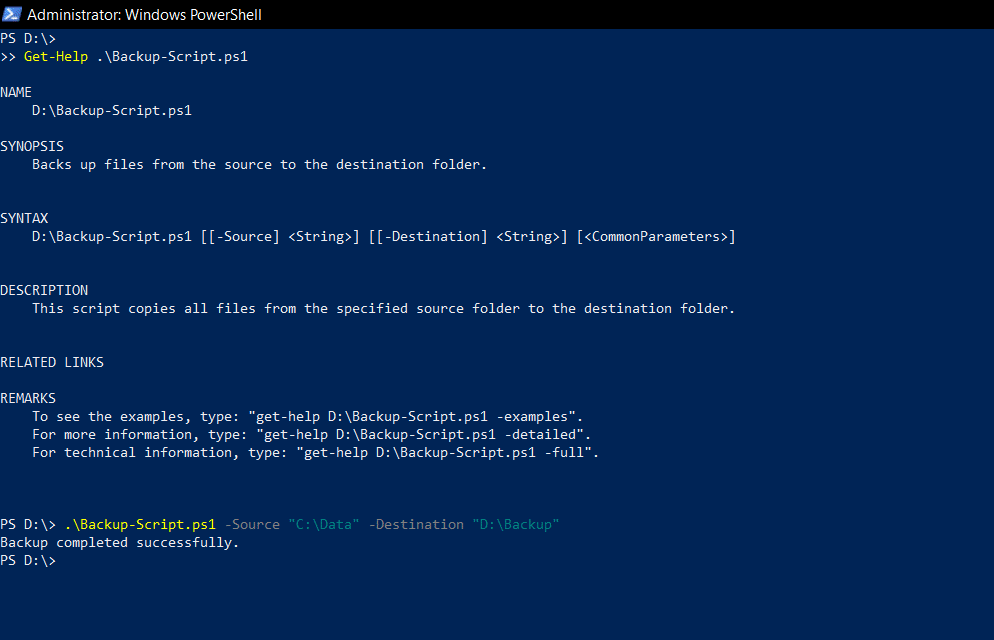
下面的截图展示了这些标签如何让用户通过 Get-Help 命令快速检索用法信息:
PowerShell 注释最佳实践
为了让代码更易读、也更方便我们和他人理解,必须有效地使用注释。以下是应遵循的最佳实践要点。
在必要的位置添加注释,而不要让代码变得臃肿
应在整个代码中经常使用注释,说明函数的用途、复杂算法背后的逻辑、变量的含义,以及代码中可能存在的任何假设或限制。
不过,关键在于在提供有帮助的上下文信息与避免不必要的杂乱之间取得平衡。请参考以下准则:
- 对简短的备注使用行内或单行注释。
- 如需更详细的说明,请使用 PowerShell 的多行注释。
- 避免为简单或显而易见的操作添加注释。
- 注释说明目的,而不是语法。
- 使用注释来澄清逻辑或意图,尤其是复杂代码。
- 使用注释突出脚本的假设、需求以及已知问题。
- 遵循格式和风格,保持注释一致且整洁。
- 使用内置的基于注释的帮助信息,为函数和脚本添加详细说明。
下面是一个清晰、简洁的注释示例:在不让读者感到负担的情况下提供价值:
      # Get-Service returns all running services.

Get-Service

# Filter the results to include only services

# related to the World Wide Web.

Get-Service | Where-Object {$_.DisplayName -like "*WWW*"}

# Stop the selected WWW services.

Get-Service | Where-Object {$_.DisplayName -like "*WWW*"} | Stop-Service
避免注释的过度使用与不足
为每一行代码都添加注释可能会让代码更难阅读和理解,尤其是在代码本身已经不言自明的情况下。下面是过度使用注释的示例:
      # Assign the value 10 to the variable $number

$number = 10

# Add 5 to the variable $number

$number = $number + 5
与此同时,如果注释不足,也会使人难以理解代码的逻辑和用途,尤其是复杂代码。例如,下面的代码旨在启用 Active Directory 中所有已禁用的用户,但由于缺少注释,很难知道:
      $users = Get-ADUser -Filter * | Where-Object {$_.Enabled -eq $false}

$users | ForEach-Object {

    Set-ADUser -Identity $_.SamAccountName -Enabled $true

}
调试时使用临时注释
将代码注释掉是一种用于调试和排查代码问题的宝贵技巧。它可以帮助你隔离问题,并理解代码的执行行为。务必使用注释来说明为什么禁用了该代码,如下示例所示:
      # Log the value of the Source variable for debugging

Write-Host "Debug: Source path is $Source"

# Temporarily disable file copying to test directory creation

# Copy-Item -Path "$Source\*" -Destination $Destination -Recurse
对复杂代码使用多个注释
要解释复杂的逻辑,请将代码拆分成更小的部分,并为每个部分添加注释来说明。下面是一个示例:
      # Calculate the factorial of a number

function Calculate-Factorial {

    param(

        [int]$Number

)

# Base case: Factorial of 0 is 1

    if ($Number -eq 0) {

        return 1

    }

# Recursive case: Factorial of N is N * Factorial(N-1)

    else {

        return $Number * (Calculate-Factorial ($Number - 1))

    }

}
解释“为什么”,而不仅仅是“做什么”
使用注释来说明脚本背后的推理依据,可以通过为未来的修改和调试工作提供上下文,从而增强代码的可维护性。
      # Retry the operation up to 3 times to handle intermittent network failures

# This prevents the script from failing on occasional, recoverable issues

for ($i = 0; $i -lt 3; $i++) {

    try {

        # Attempt the operation

        Copy-Item -Path $Source -Destination $Destination

        break  # Exit the loop if the operation is successful

    }

    catch {

        if ($i -eq 2) { throw "Failed after 3 attempts" }

        Start-Sleep -Seconds 2  # Wait before retrying

    }

}
通过格式化注释来提升可读性
对注释进行有效的格式化能够提升代码可读性。请密切关注缩进和对齐方式,以及注释的放置位置,例如始终将注释放在其所描述的代码之前。下面的代码展示了良好的格式如何让注释更有效:
      # This function retrieves a list of all running processes.

function Get-RunningProcesses {

    # Get all running processes

    Get-Process |

        # Select only the process name and ID

        Select-Object ProcessName, ID

}
PowerShell 注释的特殊使用场景
使用注释进行版本控制
为了改进版本控制,请使用 PowerShell 注释来记录脚本在一段时间内所做的变更。采用一致的格式,并包含诸如日期、作者以及变更原因等详细信息。这样的历史记录有助于开发人员理解每次更新背后的上下文。
      # Version 2.0 - 2025-01-10

# Added a new parameter for logging options and enhanced error handling.

# Updated the file backup logic to support incremental backups.

param (

    [string]$Source,

    [string]$Destination,

    [switch]$EnableLogging  # New parameter to enable logging

)

# Check if source exists

if (-Not (Test-Path -Path $Source)) {

    Write-Error "Source path does not exist."

    exit

}

# Log file creation if logging is enabled

if ($EnableLogging) {

    $logPath = "$Destination\backup_log.txt"

    "Backup started at $(Get-Date)" | Out-File -Append $logPath

}

# Backup files (incremental logic added in Version 2.0)

if (-Not (Test-Path -Path $Destination)) {

    New-Item -ItemType Directory -Path $Destination

}

Copy-Item -Path "$Source\*" -Destination $Destination -Recurse

# Log completion if logging is enabled

if ($EnableLogging) {

"Backup completed at $(Get-Date)" | Out-File -Append $logPath

}
使用 Regions 来组织代码
<#region 和 <#endregion 标签可用于标识代码的逻辑段落。例如,你可以给脚本中执行数据处理、配置或日志记录等任务的部分打上标签。这样做可以更容易地浏览和理解复杂脚本。举例来说,开发人员可以折叠当前不在处理的代码段,以减少视觉杂乱并提高专注度。
下面的脚本被划分为三个 Regions:数据导入函数,数据处理函数 和 输出函数。 Region 注释块用于说明其用途。
      <#region Introduction

    This script retrieves a list of all running processes.

    It then filters the list to include only processes

    that match a specific criterion.

#>

# Get all running processes

$Processes = Get-Process

<#region Filtering

    Filter processes based on criteria

    (e.g., process name, CPU usage).

#>

$FilteredProcesses = $Processes | Where-Object {$_.ProcessName -eq "notepad"}

<#endregion Filtering

<#region Output

    Display the filtered processes.

#>

$FilteredProcesses | Format-List

<#endregion Output

<#endregion Introduction
使用 PowerShell 注释进行故障排查与调试
通过注释隔离漏洞
注释可用于插入调试信息,例如变量值、潜在问题区域或故障排查步骤。
使用注释禁用代码
与其删除代码,不如先暂时将代码段注释掉,这样可以更快地缩小错误的来源。
用注释记录错误
注释是记录已知问题或故障排查技巧的极佳方式,尤其适用于在特定条件下容易出错的代码。通过添加包含潜在解决方案或说明的注释,你可以帮助自己和他人在问题出现时更快地解决。
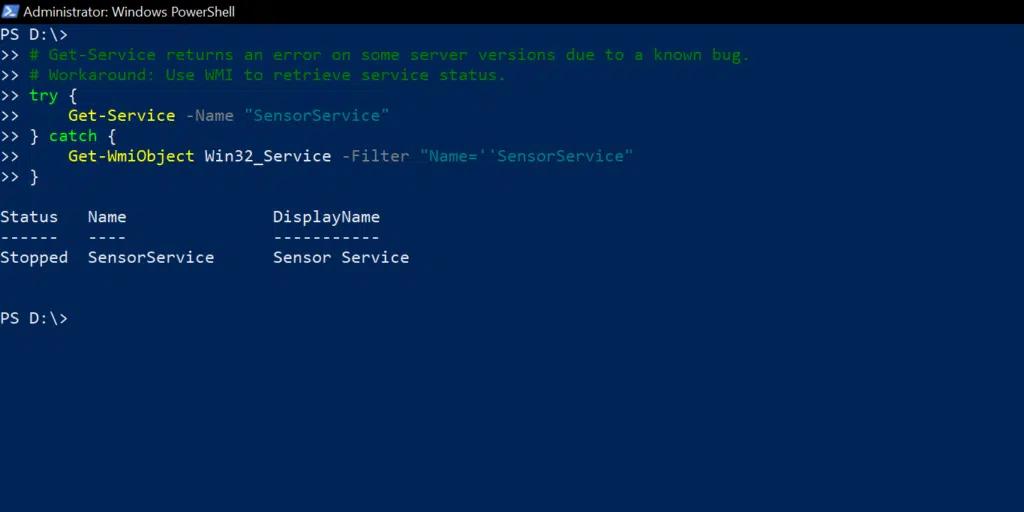
      # Get-Service returns an error on some server versions due to a known bug.

# Workaround: Use WMI to retrieve service status.

try {

    Get-Service -Name "SensorService"

} catch {

    Get-WmiObject Win32_Service -Filter "Name=''SensorService"

}
用于协作的 PowerShell 注释
注释通过让脚本更易于阅读、理解和维护来增强协作效果。它也能加快新贡献者的入职上手速度。
为团队使用编写脚本文档
通过使用注释来说明脚本的目的、每个代码区域背后的逻辑以及潜在的陷阱,可以提升团队成员之间的知识共享,并减少调试工作量和时间。
例如,下面脚本顶部的块注释会概述其目的、先决条件和参数:
      <#

Script Name: Create-ADUserAccounts.ps1

Description: Automates the creation of Active Directory user accounts from a CSV file.

Prerequisites:

  - Active Directory module installed.

  - A valid CSV file with columns: FirstName, LastName, UserName, and Email.

Parameters:

  -CSVPath: Path to the input CSV file.

  -OU: Organizational Unit where accounts will be created.

Usage:

  .\Create-ADUserAccounts.ps1 -CSVPath "C:\Users.csv" -OU "OU=Users,DC=Domain,DC=Com"

#>
通过注释分享知识
注释帮助团队中的所有成员理解脚本背后的逻辑、每个区域的目的、为何选择特定的方法以及可能面临的挑战。共享的这种理解有助于故障排查、调试以及未来的增强。例如,如果脚本包含针对已知软件限制的临时解决方案,注释可以记录该问题并说明选择该方案的理由,从而让其他人不必重复研究。
下面是一个示例,展示如何有效使用注释来分享有关脚本的信息:当服务未运行时,重新启动服务:
      <#

Script Name: Ensure-ServiceRunning.ps1

Description: Checks if a specified service is running and restarts it if necessary.

Purpose:

  - Ensures critical services stay operational without manual intervention.

Decisions:

  - Used “Get-Service” for simplicity and compatibility.

  - Restart logic avoids redundancy by checking the current status first.

Usage:

  .\Ensure-ServiceRunning.ps1 -ServiceName "Spooler"

#>

param (

    [Parameter(Mandatory)]

    [string]$ServiceName  # Name of the service to check

)

# Check the current status of the service

$service = Get-Service -Name $ServiceName -ErrorAction Stop

if ($service.Status -ne "Running") {

    # Log and attempt to restart the service if not running

    Write-Host "Service '$ServiceName' is not running. Attempting to restart..."

    try {

        Restart-Service -Name $ServiceName -Force

        Write-Host "Service '$ServiceName' has been restarted successfully."

    } catch {

        Write-Error "Failed to restart the service '$ServiceName': $_"

    }

} else {

    Write-Host "Service '$ServiceName' is already running."

}
PowerShell 注释的示例与场景
以下脚本会监控磁盘使用情况,如果可用空间较低就发送电子邮件告警:
      <#

Script Name: Monitor-DiskUsage.ps1

Description: Checks each logical drive and sends an alert if free space is below the defined threshold.

Purpose:

  - Prevents system issues caused by insufficient storage.

Usage:

  .\Monitor-DiskUsage.ps1 -Threshold 10 -Email "admin@Netwrix.com"

#>

param (

    [Parameter(Mandatory)]

    [int]$Threshold,       # Minimum free space in GB to trigger an alert

    [Parameter(Mandatory)]

    [string]$Email         # Email address for the alert

)

# Retrieve disk information

$drives = Get-PSDrive -PSProvider FileSystem

foreach ($drive in $drives) {

    if ($drive.Free -gt 0) {

        $freeSpaceGB = [math]::Round($drive.Free / 1GB, 2)

        if ($freeSpaceGB -lt $Threshold) {

            Write-Warning "Drive $($drive.Name) has low space: $freeSpaceGB GB remaining."

            # Send an alert email (replace with real SMTP details)

            try {

                Send-MailMessage -From "alerts@netwrix.com" -To $Email -Subject "Low Disk Space Alert" `

                    -Body "Drive $($drive.Name) has only $freeSpaceGB GB remaining." `

                    -SmtpServer "smtp.domain.com"

            } catch {

                Write-Error "Failed to send alert email: $_"

            }

        }

    }

}
下面的脚本会通过禁用非活动账号并将其移动到特定的 OU 来清理 Active Directory 中的用户账号:
      <#

Script Name: Cleanup-ADUsers.ps1

Description: Disables and moves inactive user accounts to a specified OU.

Purpose:

  - Helps maintain a clean and secure Active Directory environment.

Usage:

  .\Cleanup-ADUsers.ps1 -OU "OU=Inactive,DC=Netwrix,DC=Com" -DaysInactive 90

#>

param (

    [Parameter(Mandatory)]

    [string]$OU,           # Target OU for inactive users

    [Parameter(Mandatory)]

    [int]$DaysInactive     # Number of days since last logon

)

# Get the current date and calculate the inactivity threshold

$thresholdDate = (Get-Date).AddDays(-$DaysInactive)

# Find inactive user accounts

$inactiveUsers = Get-ADUser -Filter {LastLogonDate -lt $thresholdDate -and Enabled -eq $true}

foreach ($user in $inactiveUsers) {

    Write-Host "Disabling and moving user: $($user.SamAccountName)"

    # Disable the account

    Disable-ADAccount -Identity $user.SamAccountName

    # Move the account to the specified OU

    Move-ADObject -Identity $user.DistinguishedName -TargetPath $OU

}
注释中的常见错误
脚本中的一些注释会带来比清晰度更多的困惑。下面是使用 PowerShell 注释时最常见的一些错误,以及如何避免这些错误。
含糊或过于明显的注释
最常见的错误之一是编写过于含糊或过于明显的注释,例如下面这样:
      # Set the variable to 5

$number = 5
相反,请重点说明做出某项特定决策的原因,或为何正在执行某项复杂操作,尤其是在代码可能令人困惑或存在多种可行做法的情况下。
      # Assign the default retry count to handle intermittent failures

$retryCount = 5
不准确或过时的注释
有时,当代码发生变化时,注释并不会同步更新,从而导致不准确或具有误导性的内容。例如,在这里备份路径被更改了,但注释却没有更新,这可能会误导读者:
      # This script backs up data to a network drive

Backup-Data -Path "C:\Data"
确保在代码发生变化时同步更新注释。作为代码维护的一部分,定期检查并重构注释,以确保其始终保持相关性。
过度使用注释
有些代码会在每一行或每个简单操作上都塞满不必要的注释。
      # Initialize the variable

$number = 10

# Increment the variable by 1

$number++
仅在能带来价值的地方添加注释。通常适用于复杂逻辑、较为不寻常的解决方案,或那些可能不会让其他开发者立刻意识到的决策。
不用注释来解释复杂代码
如果你的脚本包含一段复杂或不直观的代码,请务必解释。比如,如果没有注释,就不清楚为什么要进行这些特定的计算,或者 1.15 代表什么:
$finalPrice = $basePrice * (1 - $discountPercentage) * 1.15
对于复杂或晦涩的代码,请说明为什么要使用某些公式、计算或算法。
      # Calculate the final price including a 15% tax and applying the discount

$finalPrice = $basePrice * (1 - $discountPercentage) * 1.15
不移除代码而是将其注释掉
开发人员有时会保留从测试中遗留下来的、被注释掉的代码,或是本来已经不再需要的代码。这样会让脚本变得杂乱,并引发疑问:这些代码是否应该被重新启用。
      # $oldValue = Get-Item "C:\OldFile.txt"

# $oldValue.Delete()
与其将代码注释掉,不如从脚本中移除无用的死代码(dead code)。如果确实需要为将来参考保留代码,请明确记录保留该代码的目的。
结论
注释对于专业且易于维护的 PowerShell 脚本至关重要。正确使用注释可以让代码更易于理解、调试、排查问题、维护并不断改进。有效的注释包括记录脚本的目的、关键决策、假设以及潜在问题。开发人员应确保既不滥用注释,也不减少注释,并采用格式规范以保证可读性。
有效的注释并不是一次性任务,而是一个持续的过程。每当代码被修改时,都应审查并更新注释,以确保注释准确反映脚本的当前状态,从而避免混淆和错误。
常见问题
注释会影响 PowerShell 脚本的性能吗?
在执行过程中,PowerShell 解释器不会处理注释,因此注释不会影响脚本在运行时的性能。尽管如此,建议保持注释简洁且与内容相关,以便发挥最大价值。
我应该多久更新一次脚本中的注释?
每当代码发生重大变更时,例如添加新功能、修改现有功能或修复错误,都应及时审查并更新注释。注释应始终反映脚本的当前状态。
在 PowerShell 中如何快速将多行代码注释掉?
在 PowerShell 中,你可以使用块注释语法快速注释多行代码。只需将代码行用 <# 开头,并在结尾加上#> 即可。
行内注释和块注释有什么区别?
行内注释以符号 # 开头,并与它所指的代码出现在同一行。它们最适合用于简短的说明。
块注释可以跨越多行,并用分隔符 <# 和 #> 包围。它们特别适用于提供详细说明、记录复杂逻辑,或暂时禁用代码中的某个部分。
分享到
了解更多
关于作者

Jonathan Blackwell
软件开发负责人
自 2012 年以来,工程师兼创新者 Jonathan Blackwell 一直提供工程领导力,使 Netwrix GroupID 成为 Active Directory 和 Azure AD 环境中群组与用户管理领域的领先者。他在研发、市场与销售方面的经验,使 Jonathan 能够全面理解 Identity 市场以及买家如何思考。