
NTFS permissions vs. Share permissions: The complete guide
Jun 12, 2025
Windows file servers enforce two separate permission systems at once, and most access problems trace back to their interaction rather than to either one alone. NTFS permissions govern access at the file and folder level, while share permissions govern access at the network share level. Windows always applies whichever of the two is more restrictive for a given user, and that single rule resolves the majority of access-denied tickets.
The foundation of Windows security is simple: to access a network resource such as a file or folder, a user needs the appropriate permissions. The implementation is more complex because Windows enforces two separate permission systems at once.
NTFS permissions operate at the file system level and govern access to the underlying files and folders. Share permissions operate at the network share level and govern access to a folder only when someone reaches it over the network.
Confusing the two, or forgetting that Windows always enforces whichever one is stricter for a given user, is one of the most common causes of access denied errors and, less obviously, of accidental over-permissioning that survives an audit undetected.
Getting this right matters for more than convenience: it’s how administrators enforce the principle of least privilege across every Windows file server in the environment.
This guide covers what each permission type does, how to configure them, how they interact, and how to troubleshoot the resulting access issues.
What is NTFS?
NTFS (New Technology File System) is the standard file system for Windows NT and all later Windows operating systems, replacing the older File Allocation Table (FAT). FAT, especially FAT32, is still used today, mainly on removable storage devices, but NTFS has been the default for Windows Server and desktop editions since Windows NT 3.1 in 1993.
NTFS supports efficient storage and retrieval through its Master File Table (MFT), which tracks every file and directory on the disk. This structure lets NTFS manage large volumes of data efficiently while maintaining fast access times and supporting the file sizes modern applications and multimedia storage require.
On the security side, NTFS supports both file- and folder-level encryption and lets administrators set granular permissions on individual files and folders through the security descriptor attached to each object.
What are NTFS permissions?
NTFS permissions manage access to data stored in NTFS file systems, and they apply whether someone accesses the data locally or over the network.
This local-and-network reach is the main advantage that NTFS permissions have over share permissions: an NTFS permission is tied to the individual user logging into Windows, regardless of where that logon occurs.
Windows organizes NTFS permissions into two tiers: basic permissions for everyday use, and special permissions for granular control over individual actions such as taking ownership or changing permissions. Every basic permission can be set to Allow or Deny. The six basic permission levels are:
- Full control: Grants read, write, modify, and delete rights on files and subfolders, plus the ability to change permissions and take ownership.
- Modify: Allows reading, writing, and deleting files and folders, but not changing permissions or taking ownership.
- Read & execute: Allows viewing file and folder contents and running executable files and scripts.
- List folder contents: Allows viewing files and subfolders within a folder; this permission applies to folders only.
- Read: Allows viewing file and folder contents without making changes.
- Write: Allows creating new files and subfolders and writing to existing files.
Each basic permission maps to a specific combination of special permissions underneath it, such as delete, change permissions, and take ownership. Administrators who need an unusual combination, like allowing a service account to delete files without granting full control, configure special permissions directly through the Advanced Security Settings dialog.
What are share permissions?
Share permissions manage access to shared folders on a network, such as those located on a centralized file server. They don’t apply to users logging in locally, and they apply uniformly to every file and folder in the share.
Windows doesn’t let administrators fine-tune access to individual subfolders or objects within a share the way NTFS permissions do; the share permission covers the whole share.
Share permissions also let administrators cap the number of users who can access a shared folder concurrently, a control NTFS permissions don’t offer, and they can be applied over NTFS, FAT, or FAT32 file systems.
There are three types of share permissions:
- Full control: Allows reading, writing, deleting, and changing permissions on the shared folder.
- Change: Allows reading, writing, and deleting files and folders within the share.
- Read: Allows viewing folder contents and opening files without making changes. The Everyone group receives Read by default.
Because share permissions are coarser than NTFS permissions and apply only to network access, most Windows administrators set share permissions to Full Control for the Everyone or Authenticated Users group and rely on NTFS permissions to handle the actual access control. That approach avoids managing two overlapping permission systems and reduces configuration drift over time.
Netwrix Auditor records before-and-after values every time an NTFS or share permission changes across your file servers, so a broad Full Control grant or a quiet permission edit never goes unnoticed. Download a free trial
NTFS permissions vs. share permissions: The key differences
NTFS permissions | Share permissions |
|
|---|---|---|
|
Applies to |
Local files and folders on an NTFS volume |
Network shares only |
|
Effective for local access |
Yes |
No |
|
Effective for network access |
Yes |
Yes |
|
Permission levels |
6 basic, plus granular special permissions |
3 (Full Control, Change, Read) |
|
Granularity |
High (individual users, groups, inheritance) |
Low |
|
Best practice |
Primary access control mechanism |
Set to Full Control; let NTFS enforce access |
The practical takeaway: NTFS permissions do the detailed work, and share permissions act as a broad gate in front of them. When the two conflict, Windows enforces the more restrictive permission for that user, a rule covered in detail in the interaction section below.
How to set NTFS permissions
Configure NTFS permissions directly on the file or folder object.
1. Right-click the file or folder and select Properties.
2. Open the Security tab, then click Edit.
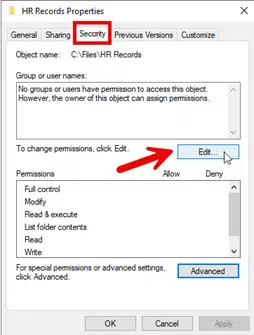
3. Select a user or group from the list, or click Add to include a new one.
4. Check the boxes for the basic permission level you want to grant: Full Control, Modify, Read & Execute, List Folder Contents, Read, or Write.
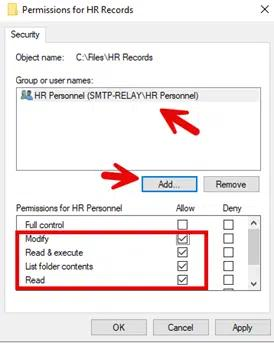
5. Click Advanced to configure special permissions, inheritance settings, or auditing if the basic levels don’t meet your needs.
6. Click Apply, then OK to save the changes.
For NTFS permissions across dozens or hundreds of file servers, manual configuration through Properties doesn't scale. Most administrators script bulk permission changes with PowerShell's icacls command, pull a consolidated NTFS permissions report before making changes, or manage permissions centrally through a dedicated access governance tool.
How to set share permissions
Configure share permissions when you create or edit the network share itself, separately from the underlying NTFS permissions.
1. Right-click the folder and select Properties.
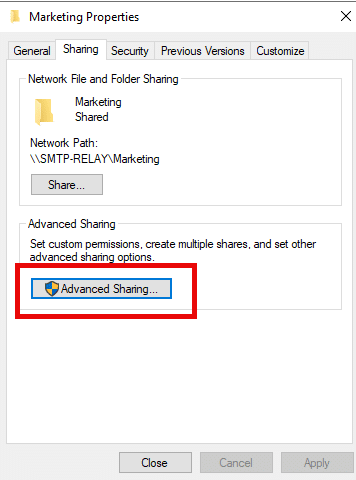
2. Open the Sharing tab and click Share.
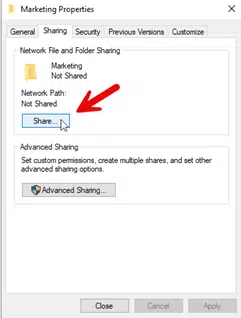
3. Select the user or group to share with and choose a permission level from the dropdown.
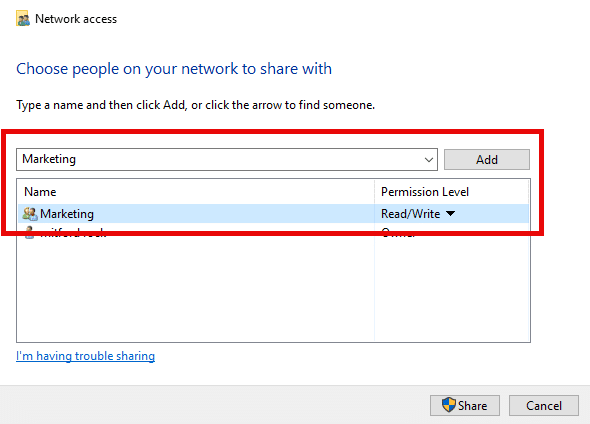
4. Click Share, then back in the Sharing tab, click Advanced Sharing to set granular permissions.
5. Click Permissions, select a user or group, and check the boxes for Full Control, Change, or Read.
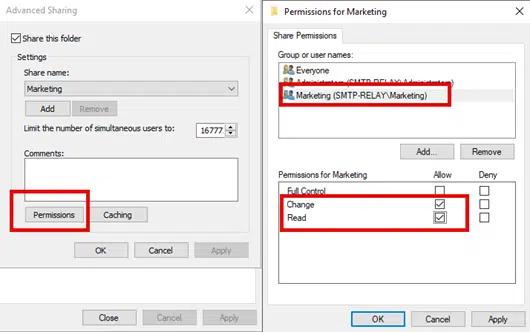
6. Click Apply, then OK.
Administrators auditing existing share configurations often need a current report of who holds access before making changes, since share permission assignments are easy to lose track of across dozens of shares.
How NTFS and share permissions interact
When a user accesses a file over the network, Windows evaluates both the share permission and the NTFS permission for that user and applies whichever is more restrictive. This single rule explains most of the access problems administrators encounter.
- Scenario 1: Share permission is Read, NTFS permission is Full Control. The user gets Read access. The Full Control NTFS permission never comes into play because the share permission caps it.
- Scenario 2: Share permission is Full Control, NTFS permission is Read. The user still gets Read access, since NTFS is now the more restrictive permission of the two.
- Scenario 3: Both permissions are restrictive but in different ways. Suppose the share permission is Change (allows delete) and the NTFS permission is Read & Execute (allows running scripts but not deleting). The user ends up with the intersection of both: they can read and execute files, but can't delete anything. Windows never grants more access than either layer allows, which is why reviewing who currently holds Active Directory permissions on a shared resource is the fastest way to confirm a user's effective access.
Because share permissions cap what NTFS permissions can grant over the network, many administrators set every share to Full Control and manage all real restrictions through NTFS. This simplifies troubleshooting: you only need to review one permission system when access doesn't behave as expected.
Best practices for managing permissions
Strong permission hygiene keeps access aligned with actual business need instead of accumulating over time.
- Assign permissions to groups rather than individual accounts: Grant access to Active Directory security groups instead of individual user accounts. Permissions on individual accounts create a complex, hard-to-audit structure, and when a user is deleted, their permission entries remain as orphaned SIDs in the access control list, further cluttering it.
- Apply the principle of least privilege: Grant users only the minimum permissions they need to do their jobs. For example, if someone needs to read a folder but never has a legitimate reason to delete, create, or modify files, give them read-only.
- Set share permissions to Full Control and enforce restrictions through NTFS: Share permissions apply only to network access, so this avoids managing two separate, overlapping access control systems for the same data.
- Group items with the same security requirements together: If users in a department need Read access to several folders, place them under a common root folder and share the root folder, rather than sharing each folder individually.
- Manage the Everyone and Administrators groups deliberately: Restrict the Everyone group to public or non-sensitive resources, and keep the Administrators group small by using separate accounts for administrative tasks rather than granting admin rights to everyday accounts.
- Avoid nested permission conflicts: Set permissions as high up in the folder structure as possible, and limit deeply nested groups or folders to prevent unintended inheritance. Use explicit Deny entries sparingly, since they override Allow permissions elsewhere.
- Review permissions on a set schedule: Access rights drift as employees change roles or leave the organization, so scheduled reviews catch permissions that no longer match anyone's job function.
- Document your permissions strategy: Managing NTFS and share permissions on an ad hoc basis creates unnecessary complexity and security gaps. Define the permissions philosophy upfront and pair it with a tested process for granting, monitoring, and removing access on a regular schedule.
Periodically exporting the current folder permissions to a spreadsheet gives security and compliance teams a point-in-time record they can compare with the previous review, making drift easy to spot.
Troubleshooting permission issues
Most permission problems fall into a few recurring patterns.
Access denied despite correct-looking permissions
Check both the share permission and the NTFS permission for the affected user, and remember that the more restrictive of the two wins. A Full Control NTFS assignment doesn't matter if the share permission is set to Read.
A user has more access than intended
This usually traces back to group membership rather than a direct permission grant. Nested group membership is the most common culprit: a user inherits access through a group they belong to, which itself belongs to another group with broader permissions. Checking who actually has direct permissions on a given file share surfaces indirect grants that Properties dialogs don't clearly show.
Permissions appear correct but access still fails
Inheritance settings can override explicit permissions set at a lower folder level, or a Deny permission set somewhere in the folder tree can block access that Allow permissions elsewhere would otherwise grant. Deny permissions always take precedence over Allow permissions, regardless of where in the hierarchy each one is set.
Investigating who accessed or changed a file
Native Windows auditing requires enabling object access auditing through Group Policy and then searching Event Viewer logs, a process that becomes impractical across more than a handful of servers. Teams that need to track permission changes across multiple file servers or confirm who has read a specific file typically switch to a centralized auditing tool once manual log review no longer scales.
How Netwrix helps
The Properties dialog shows one folder's permissions at a time. It doesn't show that a user's actual access comes from three nested groups deep, or that a share permission set to Full Control three years ago is quietly overriding the NTFS restrictions someone added last month. That gap between what an admin can see folder by folder and what a user can actually reach is where most over-permissioning survives audits undetected.
The Netwrix 2026 Data and Identity Security Report found that 43% of organizations where AI significantly expanded identities reported a breach in the past 12 months, compared with 11% of organizations where AI didn’t materially change access patterns. The report ties that gap to governance that can't keep pace with how fast group membership and permissions actually change
Netwrix Access Analyzer resolves nested AD groups and folder inheritance to show effective permissions rather than the permissions listed in a single ACL, so an administrator can see exactly who can access a file once all group memberships and inherited settings are accounted for. It also flags folders where share and NTFS permissions conflict or where Everyone still holds broad access, and routes those findings to data owners for review rather than leaving IT to chase them down manually.
Netwrix Auditor covers the other half of the problem: recording before-and-after values every time an NTFS or share permission changes. That way, a permission drift that causes an access-denied ticket, or an overly broad grant that causes a compliance finding, is traceable to the exact change, the exact time, and the exact account that made it.
Netwrix Access Analyzer resolves the nested AD groups and folder inheritance behind NTFS and share permissions to show exactly who can reach a file, then flags where those permissions are overexposed. Download a free trial
NTFS vs. share permissions: choosing the right strategy
In a single-server environment with a handful of shares, either permission system can handle the workload on its own, as long as someone documents which one is actually enforcing access control.
For anything larger, the strategy that scales best is the one most Windows administrators converge on: set share permissions to Full Control for Authenticated Users, then use NTFS permissions and access control groups to enforce access.
This approach has two advantages. First, it means administrators need only review a single permission system when troubleshooting or auditing access, since the share layer is effectively a pass-through.
Second, it keeps permission management consistent with how Active Directory group structures already work, since NTFS permissions integrate directly with AD security groups, while share permissions don’t offer the same granularity.
Automating permissions management with RBAC
Manually assigning NTFS and share permissions folder by folder doesn't scale beyond a small number of shares and produces exactly the kind of permission sprawl that makes audits painful. Role-based access control (RBAC) solves this by tying permissions to job functions rather than to individual users.
Under an RBAC model, administrators define roles, such as Finance-ReadOnly or HR-Modify, and grant NTFS permissions to those role-based groups rather than to individual accounts.
When someone joins finance, an administrator adds them to the Finance-ReadOnly group, and they automatically inherit the appropriate access. When they leave, removing them from the group revokes access without directly changing any folder permissions.
Getting NTFS and share permissions right
NTFS and share permissions solve different problems: one governs access at the file system level, the other at the network share level, and Windows always enforces the more restrictive of the two.
Understanding that a single rule resolves most of the access confusion administrators run into, and setting share permissions to Full Control while managing real restrictions through NTFS and RBAC keeps the whole system easier to audit as it grows.
Request a demo to see how Netwrix can help you resolve nested group permissions, audit file server access, and reduce permission sprawl across your Microsoft environment.
Frequently asked questions about NTFS permissions vs. share permissions
Share on
Learn More
About the author

Dirk Schrader
VP of Security Research
Dirk Schrader is a Resident CISO (EMEA) and VP of Security Research at Netwrix. A 25-year veteran in IT security with certifications as CISSP (ISC²) and CISM (ISACA), he works to advance cyber resilience as a modern approach to tackling cyber threats. Dirk has worked on cybersecurity projects around the globe, starting in technical and support roles at the beginning of his career and then moving into sales, marketing and product management positions at both large multinational corporations and small startups. He has published numerous articles about the need to address change and vulnerability management to achieve cyber resilience.
Learn more on this subject
Data governance frameworks: How to choose and implement one
The hidden cost of over-permissioned service accounts
NIST CSF 2.0: What's new in the Cybersecurity Framework
Data Privacy Laws by State: Different Approaches to Privacy Protection
Risk Analysis Example: How to Evaluate Risks