
包括的な PowerShell コメントガイド
Aug 25, 2025
PowerShellで効果的にコメントを付けると、スクリプトの可読性、共同作業、そして長期的な保守性が向上します。PowerShellは、単一行(#)のコメントとブロック(<# … #>)のコメントをサポートしているほか、インラインノート、コメントベースのヘルプ、整理のためのregionsなどの高度な手法にも対応しています。ベストプラクティスとしては、構文ではなくロジックや意図を説明すること、コードの変更に合わせてコメントを更新すること、曖昧で古い、または過剰なメモを避けることが挙げられます。構造化されたコメントは、スクリプトをより分かりやすくし、より安全にし、デバッグもしやすくします。
はじめに
Windows PowerShell のスクリプトを書く場合、PowerShell のコメントを効果的に使う方法を理解しておくことが重要です。この記事はその助けになります。スクリプトにコメントを含める主な方法を説明し、各手法をいつ使うべきかの指針も示します。さらに、コメントのよくある活用例も解説し、従うべきベストプラクティスや避けるべきよくあるミスも紹介します。
PowerShell のコメントを理解する
PowerShell のコメントには、さまざまな有用な活用方法があります。コメントは、スクリプトをより分かりやすくし、保守・管理しやすくするために欠かせません。スクリプト、または特定のコード部分の目的・ロジック・機能を説明するためにコメントを使うことは、スクリプトを使用したり、変更したり、トラブルシューティングしたりする必要がある人にとって非常に役立ちます。コメントは、他のチームメンバーとの連携も促進し、口頭での説明が必要になる場面を減らします。また、PowerShell の経験が浅い人がスクリプトを理解しやすくなり、スキルを向上させるのにも役立ちます。
コメントは、開発チームやテストチームがコードの1行以上を一時的に無効化するのにも役立ちます。コメントは PowerShell のインタープリターにより無視されるため、コードをコメント化するだけで無効化できます。コードは削除されずにコメントアウトされているので、後で簡単に復元できます。また、詳細なコメントは、特定の判断がなされた理由という背景を提供することで、更新やトラブルシューティングの際の混乱も防ぎます。
PowerShell のコメントの種類
PowerShell でコメントする方法
PowerShell のコメントには、基本的に「単一行コメント」と「複数行(ブロック)コメント」の 2 種類があります。
単一行コメント
PowerShell で単一行コメントを作成するには、ハッシュ記号(#)をそのまま使用します。ハッシュ記号の後に続くテキストは、PowerShell のインタープリターによって無視されます。単一行コメントの例は次のとおりです:
      # The following script narrow down the users who having logged in for 90 days.

$InactiveUsers = Get-ADUser -Filter {LastLogonDate -lt (Get-Date).AddDays(-90)}
      # This is another example of a single-line comment.

Get-Process -Name Notepad
単一行コメントを使う場面
単一行コメントの代表的な使用例をいくつか紹介します:
- その後に続くコードの1行またはコードブロックの目的を説明します。例:関数:
      # Calculate the factorial of a number using recursion.

function Get-Factorial {

    param ([int]$number)

    if ($number -le 1) {

        return 1

    }

return $number * (Get-Factorial -number ($number - 1))

}
- 変数の目的を文書化します:
      # Store the list of server names to be checked for connectivity

$servers = @("Server1", "Server2", "Server3")
- コードが一時的に追加された、またはコメントアウトされた理由を説明します:
      # Debugging: Output the current value of the counter

# Write-Output "Counter value is $counter"
複数行(ブロック)コメント
PowerShell のコメントブロックを使用すると、複数行にまたがる説明メモを追加できます。ブロックコメントはタグ <# で始まり、#> タグで終了します。これらのタグの間にあるすべてのテキストは、PowerShell の解釈器によって無視されます。
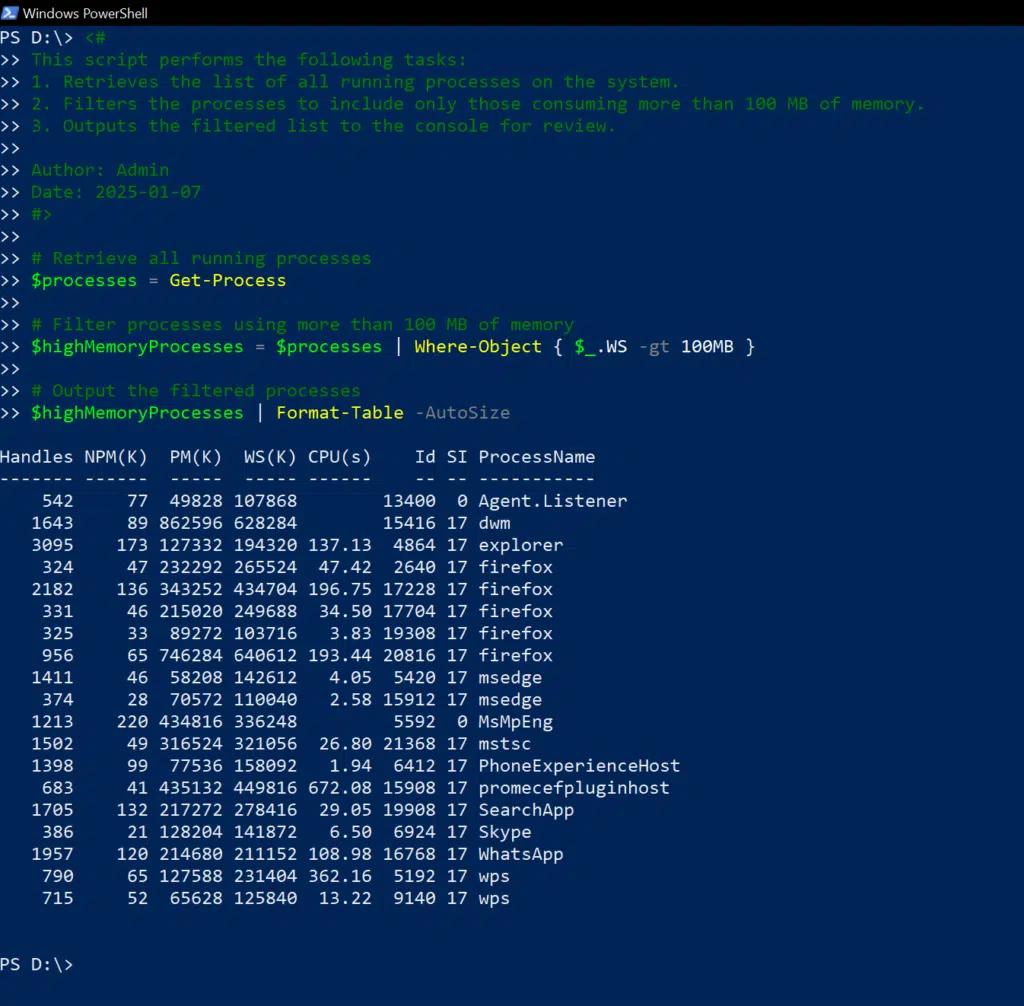
以下は、スクリプトに関する詳細情報を提供する PowerShell の複数行コメントの例です:
      <#

This script performs the following tasks:

1. Retrieves the list of all running processes on the system.

2. Filters the processes to include only those consuming more than 100 MB of memory.

3. Outputs the filtered list to the console for review.

Author: Admin

Date: 2025-01-07

#>

# Retrieve all running processes

$processes = Get-Process

# Filter processes using more than 100 MB of memory

$highMemoryProcesses = $processes | Where-Object { $_.WS -gt 100MB }

# Output the filtered processes

$highMemoryProcesses | Format-Table -AutoSize
ブロックコメントを使うタイミング
PowerShell のブロックコメントは、長くて詳細な説明を行う必要がある場合に最適です。各文をハッシュ記号から始めることもできますが、ブロックコメントを使うとスクリプトがよりきれいで読みやすくなります。
複数行コメントの主な用途をいくつか紹介します:
- スクリプトに関するメタデータを提供する:
      <#

Script Name: Cleanup-TempFiles.ps1

Author: Jon Mill

Description: This script deletes temporary files older than 30 days

             from specified directories to free up disk space.

Last Modified: 2025-01-07

#>
- 複雑なロジックを説明するか、コードの一部に関するコンテキストを提供します:
      <#

The following block of code checks the connectivity status of multiple servers.

If a server is unreachable, it logs the error and skips to the next one,

ensuring the script doesn't terminate unexpectedly.

#>

foreach ($server in $servers) {

    if (-Not (Test-Connection -ComputerName $server -Count 1 -Quiet)) {

        Write-Output "$server is unreachable" >> error.log

        continue

    }

    # Proceed with the next task

}
- コメントタグを使って、デバッグやテスト中に大きな範囲のコードを一時的に無効化します:
      <#

# Commented out the block below for debugging purposes

Write-Output "Starting debugging session"

$debugVar = $true

#>
高度なコメント技法
行内コメント、コメントベースのヘルプ、セクション見出しなどの高度なコメント技法により、スクリプトはよりプロフェッショナルで使いやすくなります。
インラインコメント
ハッシュ記号で始めることで、コードと同じ行にコメントを含めることができます。# 記号以降はすべてコメントとして扱われます。
インラインコメントは、スクリプトの流れを中断せずに、他の人が重要なポイントをすぐに理解できるようにするための、ロジックやその他の詳細に関する簡潔な説明に最適です。ここに簡単な例を示します:
      for ($i = 0; $i -lt 5; $i++) { # Loop from 0 to 4

Write-Output "Iteration $i" }
スクリプトと関数のコメントベースのヘルプ
コメントベースのヘルプは、コード内にスクリプトをドキュメント化するための構造化された方法を提供します。複数行コメント内で特殊なコメントタグを使用することで、Get-Help cmdlet を使って、スクリプトに関して提供する情報を指定できます。たとえば、.SYNOPSIS タグを使って用意した説明は、ユーザーが Get-Help をあなたの関数またはスクリプトで実行したときに表示されます。このアプローチにより、自己文書化されるコードが生成され、別途ドキュメントを用意する必要性が減ります。
事前定義されたタグには、次のものが含まれます。
- .SYNOPSIS — このタグを使用して、スクリプトまたは関数が行う内容を簡潔に要約してください:
      .SYNOPSIS

Copies files from one directory to another.
- .DESCRIPTION — このタグを使用して、スクリプトの機能を詳しく説明し、使用にあたって重要な考慮事項があればそれも記載してください:
      .DESCRIPTION

This function copies files from a source directory to a destination directory.

It allows users to copy files recursively and optionally overwrite existing files.
- .PARAMETER — この タグを使用して、スクリプトが受け付ける各パラメーターを定義してください。パラメーターが何をするのか、その型、そして使用方法に関する特定のルールも含めます:
      .PARAMETER Source

The path of the source directory from which the files will be copied. The source must be a valid directory path.

.PARAMETER Destination

    The path to the destination directory where the files will be copied to.

    The destination must be a valid directory path.

.PARAMETER Overwrite

    A switch to determine whether existing files at the destination should be overwritten.

If not specified, existing files will not be overwritten.
- .EXAMPLE — このタグを使用して、スクリプトまたは関数の詳細な例を示し、ユーザーが呼び出し方と期待される出力を理解できるようにしてください:
      .EXAMPLE

    Copy-Files -Source "C:\Data" -Destination "D:\Backup" -Overwrite

    Copies files from C:\Data to D:\Backup, overwriting existing files at the destination.
Get-Help 統合の実例
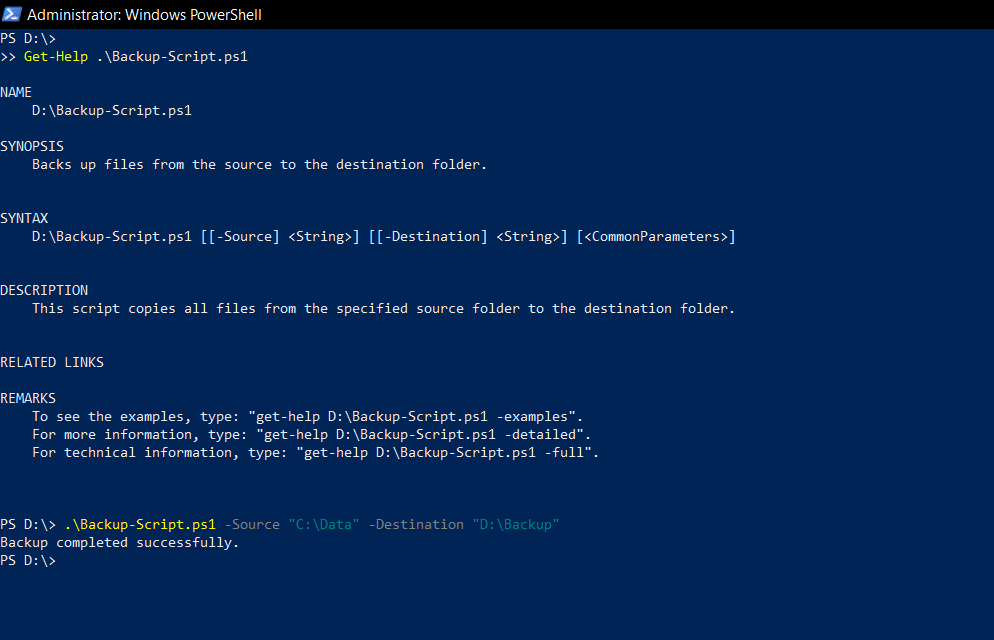
以下のスクリプトは、ファイルをバックアップするために設計されています。スクリプト冒頭の PowerShell のコメントでは、上で詳しく説明したタグを使用します。
      <#

.SYNOPSIS

Backs up files from the source to the destination folder.

.DESCRIPTION

This script copies all files from the specified source folder to the destination folder.

.PARAMETER Source

Specifies the path to the source folder.

.PARAMETER Destination

Specifies the path to the destination folder.

.EXAMPLE

.\Backup-Script.ps1 -Source "C:\Data" -Destination "D:\Backup"

Copies all files from C:\Data to D:\Backup.

#>

param (

    [string]$Source,

    [string]$Destination

)

if (-Not (Test-Path -Path $Source)) {

    Write-Error "Source path does not exist."

    exit

}

if (-Not (Test-Path -Path $Destination)) {

    Write-Host "Destination path does not exist. Creating it..."

    New-Item -ItemType Directory -Path $Destination

}

Copy-Item -Path "$Source\*" -Destination $Destination -Recurse

Write-Host "Backup completed successfully."
下のスクリーンショットは、タグによってユーザーが Get-Help コマンドで使用情報を素早く取得できることを示しています:
PowerShell のコメントに関するベストプラクティス
自分自身や他者がコードをより読みやすく、理解しやすくするためには、コメントを効果的に活用することが不可欠です。ここでは、従うべきトップのベストプラクティスを紹介します。
必要な箇所にコメントを追加するが、コードを煩雑にしない
コメントはコード全体で頻繁に使用し、関数の目的、複雑なアルゴリズムの背後にあるロジック、変数の意味、そしてコードに含まれる前提や制限を説明するようにしてください。
ただし、役に立つ背景情報を提供することと、不必要な見づらさを避けることの間でバランスを取ることが重要です。次のガイドラインを考慮してください:
- 短いメモには、インラインコメントまたは単一行コメントを使用します。
- より長い説明が必要な場合は、PowerShell のマルチラインコメントを使用します。
- 単純または自明な操作に対しては、コメントを付けるのは避けてください。
- 構文ではなく目的についてコメントしましょう。
- 特に複雑なコードでは、注釈でロジックや意図を明確にしましょう。
- 注釈を使って、スクリプトの前提、要件、既知の問題を強調しましょう。
- コメントを一貫して見やすく保つために、書式とスタイルを守りましょう。
- 組み込みのコメントベースのヘルプを使って、関数やスクリプトの詳細な説明を追加しましょう。
読者を圧倒することなく価値を付加する、明確で簡潔なコメントの例を示します:
      # Get-Service returns all running services.

Get-Service

# Filter the results to include only services

# related to the World Wide Web.

Get-Service | Where-Object {$_.DisplayName -like "*WWW*"}

# Stop the selected WWW services.

Get-Service | Where-Object {$_.DisplayName -like "*WWW*"} | Stop-Service
コメントの過剰使用と不足を避ける
コードの1行ごとにコメントを付けると、特にコード自体がすでに分かりやすい場合、読んだり理解したりしづらくなることがあります。以下はコメントを過剰に使用した例です:
      # Assign the value 10 to the variable $number

$number = 10

# Add 5 to the variable $number

$number = $number + 5
一方で、コメントが十分にないと、特に複雑なコードの場合にコードのロジックや目的を理解しにくくなります。たとえば、次のコードは Active Directory 内の無効になっているすべてのユーザーを有効にするように設計されていますが、コメントがないため、次のことを把握しづらくなっています:
      $users = Get-ADUser -Filter * | Where-Object {$_.Enabled -eq $false}

$users | ForEach-Object {

    Set-ADUser -Identity $_.SamAccountName -Enabled $true

}
デバッグには一時的なコメントを使う
コードをコメントアウトすることは、コード内の問題をデバッグしてトラブルシューティングするうえで有用な手法です。問題を切り分け、実行時の挙動を理解するのに役立ちます。以下の例のように、コードを無効にした理由を説明するコメントを必ず使ってください:
      # Log the value of the Source variable for debugging

Write-Host "Debug: Source path is $Source"

# Temporarily disable file copying to test directory creation

# Copy-Item -Path "$Source\*" -Destination $Destination -Recurse
複雑なコードには複数のコメントを使う
複雑なロジックを説明するには、コードをより小さな塊に分け、各塊について説明するコメントを付けます。例は次のとおりです:
      # Calculate the factorial of a number

function Calculate-Factorial {

    param(

        [int]$Number

)

# Base case: Factorial of 0 is 1

    if ($Number -eq 0) {

        return 1

    }

# Recursive case: Factorial of N is N * Factorial(N-1)

    else {

        return $Number * (Calculate-Factorial ($Number - 1))

    }

}
「何をするか」だけでなく「なぜするか」を説明する
スクリプトの背後にある推論(意図)を説明するためにコメントを使うことで、将来の修正やデバッグ作業のための文脈が提供され、コードの保守性が向上します。
      # Retry the operation up to 3 times to handle intermittent network failures

# This prevents the script from failing on occasional, recoverable issues

for ($i = 0; $i -lt 3; $i++) {

    try {

        # Attempt the operation

        Copy-Item -Path $Source -Destination $Destination

        break  # Exit the loop if the operation is successful

    }

    catch {

        if ($i -eq 2) { throw "Failed after 3 attempts" }

        Start-Sleep -Seconds 2  # Wait before retrying

    }

}
コメントを整形して可読性を高める
コメントを効果的に整形すると、コードの可読性が向上します。インデントや整列に加えて、コメントの配置にも注意してください。たとえば、説明するコードの前に常にコメントを置くなど、配置の一貫性を保ちます。次のコードは、適切な整形によってコメントがより効果的になることを示しています:
      # This function retrieves a list of all running processes.

function Get-RunningProcesses {

    # Get all running processes

    Get-Process |

        # Select only the process name and ID

        Select-Object ProcessName, ID

}
PowerShell コメントの特別なユースケース
コメントを使ったバージョン管理
バージョン管理を改善するために、PowerShell のコメントを使って、時間の経過とともにスクリプトに加えた変更を文書化します。日付、作成者、変更理由などの情報を含む、統一された形式を使用してください。この履歴は、開発者が各更新の背景となる文脈を理解するのに役立ちます。
      # Version 2.0 - 2025-01-10

# Added a new parameter for logging options and enhanced error handling.

# Updated the file backup logic to support incremental backups.

param (

    [string]$Source,

    [string]$Destination,

    [switch]$EnableLogging  # New parameter to enable logging

)

# Check if source exists

if (-Not (Test-Path -Path $Source)) {

    Write-Error "Source path does not exist."

    exit

}

# Log file creation if logging is enabled

if ($EnableLogging) {

    $logPath = "$Destination\backup_log.txt"

    "Backup started at $(Get-Date)" | Out-File -Append $logPath

}

# Backup files (incremental logic added in Version 2.0)

if (-Not (Test-Path -Path $Destination)) {

    New-Item -ItemType Directory -Path $Destination

}

Copy-Item -Path "$Source\*" -Destination $Destination -Recurse

# Log completion if logging is enabled

if ($EnableLogging) {

"Backup completed at $(Get-Date)" | Out-File -Append $logPath

}
Regions を使ってコードを整理する
<#region および <#endregion タグは、コードの論理的なセクションを識別するために使用できます。たとえば、データ処理、設定、ログ記録などのタスクを実行するスクリプトの一部にタグを付けることができます。この方法により、複雑なスクリプトをより簡単にナビゲートして理解できるようになります。たとえば、開発者は現在取り組んでいないセクションを折りたたんで、視覚的な煩雑さを減らし、集中しやすくすることができます。
次のスクリプトは3つの Regions に分かれています:データ インポート 関数、データ 処理 関数 および 出力 関数。 Region のコメント ブロックは、その目的を説明するために使用されます。
      <#region Introduction

    This script retrieves a list of all running processes.

    It then filters the list to include only processes

    that match a specific criterion.

#>

# Get all running processes

$Processes = Get-Process

<#region Filtering

    Filter processes based on criteria

    (e.g., process name, CPU usage).

#>

$FilteredProcesses = $Processes | Where-Object {$_.ProcessName -eq "notepad"}

<#endregion Filtering

<#region Output

    Display the filtered processes.

#>

$FilteredProcesses | Format-List

<#endregion Output

<#endregion Introduction
PowerShell のコメントを使ったトラブルシューティングとデバッグ
コメントでバグを切り分ける
コメントは、変数の値、潜在的な問題箇所、またはトラブルシューティング手順など、デバッグ用の情報を挿入するために使用できます。
コメントでコードを無効化する
削除する代わりにコードの一部を一時的にコメントアウトすることで、エラーの原因を絞り込むことができます。
コメントでエラーを文書化する
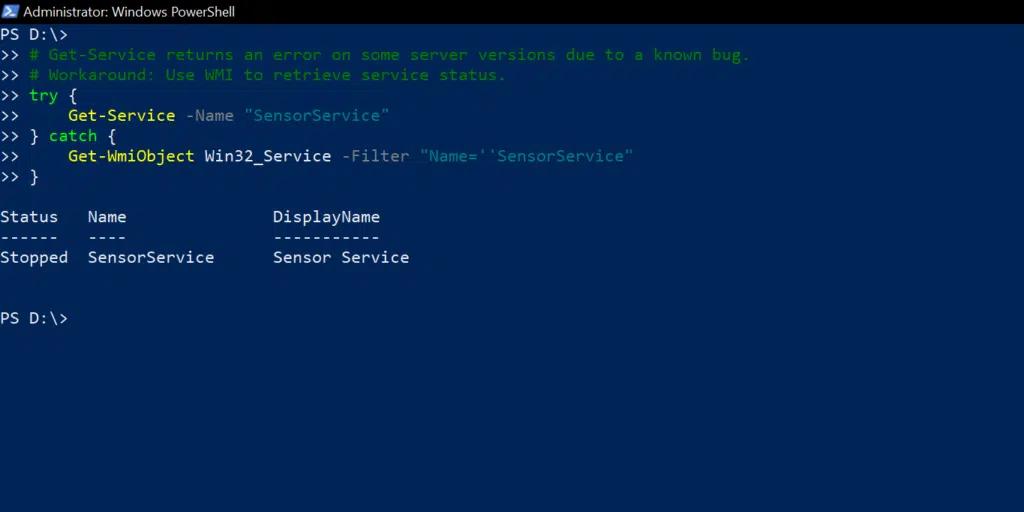
コメントは、既知の問題やトラブルシューティングのヒントを文書化するのに最適な方法です。特に、特定の条件下でエラーが起こりやすいコードでは効果的です。潜在的な解決策や補足説明をコメントとして追加することで、問題が発生した際に自分自身や他の人が迅速に解決できるようになります。
      # Get-Service returns an error on some server versions due to a known bug.

# Workaround: Use WMI to retrieve service status.

try {

    Get-Service -Name "SensorService"

} catch {

    Get-WmiObject Win32_Service -Filter "Name=''SensorService"

}
協業のための PowerShell コメント
コメントは、スクリプトを読みやすく、理解しやすく、保守しやすくすることで、協業を向上させます。また、新しい貢献者のオンボーディングを早めることにもつながります。
チームで使うためのスクリプトのドキュメント化
スクリプトの目的、コード各セクションの背景となるロジック、そして起こり得る落とし穴をコメントで説明することで、チーム内での知識共有が向上し、デバッグや時間を削減できます。
たとえば、次のスクリプトの先頭にあるブロックコメントでは、目的、前提条件、パラメーターが概説されています:
      <#

Script Name: Create-ADUserAccounts.ps1

Description: Automates the creation of Active Directory user accounts from a CSV file.

Prerequisites:

  - Active Directory module installed.

  - A valid CSV file with columns: FirstName, LastName, UserName, and Email.

Parameters:

  -CSVPath: Path to the input CSV file.

  -OU: Organizational Unit where accounts will be created.

Usage:

  .\Create-ADUserAccounts.ps1 -CSVPath "C:\Users.csv" -OU "OU=Users,DC=Domain,DC=Com"

#>
コメントを通じて知識を共有する
コメントは、チーム全員がスクリプトの背後にあるロジック、各セクションの目的、なぜ特定のアプローチが選ばれたのか、そして潜在的な課題を理解するのに役立ちます。この共通理解により、トラブルシューティング、デバッグ、将来の改善が容易になります。たとえば、スクリプトに既知のソフトウェア制限への回避策が含まれている場合、コメントで問題を記録し、解決策を正当化することで、他の人が調査を重複する必要がなくなります。
次は、サービスが起動していない場合にサービスを再起動するためのスクリプトに関する情報を効果的に共有するための、コメントの使い方の例です:
      <#

Script Name: Ensure-ServiceRunning.ps1

Description: Checks if a specified service is running and restarts it if necessary.

Purpose:

  - Ensures critical services stay operational without manual intervention.

Decisions:

  - Used “Get-Service” for simplicity and compatibility.

  - Restart logic avoids redundancy by checking the current status first.

Usage:

  .\Ensure-ServiceRunning.ps1 -ServiceName "Spooler"

#>

param (

    [Parameter(Mandatory)]

    [string]$ServiceName  # Name of the service to check

)

# Check the current status of the service

$service = Get-Service -Name $ServiceName -ErrorAction Stop

if ($service.Status -ne "Running") {

    # Log and attempt to restart the service if not running

    Write-Host "Service '$ServiceName' is not running. Attempting to restart..."

    try {

        Restart-Service -Name $ServiceName -Force

        Write-Host "Service '$ServiceName' has been restarted successfully."

    } catch {

        Write-Error "Failed to restart the service '$ServiceName': $_"

    }

} else {

    Write-Host "Service '$ServiceName' is already running."

}
PowerShell におけるコメントの例とシナリオ
次のスクリプトはディスク使用量を監視し、空き容量が少ない場合はメールでアラートを送信します:
      <#

Script Name: Monitor-DiskUsage.ps1

Description: Checks each logical drive and sends an alert if free space is below the defined threshold.

Purpose:

  - Prevents system issues caused by insufficient storage.

Usage:

  .\Monitor-DiskUsage.ps1 -Threshold 10 -Email "admin@Netwrix.com"

#>

param (

    [Parameter(Mandatory)]

    [int]$Threshold,       # Minimum free space in GB to trigger an alert

    [Parameter(Mandatory)]

    [string]$Email         # Email address for the alert

)

# Retrieve disk information

$drives = Get-PSDrive -PSProvider FileSystem

foreach ($drive in $drives) {

    if ($drive.Free -gt 0) {

        $freeSpaceGB = [math]::Round($drive.Free / 1GB, 2)

        if ($freeSpaceGB -lt $Threshold) {

            Write-Warning "Drive $($drive.Name) has low space: $freeSpaceGB GB remaining."

            # Send an alert email (replace with real SMTP details)

            try {

                Send-MailMessage -From "alerts@netwrix.com" -To $Email -Subject "Low Disk Space Alert" `

                    -Body "Drive $($drive.Name) has only $freeSpaceGB GB remaining." `

                    -SmtpServer "smtp.domain.com"

            } catch {

                Write-Error "Failed to send alert email: $_"

            }

        }

    }

}
以下のスクリプトは、非アクティブなアカウントを無効にして特定の OU に移動することで、Active Directory 内のユーザー アカウントをクリーンアップします。
      <#

Script Name: Cleanup-ADUsers.ps1

Description: Disables and moves inactive user accounts to a specified OU.

Purpose:

  - Helps maintain a clean and secure Active Directory environment.

Usage:

  .\Cleanup-ADUsers.ps1 -OU "OU=Inactive,DC=Netwrix,DC=Com" -DaysInactive 90

#>

param (

    [Parameter(Mandatory)]

    [string]$OU,           # Target OU for inactive users

    [Parameter(Mandatory)]

    [int]$DaysInactive     # Number of days since last logon

)

# Get the current date and calculate the inactivity threshold

$thresholdDate = (Get-Date).AddDays(-$DaysInactive)

# Find inactive user accounts

$inactiveUsers = Get-ADUser -Filter {LastLogonDate -lt $thresholdDate -and Enabled -eq $true}

foreach ($user in $inactiveUsers) {

    Write-Host "Disabling and moving user: $($user.SamAccountName)"

    # Disable the account

    Disable-ADAccount -Identity $user.SamAccountName

    # Move the account to the specified OU

    Move-ADObject -Identity $user.DistinguishedName -TargetPath $OU

}
コメント記述でよくある間違い
スクリプト内のいくつかのコメントは、明確さを高めるというよりも、かえって混乱を増やすことがあります。PowerShell のコメントを使う際に最も頻繁に起こるミスと、それらを回避する方法を紹介します。
曖昧すぎる、または明白すぎるコメント
最もよくある間違いの一つは、下の例のように、コメントが曖昧すぎたり、あまりにも明白すぎたりするものを書くことです。
      # Set the variable to 5

$number = 5
その代わりに、なぜその特定の判断が下されたのか、またはなぜ複雑な処理が行われているのかを説明することに注力してください。特に、コードが分かりにくい可能性がある場合や、複数のアプローチが考えられる場合はなおさらです。
      # Assign the default retry count to handle intermittent failures

$retryCount = 5
不正確または古くなったコメント
場合によっては、コードが変更されたのにコメントが更新されず、その結果、不正確または誤解を招く情報になってしまうことがあります。たとえばここでは、バックアップパスは変更されたのにコメントが更新されていないため、読者を誤解させる可能性があります:
      # This script backs up data to a network drive

Backup-Data -Path "C:\Data"
コードが変更されたら、コメントも必ず更新されるようにしてください。コードの保守作業の一環として、定期的にコメントを見直し、必要に応じてリファクタリングし、内容が常に適切であり続けるようにします。
コメントの使いすぎ
一部のコードには、すべての行や単純な操作ごとに不要なコメントが入っています。
      # Initialize the variable

$number = 10

# Increment the variable by 1

$number++
コメントは価値がある場合にのみ追加します。通常は、複雑なロジックや、別の開発者にはすぐに理解できないかもしれない独特な解決策・判断のときです。
複雑なコードを説明するためにコメントを使わない
スクリプトに複雑、または直感的でないコードのセクションが含まれている場合は、必ず説明してください。たとえば、コメントがないと、なぜこれらの特定の計算を行っているのか、また 1.15 が何を表しているのかが不明になります:
$finalPrice = $basePrice * (1 - $discountPercentage) * 1.15
複雑であったり分かりにくいコードでは、特定の数式・計算・アルゴリズムをなぜ使っているのかの背景(文脈)を示してください。
      # Calculate the final price including a 15% tax and applying the discount

$finalPrice = $basePrice * (1 - $discountPercentage) * 1.15
削除せずにコードをコメントアウトする
開発者は、テストで残ったコメントアウト済みのコードや、そもそももう必要のないコードを、そのまま置いてしまうことがあります。結果としてスクリプトが煩雑になり、そのコードを将来再有効化すべきかどうかについて混乱が生じます。
      # $oldValue = Get-Item "C:\OldFile.txt"

# $oldValue.Delete()
コードをコメントアウトするのではなく、スクリプトから不要なコード(デッドコード)を削除してください。将来の参照のためにコードを残す必要がある場合は、その目的を明確に文書化してください。
まとめ
コメントは、プロフェッショナルで保守しやすい PowerShell スクリプトにとって重要です。正しく使うことで、コードの理解、デバッグ、トラブルシューティング、保守、改善がより簡単になります。効果的なコメントには、スクリプトの目的、判断(決定事項)、前提(仮定)、潜在的な問題の記録が含まれます。開発者は、コメントを使いすぎない/使わなさすぎないようにし、読みやすさを確保するためのフォーマット基準を採用する必要があります。
効果的なコメントは一度きりの作業ではなく、継続的なプロセスです。コードが変更されるたびにコメントを見直して更新することで、コメントがスクリプトの現状を正確に反映し、混乱やエラーを防ぐことができます。
よくある質問
コメントは PowerShell スクリプトのパフォーマンスに影響しますか?
コメントは実行中に PowerShell のインタプリタによって処理されないため、実行時のスクリプトのパフォーマンスには影響しません。とはいえ、コメントを簡潔で関連性のある内容に保ち、最大限の価値を提供できるようにするのが望ましいです。
スクリプト内のコメントはどのくらいの頻度で更新すべきですか?
新しい機能の追加、既存の機能の変更、バグの修正など、コードに大きな変更が加えられるたびに、コメントを見直して更新してください。コメントは常にスクリプトの現在の状態を反映する必要があります。
PowerShell で複数行を素早くコメントアウトするにはどうすればよいですか?
PowerShell では、ブロックコメントの構文を使うと複数行を素早くコメントアウトできます。コード行を <# で始め、#> で終えるだけです。
インラインコメントとブロックコメントの違いは何ですか?
インラインコメントは記号 # から始まり、参照するコードと同じ行に表示されます。簡単な説明に最適です。
ブロックコメントは、区切り文字 <# と #> で囲まれ、複数行にまたがって記述できます。詳細な説明を提供したり、複雑なロジックをドキュメント化したり、コードの一部を一時的に無効化したりするのに特に役立ちます。
共有する
もっと詳しく
著者について

Jonathan Blackwell
ソフトウェア開発責任者
2012年以降、エンジニアでありイノベーターである Jonathan Blackwell は、エンジニアリングのリーダーシップを通じて Netwrix GroupID を、Active Directory および Azure AD 環境におけるグループとユーザー管理の最前線に押し上げてきました。開発、マーケティング、営業での経験により、Jonathan は Identity 市場と買い手の考え方を深く理解できています。