
Rename-Item cmdlet 是什么?
PowerShell 中的 Rename-Item cmdlet 可用于更改项目(项)的名称。该项可以是文件、目录,或路径中的任意对象。该 cmdlet 也可用于在本地以及网络环境中重命名项目。用户还可以执行批量重命名操作,将重命名任务集成到脚本中以实现自动化,甚至借助通配符字符和正则表达式来管理更复杂的重命名需求。例如,用户可以轻松更改文件名和扩展名,或通过在文件名中加入时间戳或其他标识信息来对文件进行整理。
你可能还会喜欢这些 PowerShell 内容:
如何删除 PowerShell 文件
如何创建 PowerShell 文件
如何复制 PowerShell 文件
Rename-Item Cmdlet:语法
下面是 PowerShell Rename-Item cmdlet 的语法及其支持参数,这些参数可为重命名过程提供灵活性和控制能力。
Rename-Item -Path <String> -NewName <String> [-Force] [-PassThru] [-WhatIf] [-Confirm] [<CommonParameters>]
下面是 Rename-Item 的基本命令。该命令会将当前目录中的文件从“Report.txt”重命名为“Report-26-09-2024.txt”。
Rename-Item -Path "C:\Temp\Report.txt" -NewName "Report-26-09-2024.txt"
面向初学者的 Windows PowerShell 脚本教程(PDF)
了解更多Rename-Item:参数
了解 Rename-Item 的参数将帮助你有效地使用该 cmdlet 来重命名项目。下面是对在 PowerShell 中使用此 cmdlet 时涉及的所有参数的说明。
|
Parameters |
Description |
|
-Path |
Specifies the path of the item to be renamed. This can be the full path or relative to the current directory. The item at the path can be a file, folder, or any other type supporting renaming. This parameter is mandatory. |
|
-LiteralPath |
Provides an alternative to -Path. It is used to specify the path when the item names include special characters that PowerShell might otherwise interpret differently, such as “[“ or “]”. Unlike -Path, wildcard characters are not allowed, and the specified string is used exactly as it is. |
|
-NewName |
This mandatory parameter represents the new name for the item. It is important to note that this should be just the item’s name, not a path. If you are renaming a file and wish to keep its file type, ensure that the appropriate file extension is included in the new name. |
|
-Credential |
Although not commonly used in scripts for local file management, this optional parameter allows the cmdlet to execute using a set of user-specified credentials. This can be useful when working with files on a network share or in any scenario requiring specific permissions. |
|
-Force |
This parameter enables the cmdlet to rename read-only, hidden, or otherwise protected items. It overrides restrictions that would generally prevent the operation from succeeding. |
|
-PassThru |
By default, Rename-Item does not output any object. When the -PassThru parameter is used, the cmdlet returns the object that has been renamed. This can be useful for piping the renamed item into further commands or for immediate operation verification. |
|
-WhatIf |
This safety feature simulates the execution of the cmdlet without performing the rename operation. It shows what would happen if the cmdlet were to run, providing a preview of the results. This can be particularly useful in scripts or batch operations where you want to avoid unintended consequences. |
|
-Confirm |
Prompts the user for confirmation before executing the cmdlet. This can be useful in interactive scripts or when making significant changes, providing an extra layer of safety against unintended actions. |
使用带参数的 Rename-Item 示例
下面是一些使用不同参数的 Rename-Item 示例;这些示例将展示如何在各种条件下重命名项目,从而让你以更实用的方式理解如何在真实场景中应用该 cmdlet。
下面是一个基础示例 cmdlet:它将单个文件从“Design.txt”重命名为“Report.txt”。
Rename-Item -Path "C:\Backups\Design.txt" -NewName "Report.txt"
如下面示例所示,-Force 参数会重命名只读或隐藏文件。
Rename-Item -Path "C:\Backups\Design.txt" -NewName "Report.txt" -Force
-PassThru 参数会返回一个表示已重命名项目的对象,然后可以将其通过管道传递给另一个 cmdlet。重命名完成后,我们会立即获得该已重命名项目的完整详细信息。
Rename-Item -Path "C:\Backups\Design.txt" -NewName "Report.txt" -PassThru | Get-Item
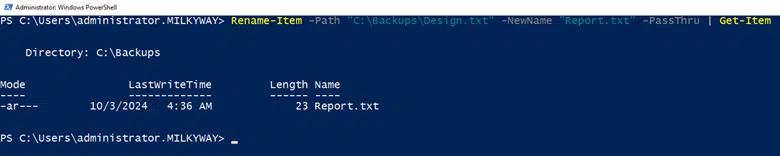
要查看在不执行重命名的情况下会发生什么,请使用 -WhatIf 参数。对于脚本中的测试尤其有用。确认结果后,在实际重命名过程中运行不带 -WhatIf 参数的 cmdlet。
Rename-Item -Path "C:\Backups\Design.txt" -NewName "C:\Backups\NewDesign.txt" -WhatIf

输出会描述将要执行的操作,但不会真正执行。
如果希望在发生重命名之前先提示进行确认,请使用 Confirm 参数。这在意外重命名可能带来重大后果的场景中很有用。
Rename-Item -Path "C:\Backups\Design.txt" -NewName "Report.txt" -Confirm
在操作继续执行之前,系统会提示你确认该操作。

Path 与 LiteralPath 参数
在使用涉及文件和目录操作的 cmdlet 时,你通常会遇到两个参数:-Path 和 -LiteralPath。理解这两个参数的差异对于有效管理文件系统任务至关重要,尤其是在处理包含特殊字符或保留字的文件名或路径时。
-Path
-Path 是用于指定项目位置更常用的参数。它支持通配符 (*),从而可以进行模式匹配,并通过一条命令选择多个项目。PowerShell 会解释特殊字符(包括通配符字符)。这意味着,如果你的文件名或路径包含诸如“[],(),{}”这样的字符,PowerShell 可能会将它们当作通配符模式的一部分,从而导致意外行为。
示例
Rename-Item -Path C:\Logs\*
-LiteralPath
-LiteralPath用于指定项目的位置,而不将任何字符解释为通配符。处理包含特殊字符的文件名或路径时,可以输入此参数,确保PowerShell按字面方式处理输入字符串,而不尝试进行模式匹配。
示例
Rename-Item -LiteralPath “C:\Files\[Design].txt”
Rename-Item 的常见用法示例
重命名和移动文件
不能使用 Rename-Item cmdlet 在 PowerShell 中重命名文件并将其移动到其他位置。执行该操作时会出现以下错误。

必须使用 Move Item cmdlet 来移动文件,并同时在目标位置重命名文件名。
下面介绍了如何使用 cmdlet 来移动和重命名文件。
Move-Item -Path "C:\Backups\Design.txt" -Destination "C:\Archive\NewDesign.txt"
重命名隐藏文件和只读文件
要重命名隐藏文件或只读文件,请在 Rename-Item cmdlet 中使用 -Force 参数。该参数允许 PowerShell 在重命名过程中绕过只读属性。
Rename-Item -Path "C:\Documents\ReadOnlyFile.txt" -NewName "RenamedFile.txt" -Force
批量重命名文件
使用 PowerShell 批量重命名文件是一项常见任务,通常用于管理大型数据集、整理归档,或只是清理目录。
如果需要更改多个文件的扩展名,例如从 “.txt” 更改为 “.log”,你可以使用下面的脚本。
      Get-ChildItem -Path "C:\Documents" -Filter "*.txt" | ForEach-Object {

    $newName = [io.path]::ChangeExtension($_.Name, ".log")

    Rename-Item -Path $_.FullName -NewName $newName

}
或者你也可以使用下面的 PowerShell 重命名多个文件及文件扩展名的 cmdlet,而无需为每个文件添加循环。
Get-ChildItem -Path "C:\Documents\*.txt" | Rename-Item -NewName { $_.Name -replace ".txt",".log" }
添加前缀和后缀
使用 PowerShell 对目录中的所有文件进行重命名命令,可以为文件名添加前缀或后缀。这是在整理文件、为文档进行版本管理,或为归档准备数据时的常见任务。通过 PowerShell,你可以使用 Get-ChildItem 和 Rename-Item cmdlet 来实现添加前缀和后缀。
你可以使用下面的脚本为特定目录中的所有文件添加前缀。
      Get-ChildItem -Path "C:\Documents\*.txt" | ForEach-Object {

    Rename-Item -Path $_.FullName -NewName ("Project_" + $_.Name)

}
同样,你也可以使用下面的脚本在文件扩展名前添加后缀。
      Get-ChildItem -Path "C:\Documents\*.txt" | ForEach-Object {

    Rename-Item -Path $_.FullName -NewName ($_.BaseName + "_Final" + $_.Extension)

}
为所有 .txt 文件添加前缀“Backup_”和后缀“_2024”。
      Get-ChildItem -Path "C:\Documents\*.txt" | ForEach-Object {

    Rename-Item -Path $_.FullName -NewName ("Backup_" + $_.BaseName + "_2024" + $_.Extension)

}
使用时间戳重命名文件
在文件名中加入时间戳进行重命名,对于创建备份、整理归档或跟踪文件版本都非常有用。
此示例演示如何在特定目录中的所有“.txt”文件后作为后缀添加格式为“yyyyMMdd_HHmmss”的时间戳。
      Get-ChildItem -Path "C:\Documents\*.txt" | ForEach-Object {

    $timestamp = Get-Date -Format "yyyyMMdd_HHmmss"

    $newName = $_.BaseName + "_" + $timestamp + $_.Extension

    Rename-Item -Path $_.FullName -NewName $newName

}
如果您希望将时间戳放在文件名的开头,可以按如下方式稍微修改脚本。
      Get-ChildItem -Path "C:\Documents\*.txt" | ForEach-Object {

    $timestamp = Get-Date -Format "yyyyMMdd_HHmmss"

    $newName = $timestamp + "_" + $_.Name

    Rename-Item -Path $_.FullName -NewName $newName

}
如果要重命名 C:\Documents 目录中的所有 .txt 文件,请在开头添加创建时间戳。
      Get-ChildItem -Path "C:\Documents\*.txt" | ForEach-Object {

    $timestamp = $_.CreationTime.ToString("yyyyMMdd_HHmmss")

    Rename-Item -Path $_.FullName -NewName ("$timestamp" + "_" + $_.Name)

}
如果你想将“修改时间戳”作为后缀添加到所有 .txt 文件中。
      Get-ChildItem -Path "C:\Documents\*.txt" | ForEach-Object {

    $timestamp = $_.LastWriteTime.ToString("yyyyMMdd_HHmmss")

    Rename-Item -Path $_.FullName -NewName ($_.BaseName + "_" + $timestamp + $_.Extension)

}
如果你想将“创建时间戳”作为前缀、将“最后修改时间戳”作为后缀添加到所有 .docx 文件中。
      Get-ChildItem -Path "C:\Documents\*.txt" | ForEach-Object {

    $creationTimestamp = $_.CreationTime.ToString("yyyyMMdd_HHmmss")

    $modifiedTimestamp = $_.LastWriteTime.ToString("yyyyMMdd_HHmmss")

    Rename-Item -Path $_.FullName -NewName ("$creationTimestamp" + "_" + $_.BaseName + "_$modifiedTimestamp" + $_.Extension)

}
处理文件名冲突
在自动执行文件操作(例如重命名或移动文件)时,处理文件名冲突非常重要,以避免无意中覆盖现有文件。你可以检查是否已经存在同名的新文件。如果存在,你可以修改新的名称(例如,附加一个计数器或额外的时间戳)。
示例:发生冲突时追加计数器和创建日期
      Get-ChildItem -Path "C:\Documents\*.txt" | ForEach-Object {

    $baseName = $_.BaseName

    $extension = $_.Extension

    $creationTimestamp = $_.CreationTime.ToString("yyyyMMdd_HHmmss")

    $newName = "$baseName" + "_$creationTimestamp" + "$extension"

    # Initialize a counter for collisions

    $counter = 1

    # Check if the new name already exists

    while (Test-Path -Path (Join-Path -Path $_.DirectoryName -ChildPath $newName)) {

        $newName = "$baseName" + "_$creationTimestamp" + "_$counter" + "$extension"

        $counter++

    }

    Rename-Item -Path $_.FullName -NewName $newName

}
说明
上述脚本会检索所有 .txt 文件。它会使用时间戳作为文件的创建日期来构造一个新的文件名,然后检查该新名称是否已存在。如果已存在,则会追加计数器,例如 “_1”、“_2”等,直到找到唯一的名称为止。
重命名注册表项
要使用 PowerShell 重命名注册表项,可以使用 Rename-Item cmdlet,并在尝试运行该 cmdlet 之前先导出计划重命名的注册表项。此步骤是预防措施,可在出现任何问题时确保有备份。
Rename-Item -Path "HKLM:\Software\MyCompany\Advertising" -NewName "Marketing"
Microsoft 365 教程:完整的管理指南
了解更多使用正则表达式进行复杂的重命名
PowerShell:在文件夹中重命名文件的命令
使用 -replace 运算符是一种通过应用正则表达式(regex)模式来重命名文件夹中文件的强大方式。对于需要根据特定模式,在批量重命名时添加、删除或修改文件或目录名称的部分内容,这种方法会很有帮助。
例如,你有一堆类似“report1_2023-04-01.txt”、“report2_2023-04-02.txt”等命名的文件,你想在移除名称中的日期戳时,同时连同下划线(_)一起去掉。
下面的命令会查找所有名称以“report*”开头、后面带有日期戳的 .txt 文件,并通过移除日期戳来重命名它们,只保留“report.txt”并保留编号不变,例如“report1.txt”“report2.txt”。
Get-ChildItem -Path "C:\Backups"-Filter "report*.txt" | Rename-Item -NewName {$_.Name -replace '_\d{4}-\d{2}-\d{2}', ''}
顺序编号
使用 Rename-Item cmdlet 为文件名添加顺序编号,需要编写一些脚本:在遍历文件时实现计数器。它在按特定顺序组织文件或确保文件名的唯一性方面尤其有用。
如果你想将文件重命名以包含顺序编号(例如:“Image_1.jpg”、“Image_2.jpg”),可以使用下面的脚本。
      $counter = 1

Get-ChildItem -Path "C:\Images" -Filter "*.jpg" | ForEach-Object {

    Rename-Item -Path $_.FullName -NewName ("Image_$counter.jpg")

    $counter++

}
Rename-Item 常见错误及故障排除
在使用 PowerShell 进行文件、目录以及注册表项重命名时,你可能会遇到一些常见的错误或问题。理解这些潜在陷阱以及如何排查它们,有助于确保你的文件和目录重命名任务顺利完成。下面列出了一些常见错误以及排查建议。
未找到文件错误
PowerShell 找不到该路径,因为它并不存在。请检查文件路径是否有拼写错误。尝试重命名之前,使用 Test-Path cmdlet 验证文件是否存在。
      if (Test-Path "C:\Backups\design.txt") {

    Rename-Item -Path "C:\Backups\Design.txt" -NewName "NewDesign.txt"

} else {

    Write-Host "File does not exist."

}
文件正在使用中
由于另一个进程正在使用该文件,cmdlet 无法访问它。若你尝试重命名的文件在其他应用程序中处于打开状态,则会出现此错误。请在任何可能正在使用该文件的其他应用程序中关闭该文件。如果问题仍然存在,你可能需要终止已锁定该文件的进程,或重启系统以解锁该文件。
访问被拒绝错误
拒绝访问指定路径,或权限不足,无法修改文件或注册表项。
为避免此错误,请以管理员身份运行 PowerShell,或检查文件或注册表项的权限,并在必要时进行调整。
路径过长错误
指定的路径、文件名或两者都过长。Windows 有最大路径长度限制(通常为 260 个字符)。通过将文件移动到更高的目录层级来缩短路径。
目标已存在错误
由于目标已存在,因此无法重命名。新的文件名在目标目录中已存在。使用 Test-Path 检查目标文件是否存在。修改脚本以处理冲突,例如追加后缀或递增数字。
无效字符错误
文件、目录或注册表名称不正确。新的文件名包含无效字符。确保新的名称不包含无效字符。在重命名之前,使用正则表达式删除或替换无效字符。
结论
你可以使用 PowerShell 中的 Rename-Item 命令来更改文件、目录或文件系统中其他项的名称。该命令不会更改项本身,只会更改其名称。你可以在 PowerShell 中通过指定当前路径和新名称来重命名这些项。该命令还提供一些选项,例如强制执行操作、在不实际重命名项的情况下展示将会发生什么,以及在重命名前提示进行确认。该命令非常适合用于自动化文件和目录管理任务,例如为文件添加前缀、后缀以及顺序编号。
Netwrix Directory Manager
常见问题
PowerShell 中的 Rename-Item cmdlet 是什么?
Rename-Item cmdlet 用于使用 PowerShell 重命名项,例如文件或注册表项。它支持许多参数,例如 -Path、-Force、-WhatIf、-Confirm 或 -Passthru,可在不同场景下使用。
我能否使用 Rename-Item 同时移动文件并重命名?
不可以。使用 Rename-Item 不能同时移动文件并重命名。你必须先使用 Move-Item 移动文件,并在指定目标时使用新的文件名。
分享到
了解更多
关于作者

Kevin Horvatin
首席软件架构师
Kevin Horvatin 是 Netwrix 的首席软件架构师,负责 Netwrix Privilege Secure。作为一名拥有 20 多年经验的软件开发人员,自 PowerShell 和 C# 推出以来,他一直与它们合作开发。