
PowerShell Try-Catch:错误处理指南
Aug 25, 2025
PowerShell 的错误处理使用 Try-Catch-Finally 块来管理终止(terminating)和非终止(non-terminating)错误,从而确保脚本在无人值守的执行中依然保持可靠性。Try 用于包裹有风险的代码,Catch 用于响应异常,而 Finally 用于清理资源。借助诸如 -ErrorAction, $ErrorActionPreference 和 $Error 等选项,管理员可以强制执行严格的处理策略,捕获详细的错误信息,并自动化恢复流程。此方法可减少停机时间、防止数据丢失,并在规模化场景下实现更具韧性的脚本编写。
PowerShell 中的错误处理简介
许多 PowerShell 脚本都被设计为在无人值守的情况下运行,因此必须确保它们能够顺利处理错误。恰当的错误处理有助于防止各种问题,从操作不完整和系统停机到数据丢失。错误处理需要同时考虑两类情况:会停止脚本执行的终止性错误(terminating errors),以及允许脚本继续运行但可能影响输出的非终止性错误(non-terminating errors)。
PowerShell 中用于错误处理的最有用机制之一是 Try-Catch-Finally 代码块。Try 代码块包含可能会抛出异常的代码。如果发生这种情况,控制权会转移到 Catch 代码块;该代码块通过执行诸如跳过有问题的文件或无效输入等操作来处理错误,并同时记录该事件。Finally 代码块会始终执行,执行诸如关闭文件、释放资源或记录信息之类的清理任务。例如,创建用于 Try Catch 的详细错误消息,可以让你采取适当的措施来解决问题。
本文将深入讲解 Try-Catch-Finally 代码块。在此过程中,我们还将介绍 PowerShell 中的一些其他错误处理方法,包括使用 ErrorAction 参数来控制 cmdlet 遇到错误时的响应方式,以及使用 $Error 变量来存储错误历史记录。
PowerShell 中的错误是什么?
错误是可能影响脚本正常执行流程的事件,也可能会完全停止脚本的运行。常见的错误原因包括语法不正确、文件缺失、权限不足或资源不可用。错误主要分为两种类型:终止性错误(terminating errors)和非终止性错误(non-terminating errors)。
终止性错误(Terminating Errors):会停止脚本运行的关键错误
终止性错误会在未被正确处理的情况下立即停止脚本执行。当 PowerShell 遇到无法从中恢复的问题时,就会发生这类错误,例如语法错误、调用不存在的变量或文件,或缺少执行所请求操作所需的足够权限。
例如,下方脚本尝试获取文件 users.txt:
Get-Content C:\users.txt | Get-ADUser -Properties name | Select-Object -Property SamAccountName,name
如果该文件在指定位置不存在,或者运行脚本的账户没有权限访问该文件,脚本将生成终止性错误,并如图所示停止脚本操作:

非终止错误:允许脚本继续运行的错误
PowerShell 中的非终止错误是指不会停止脚本执行的错误。这类错误通常由尝试处理多个对象的 cmdlet 生成:即使发生一次失败,也不一定会终止整个脚本。
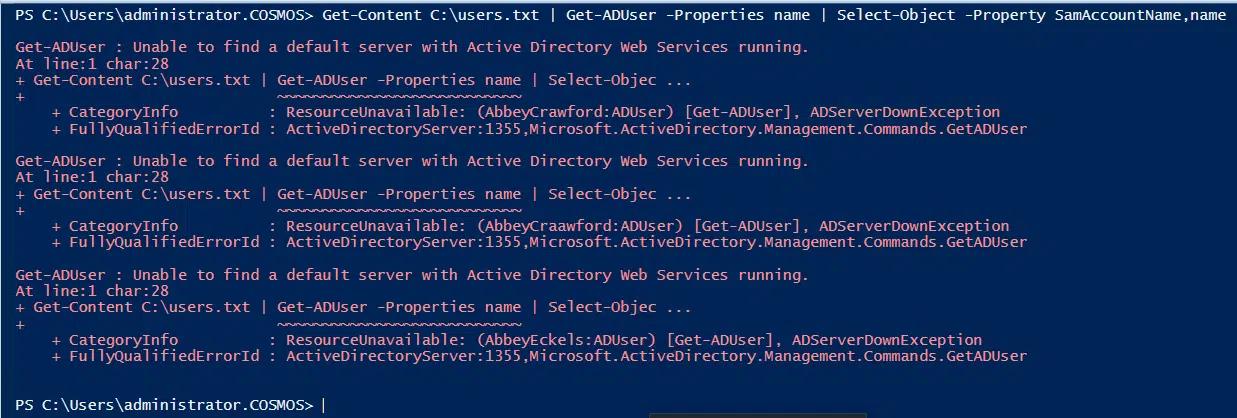
例如,假设我们运行上一示例中使用的脚本,但此时文件确实存在,并且我们有权限访问它。不过,我们无法连接到域控制器。在这种情况下,第一条命令会执行并获取文件内容。但是,下一条命令将会失败,并为文件中的三个对象各生成一条非终止错误。
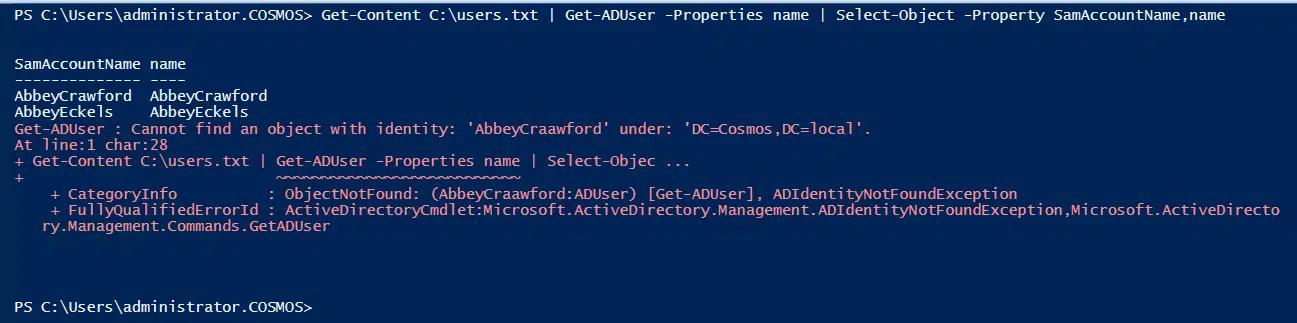
再假设域控制器的连接已经恢复,但文件中的某个对象拥有无效的用户名。运行脚本时,会针对该对象生成下方所示的非终止错误;而其他对象仍会由脚本继续处理。
错误存储在哪里:$Error 变量
$Error 是一个自动数组,用于存储脚本执行过程中遇到的最近错误,这使其在调试和排查脚本问题时非常有用。最新的错误存储在索引 [0] 处。
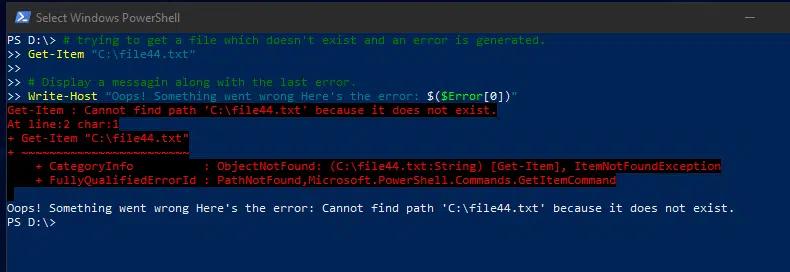
例如,当下面的脚本尝试获取一个不存在的文件时,它会从 $Error 中获取由此产生的错误,并用友好的信息进行显示:
      # trying to get a file which doesn't exist, and an error is generated.

Get-Item "C:\file44.txt"

# Display a message along with the last error.

Write-Host "Oops! Something went wrong Here's the error: $($Error[0])"
理解 Try、Catch 和 Finally 块
顺畅处理错误的一个好方法是实现 Try-Catch-Finally 块。
Active Directory 是什么?
下载电子书
Try 块:可能容易出错的代码所在位置
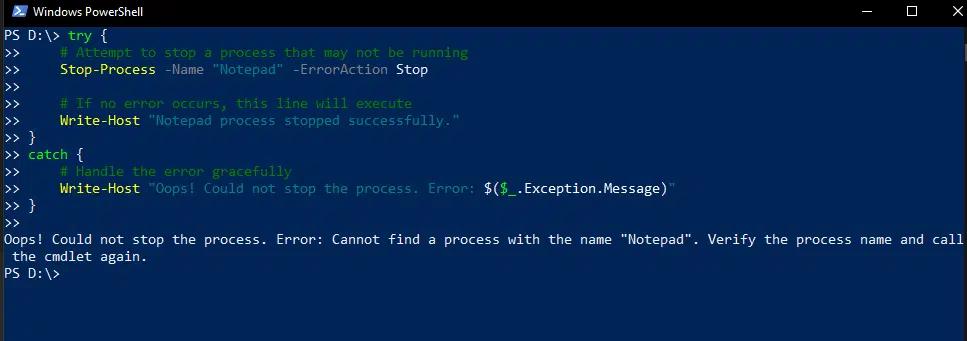
Try 块包含可能导致错误的代码。例如,下面的脚本旨在停止记事本(Notepad)进程。Try 块会在该进程当前正在运行时停止它,但如果它没有在运行,执行将跳转到Catch 块,从而防止脚本崩溃。
      try {

    # Attempt to stop a process that may not be running

    Stop-Process -Name "Notepad" -ErrorAction Stop

    # If no error occurs, this line will execute

    Write-Host "Notepad process stopped successfully."

}

catch {

    # Handle the error gracefully

    Write-Host "Oops! Could not stop the process. Error: $($_.Exception.Message)"

}
Catch 块:在错误发生时进行处理
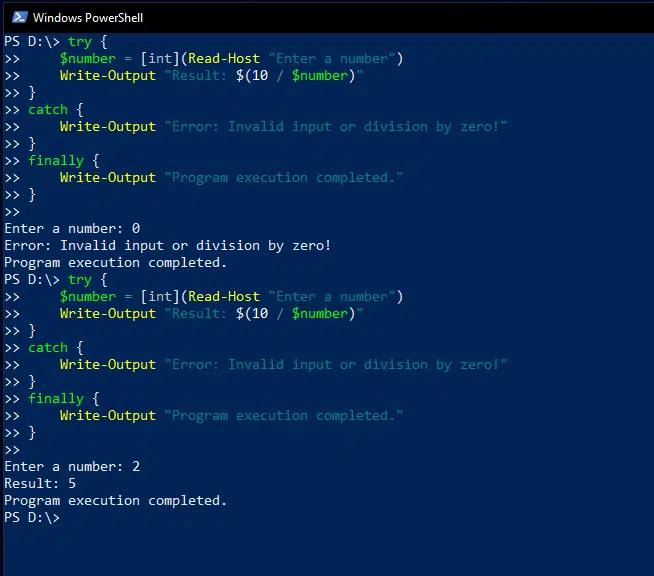
Catch 块用于处理在Try 块中发生的异常。在下面的 PowerShell Try Catch 示例中,脚本会提示用户输入一个数字,然后用该数字去除 10,并打印结果。不过,如果输入数字是 0,由于无法除以零,除法尝试将导致错误。在这种情况下,Catch 块将被执行,并打印错误消息而不是数字。
      try {

    $number = [int](Read-Host "Enter a number")

    Write-Output "Result: $(10 / $number)"

}

catch {

    Write-Output "Error: Invalid input or division by zero!"

}

finally {

    Write-Output "Program execution completed."

}
Finally 块:无论是否发生错误都会始终运行的代码
Finally 代码块无论是否抛出了异常,都会始终执行。
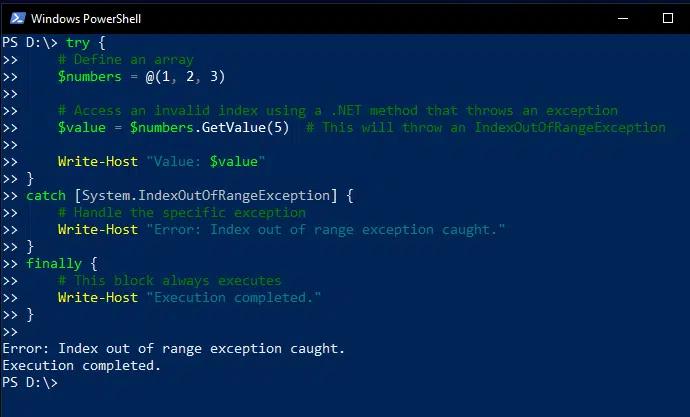
例如,下面的脚本定义了一个只有三个元素的数组,但尝试打印第五个元素;该异常在 Catch 代码块中被处理,并打印出错误信息。不过,Finally 代码块也会执行,因此会打印一条额外的消息。
      try {

    # Define an array

    $numbers = @(1, 2, 3)

    # Access an invalid index using a .NET method that throws an exception

    $value = $numbers.GetValue(5)

    Write-Host "Value: $value"

}

catch [System.IndexOutOfRangeException] {

    # Handle the specific exception

    Write-Host "Error: Index out of range exception caught."

}

finally {

    # This block always executes

    Write-Host "Execution completed."

}
进阶示例:使用多个 Catch 代码块来处理不同类型的异常
脚本可以包含多个 Catch 代码块来处理不同类型的异常,从而实现更细粒度的错误处理。事实上,.Net 框架提供了丰富的 PowerShell Try Catch 异常消息类型,包括以下内容:
- System.DivideByZeroException — 当尝试将任意数字除以 0 时发生
- System.FormatException — 当尝试将非数字输入转换为数字时引发
- System.ArgumentNullException — 当传入的参数为 null,但不应为 null 时发生
- System.IO.IOException — 当发生 I/O 错误时抛出
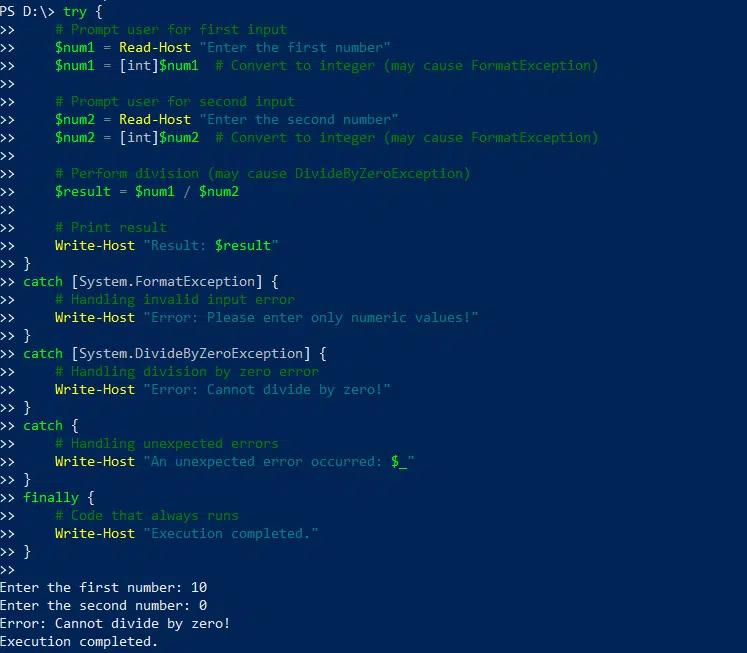
例如,下面的脚本会要求用户输入两个数字,将它们转换为整数格式,使用第一个数字除以第二个数字,并打印结果。第一个 Catch 块处理用户输入无法转换为整数格式的可能性,而第二个 Catch 块处理尝试除以零的可能性。
      try {

    # Prompt user for first input

    $num1 = Read-Host "Enter the first number"

    $num1 = [int]$num1  # Convert to integer (may cause FormatException)

    # Prompt user for second input

    $num2 = Read-Host "Enter the second number"

    $num2 = [int]$num2  # Convert to integer (may cause FormatException)

    # Perform division (may cause DivideByZeroException)

    $result = $num1 / $num2

    # Print result

    Write-Host "Result: $result"

}

catch [System.FormatException] {

    # Handling invalid input error

    Write-Host "Error: Please enter only numeric values!"

}

catch [System.DivideByZeroException] {

    # Handling division by zero error

    Write-Host "Error: Cannot divide by zero!"

}

catch {

    # Handling unexpected errors

    Write-Host "An unexpected error occurred: $_"

}

finally {

    # Code that always runs

    Write-Host "Execution completed."

}
高级错误处理技术
要创建更健壮且易于维护的脚本,请考虑将以下错误处理技术与 PowerShell 结合使用 Try and Catch 块:
- 使用 $ErrorActionPreference = “Stop”,确保所有错误都被视为终止(terminating),从而更容易捕获。
- 在单独的命令上使用 -ErrorAction Stop,以实现更细粒度的控制,而不会影响整个脚本。
- 使用 $_.Exception.Message 和 $PSItem 来访问错误详细信息。
捕获特定异常
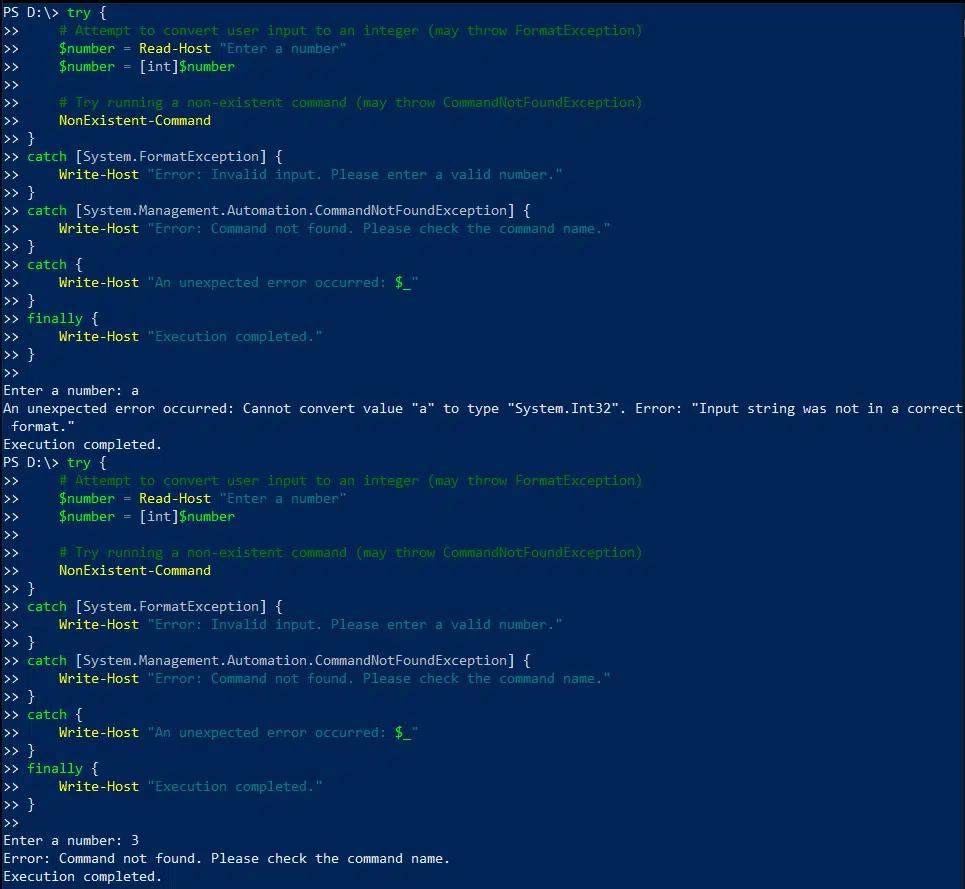
下面的脚本旨在将用户输入从“用户”转换为整数,然后执行一条命令。第一个 Catch 块用于处理无效的用户输入的可能性,第二个块用于处理尝试执行无效命令的情况。如果发生任意一个异常,脚本都会打印一条自定义消息。
      try {

    # Attempt to convert user input to an integer (may throw FormatException)

    $number = Read-Host "Enter a number"

    $number = [int]$number

    # Try running a non-existent command (may throw CommandNotFoundException)

    NonExistent-Command

}

catch [System.FormatException] {

    Write-Host "Error: Invalid input. Please enter a valid number."

}

catch [System.Management.Automation.CommandNotFoundException] {

    Write-Host "Error: Command not found. Please check the command name."

}

catch {

    Write-Host "An unexpected error occurred: $_"

}

finally {

    Write-Host "Execution completed."

}
使用 $_.Exception.Message 和 $PSItem 访问错误详情
要在 Catch 块中访问错误详情,可以使用以下变量:
- $_.Exception.Message 会提供清晰、易于用户理解的 Try Catch PowerShell 错误消息,只包含与错误相关的部分。
- $PSItem 保存完整的错误对象,包括错误类型、源和堆栈跟踪信息。
下面的脚本演示这些变量所提供输出之间的差异:
      try {

    # Attempt to open a non-existent file

    Get-Content "C:\File1.txt" -ErrorAction Stop

}

catch {

    # Using $_.Exception.Message to get detailed error information

    Write-Host "Error occurred: $($_.Exception.Message)"

    # Using $PSItem (same as $_) to display full error details

    Write-Host "Full Error Details: $PSItem"

}

finally {

    Write-Host "Execution completed."

}
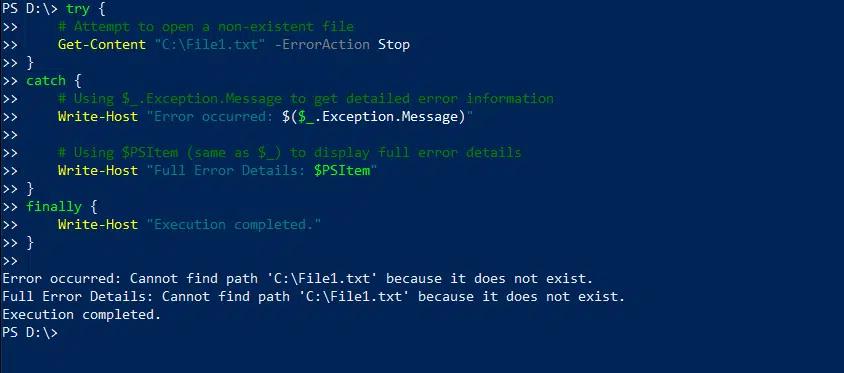
使用 Trap 语句
A Trap 语句定义了当发生特定错误时要执行的代码,而不管该错误在脚本中的什么位置发生。因此,它提供了一种在比单个 PowerShell Try-Catch 块更高(全局)层级进行错误处理的机制。
下面的脚本在 PowerShell 中使用 Try-Catch 来处理尝试除以零的可能性。在这种情况下,Trap 语句将捕获任何可能发生的其他错误,例如使用 Get-Item cmdlet 去操作一个并不存在的文件。
      # Global error handler using trap

trap {

    Write-Host "Global Error Handler (trap): $_"

    continue  # Allows the script to continue execution

}

function Test-TryCatch {

    try {

        Write-Host "Inside Try Block"

        1 / 0  # This will cause a division by zero error

        Write-Host "This line will not execute due to the error above."

    } catch {

        Write-Host "Caught in Try-Catch: $_"

    }

}

Write-Host "Before function call"

Test-TryCatch

Write-Host "After function call"

# Triggering another error outside try-catch to see if trap works

Write-Host "Triggering an error outside Try-Catch"

Get-Item "C:\NonExistentFile.txt" -ErrorAction Stop  # Force a terminating error

Write-Host "Script completed"
在 PowerShell 中处理非终止错误
Catch 块用于处理终止性错误(terminating errors);由于非终止性错误(non-terminating errors)不会停止脚本的执行,因此它们不会触发 Catch 块。不过,我们可以使用 -ErrorAction Stop 参数,将非终止性错误转换为终止性错误。该参数会强制脚本将非终止性错误视为终止性错误,从而允许 Catch 块对其进行适当处理。
假设我们运行下面的脚本,但脚本尝试访问的文件夹并不存在。Try 块使用 -ErrorAction Stop 将这种非终止性错误转换为终止性错误,这样它就会被 Catch 块处理。
      $directoryPath = "C:\NonExistentFolder"

try {

    Write-Host "Checking if directory exists..."

    Get-ChildItem -Path $directoryPath -ErrorAction Stop  # Force a terminating error if the directory doesn't exist

    Write-Host "Directory found."

} catch {

    Write-Host "Error: The directory '$directoryPath' was not found."

}
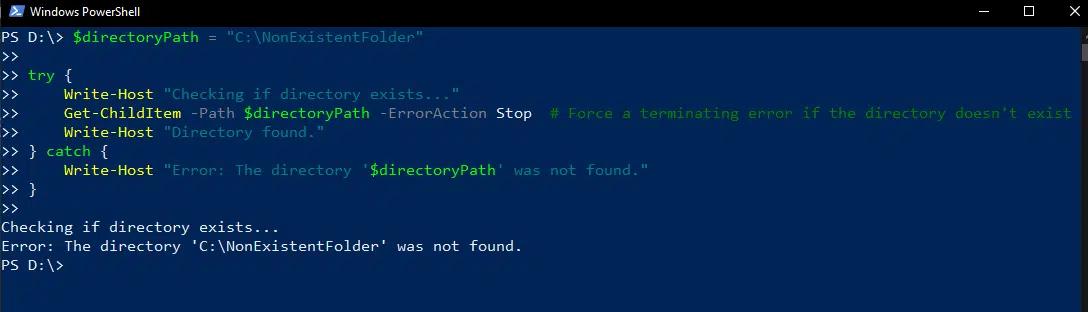
在 PowerShell 中使用 Try-Catch 的最佳实践
为了最大化代码的清晰度、效率和可维护性,请认真设计错误处理块。特别是,PowerShell Try-Catch 仅应用于真正的异常(genuine exceptions)。通过将 Try 块中的代码限制为可能抛出异常的那些操作,可以更容易识别异常来源并调试脚本。在其他情况下,可以考虑 if-else 或 switch 语句。
其他关键的最佳实践包括以下内容:
- 请确保 Try 代码块遵循单一职责原则(single responsibility principle),也就是说,每段代码都只执行特定的任务。
- 使用单独的 Catch 代码块来处理不同类型的异常。
- 务必包含一个 Finally 代码块,用于清理代码并释放资源。
下面的脚本演示了其中一些最佳实践。它使用带有 if 语句和 test-path 的组合,在尝试访问文件之前先检查文件是否存在。如果文件不存在,则使用 else 语句显示错误信息。Try-Catch 块仅用于读取文件内容;如果脚本遇到诸如权限不足之类的错误,Catch 块将处理该异常并显示错误消息。
      # Define the path to the file

$filePath = "D:\NonExistentFile.txt"

# Check if the file exists

if (Test-Path -Path $filePath) {

    try {

        # Try to read the file contents

        $fileContents = Get-Content -Path $filePath -ErrorAction Stop

        Write-Host "File contents: $fileContents"

    }

    catch {

        # Handle any exceptions that occur while reading the file

        Write-Host "Error: Unable to read the file. Exception Message: $_"

    }

} else {

    # If the file does not exist, display an error message

    Write-Host "Error: The file does not exist."

}
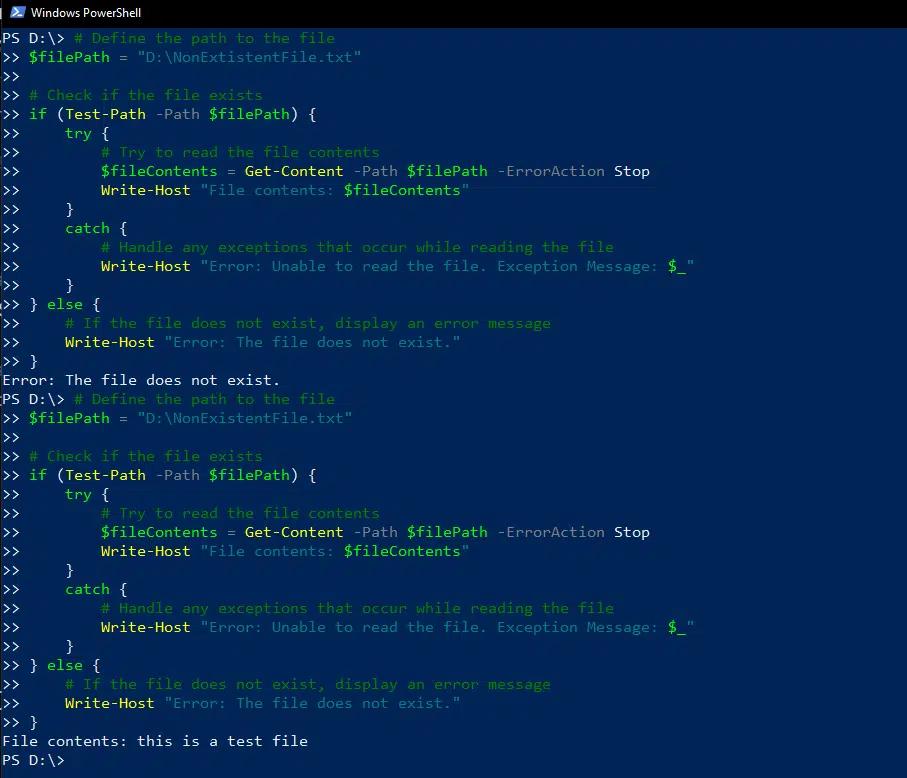
PowerShell Try-Catch 与脚本继续执行
使用 Continue 语句
当脚本在 Try-Catch 块中遇到错误时,默认行为是脚本在 Catch 块中处理该异常并停止执行。不过,在某些情况下,我们希望在处理完错误后继续执行,例如在批量处理文件或测试与多台服务器的连接时。
为确保单次失败不会中止整个迭代,请使用 Continue 语句。例如,下面的脚本会测试多台服务器的连接;Continue 语句可确保即使某一台服务器发生错误,执行仍会继续。
      # List of server names (replace with actual server names or IPs)

$servers = @("lhehost9", "lhehost11", "lhehost10")

foreach ($server in $servers) {

    try {

        Write-Host "Attempting to connect to $server..."

        # Simulating a remote connection (Replace with actual connection command)

        Test-Connection -ComputerName $server -Count 2 -ErrorAction Stop

        Write-Host "Successfully connected to $server.`n"

    } catch {

        Write-Host "Error: Failed to connect to $server. Skipping to next server...`n"

        continue  # Continue to the next server in the loop

    }

}

Write-Host "Script execution completed."
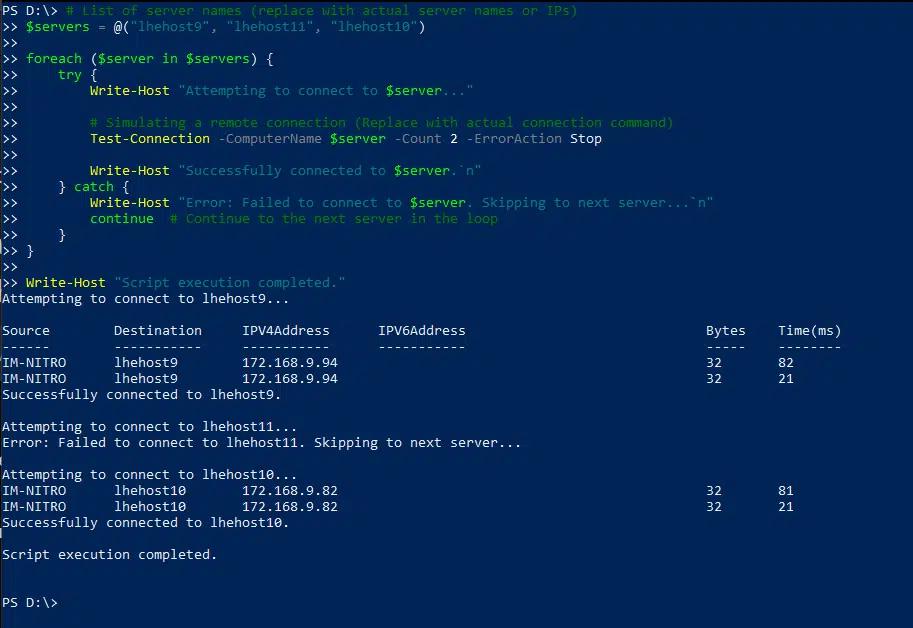
使用 $ErrorActionPreference 变量
另一种在出错后强制脚本继续执行的方法是使用 $ErrorActionPreference 变量。虽然 Try-Catch 块支持局部的错误处理,但 $ErrorActionPreference 是一个全局设置,用于控制 PowerShell 对非终止错误(non-terminating errors)的响应。
我们已经看到,你可以将 $ErrorActionPreference 设置为 “Stop” ,以确保所有错误都被视为会导致终止的错误,从而更容易捕获它们。然而,该变量还有其他设置,包括 Continue(默认),Silentlycontinue,Inquire 和 Ignore。通过选择该变量的设置,你可以定义在整个脚本中如何管理错误。
PowerShell Finally 块:确保资源清理
如前所述,Finally 块会在 Try 和 Catch 块之后执行,无论脚本执行期间是否发生错误。它通常用于清理流程,例如关闭文件、终止连接以及释放资源。
例如,下面的脚本会打开一个文件,并向其中写入 “hello world”。如果发生错误,Catch 块会打印一条消息。无论如何,Finally 块都会确保关闭文件流,以防止任何资源泄漏。
      try {

    $filePath = "D:\Office\Backup\eventviewer_logs.txt"

    $fileStream = [System.IO.StreamWriter]::new($filePath)

    $fileStream.WriteLine("Hello, World!")

}

catch {

    Write-Host "An error occurred: $_"

}

finally {

    if ($fileStream) {

        $fileStream.Close()

        Write-Host "File stream closed successfully."

    }

}
在 PowerShell 中处理多个错误
用于存储和统计错误的变量
PowerShell 提供两个变量,对于审计和调试在执行过程中遇到多个异常的脚本非常有帮助:
- $Error 会保留会话期间遇到的错误列表。
- $Error.count 用于获取当前会话中记录的错误总数。
为实现准确跟踪,可能需要在会话期间不时清空错误列表。使用 $Error.clear() 将移除所有已保存的错误。
使用嵌套的 Try-Catch 块来处理多个错误
以下脚本包含两个嵌套的 Try-Catch 块,用于处理两种不同的潜在错误:尝试除以零以及尝试访问不存在的文件:
      try {

    Write-Host "Starting First try block..."

    try {

        Write-Host "Attempting to divide by zero..."

        $result = 1 / 0  # This will cause a divide-by-zero exception

    }

    catch [System.DivideByZeroException] {

        Write-Host "Inner catch: Division by zero error occurred"

        throw "Re-throwing error to outer try block"

    }

    try {

        Write-Host "Accessing a file that doesn't exist..."

        Get-Content -Path "C:\File1.txt" -ErrorAction Stop

    }

    catch [System.IO.FileNotFoundException] {

        Write-Host "Inner catch: File not found error occurred"

    }

}

catch {

    Write-Host "Outer catch: Handling an error from inner blocks - $($_.Exception.Message)"

}

finally {

    Write-Host "Executing final block for cleanup..."

}
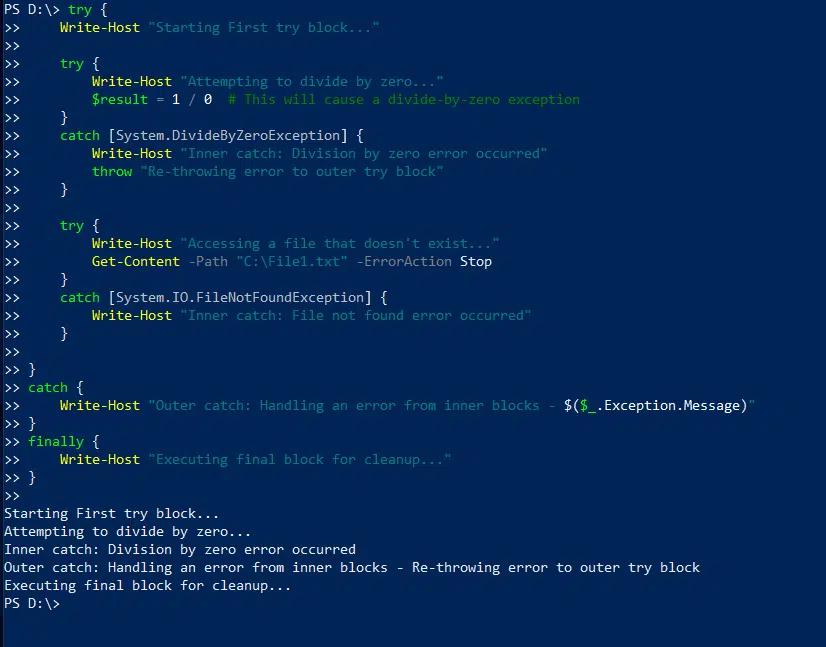
PowerShell 中的错误信息和调试
访问详细的错误信息
当脚本执行过程中发生错误时,仅知道发生了错误是不够的;我们需要详细信息来诊断并修复问题。 如前所述,$Error 变量会保留一个错误记录数组,其中最新的错误位于 $Error[0]。特定的错误属性包括 Exception,CategoryInfo,InvocationInfo 以及 ScriptStackTrace。
属性 ScriptStackTrace 极其有价值,因为它提供了详细的调用堆栈,展示导致错误的函数调用顺序以及脚本中的位置。要访问最新错误的这类详细信息,请使用 $Error[0].ScriptStackTrace。
提供自定义错误消息
显示有意义且用户友好的错误消息能够增强脚本的可用性并提升调试效率。自定义消息可以帮助用户了解出了什么问题,有时还能协助他们纠正错误,例如通过修复不正确的文件路径、错误的进程名称或权限不足。
要显示自定义消息,我们可以在 Write-host 或 write-error 的 Catch 块中使用。包含 $_.Exception.message 以提供更多细节。
例如,当在执行下面的脚本时发生错误(除以零),会同时在控制台打印一条详细通知,并将其通过电子邮件发送给管理员:
      $SMTPServer = "lvkex.ca.lo"

$SMTPPort = 587

$From = "aadministrator@ca.lo"

$To = "administrator@ca.lo"

$Subject = "PowerShell Script Error Alert"

try {

    Write-Host "Executing script..."

    # Simulate an error (divide by zero)

    $result = 1 / 0

}

catch {

    # Capture actual error message details

    $ErrorMessage = @"

An error occurred in the PowerShell script.

Message: $($_.Exception.Message)

Script: $($MyInvocation.ScriptName)

Line: $($_.InvocationInfo.ScriptLineNumber)

Date: $(Get-Date -Format "yyyy-MM-dd HH:mm:ss")

"@

    # Log error to console and send email

    Write-Host "An error occurred. Sending email notification..."

    Send-MailMessage -SmtpServer $SMTPServer -Port $SMTPPort -From $From -To $To -Subject $Subject -Body $ErrorMessage

}

}

PowerShell Try-Catch 的常见用例
在处理数据录入错误的同时批量更新用户资料
管理员通常使用 PowerShell 根据 csv 文件自动更新 Active Directory 中的用户信息。由于输入文件可能包含无效数据,因此重要的是使用 Try-Catch 来处理并记录错误。
下面的脚本会导入包含用户列表的 csv 文件,并遍历其中的每条记录以更新其在 AD 中的描述。它会在控制台打印结果,并将任何错误记录到日志文件中。
      # Define file paths

$CsvFile = "C:\Members (7).csv"

$LogFile = "C:\logs.txt"

# Import CSV

$Users = Import-Csv -Path $CsvFile

foreach ($User in $Users) {

    try {

        # Attempt to find the user in AD using CN or SamAccountName

        $ADUser = Get-ADUser -LDAPFilter "(cn=$($User.cn))" -Properties SamAccountName, Description -ErrorAction SilentlyContinue

        if ($ADUser -eq $null) {

            # Log missing users

            $ErrorMessage = "$(Get-Date): User '$($User.cn)' not found in AD."

            Write-Host $ErrorMessage

            Add-Content -Path $LogFile -Value $ErrorMessage

            continue  # Skip to the next user

        }

        # Define new description

        $NewDescription = "Test update on $(Get-Date -Format 'yyyy-MM-dd HH:mm:ss')"

        # Update AD user description

        Set-ADUser -Identity $ADUser.SamAccountName -Description $NewDescription -ErrorAction Stop

        # Log success

        Write-Host "Updated: $($ADUser.SamAccountName) - New Description: $NewDescription"

    }

    catch {

        # Capture and log errors

        $ErrorMessage = "$(Get-Date): Error updating $($User.cn) ($($ADUser.SamAccountName)) - $($_.Exception.Message)"

        Write-Host $ErrorMessage

        Add-Content -Path $LogFile -Value $ErrorMessage

    }

}
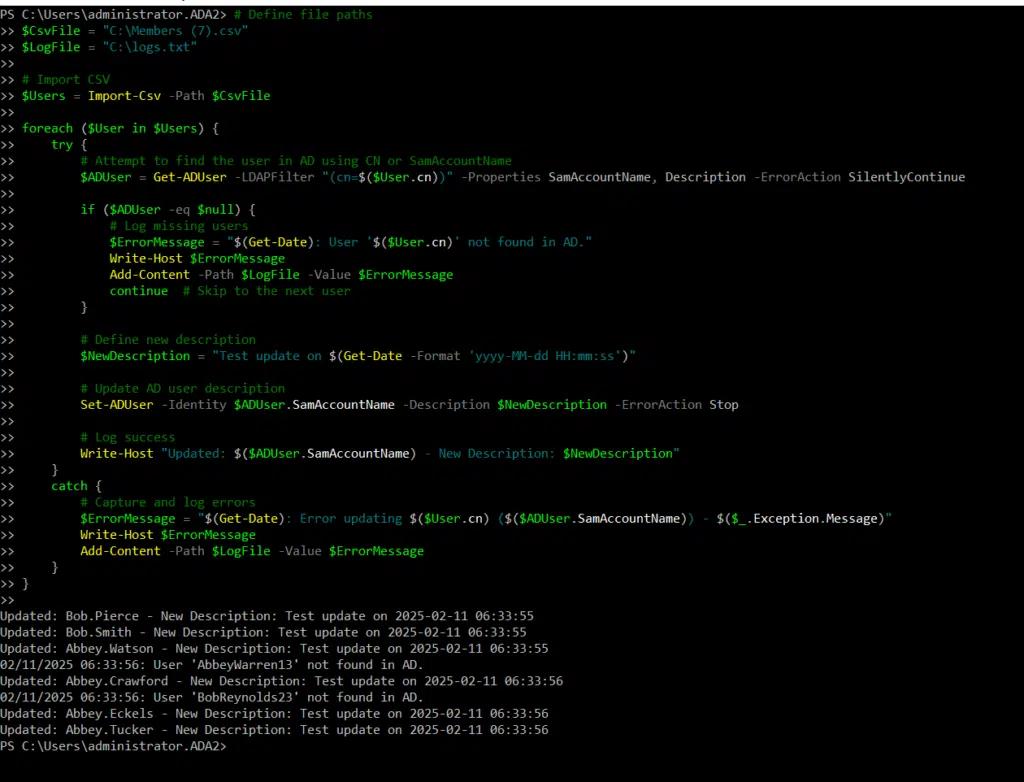
处理服务器或网络连接问题
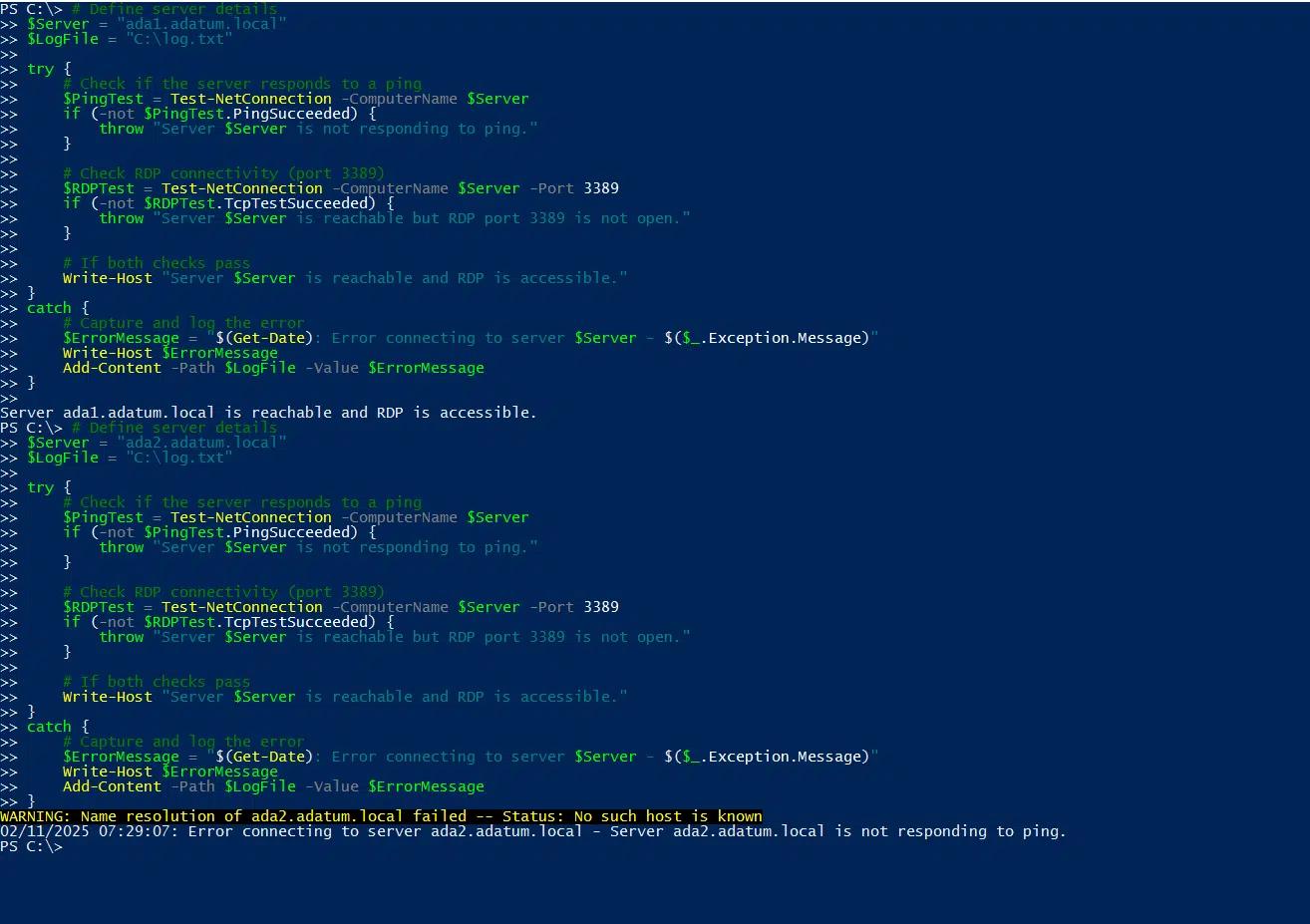
Try-Catch 块也可用于处理服务器和网络连接问题。例如,下面的脚本演示了如何测试与服务器的连接:一次使用正确的名称,另一次使用错误的名称:
      # Define server details

$Server = "ada1.adatum.local"

$LogFile = "C:\log.txt"

try {

    # Check if the server responds to a ping

    $PingTest = Test-NetConnection -ComputerName $Server

    if (-not $PingTest.PingSucceeded) {

        throw "Server $Server is not responding to ping."

    }

    # Check RDP connectivity (port 3389)

    $RDPTest = Test-NetConnection -ComputerName $Server -Port 3389

    if (-not $RDPTest.TcpTestSucceeded) {

        throw "Server $Server is reachable but RDP port 3389 is not open."

    }

    # If both checks pass

    Write-Host "Server $Server is reachable, and RDP is accessible."

}

catch {

    # Capture and log the error

    $ErrorMessage = "$(Get-Date): Error connecting to server $Server - $($_.Exception.Message)"

    Write-Host $ErrorMessage

    Add-Content -Path $LogFile -Value $ErrorMessage

}
结论
Try-Catch-Finally 块是用于处理 PowerShell 脚本中错误的极其宝贵工具。通过将它们与诸如 ErrorAction 参数以及 $ErrorActionPreference 和 $Error 变量等机制结合起来,你可以创建即使在出现意外问题时也能平稳运行的健壮脚本。这样一来,你就能更有信心地自动化任务,避免遭遇诸如未完成的操作、系统停机或数据丢失等问题。
常见问题
为什么我的 PowerShell 的 try-catch 没有捕获到错误?
try-catch 代码块无法工作的最常见原因是你遇到的是非终止错误(non-terminating errors)。PowerShell 有两种类型的错误:终止错误(terminating,会停止执行)和非终止错误(non-terminating,会显示消息但继续运行)。默认情况下,try-catch 只会捕获终止错误。
要捕获非终止错误,请在 try 块中的命令后添加 -ErrorAction Stop。这会强制 PowerShell 将该错误视为终止错误:
      try {
    Get-ChildItem "C:\NonExistent" -ErrorAction Stop
} catch {
    Write-Host "Caught the error!"
}
如果没有 -ErrorAction Stop,就会显示错误信息,但你的 catch 块永远不会执行。
另一个问题与作用域相关。如果你在 try 块中调用函数或外部脚本,那么这些调用产生的错误可能无法正确冒泡到上层。请确保你调用的函数或脚本也使用了恰当的错误处理,或者在脚本开头使用 $ErrorActionPreference = "Stop" 来全局更改默认行为。请记住,更改全局偏好会影响脚本中的所有命令,因此在生产环境中务必谨慎使用。
如何修复 PowerShell try-catch 仍然显示错误消息的问题?
即使正确实现了 try-catch,你仍可能看到错误消息,因为 PowerShell 会在 catch 块处理之前先显示这些消息。对于通过 -ErrorAction Stop 变成终止错误的非终止错误,就会出现这种情况。错误会先在控制台中显示,然后被你的处理程序捕获。
要彻底隐藏错误显示,请使用 -ErrorAction SilentlyContinue 并结合检查 $?(自动成功变量)或 $Error[0] 以获取最新错误:
      Get-ChildItem "C:\NonExistent" -ErrorAction SilentlyContinue
if (!$?) {
    Write-Host "Command failed silently"
}
这种方法让你在不显示可见错误信息的情况下,仍能控制错误检测。
为了获得更简洁的解决方案,请在 catch 块中捕获错误信息,并决定如何处理它。使用 $_.Exception.Message 获取错误详情,然后根据你的需求进行记录或显示。这样,你就能精确控制用户会看到什么:
      try {
    Get-ChildItem "C:\NonExistent" -ErrorAction Stop
} catch {
    Write-Warning "Directory access failed: $($_.Exception.Message)"
}
在企业环境中,这种做法尤其重要,因为错误信息需要友好易懂,并且要被正确记录。
当出现非终止错误时,你如何处理 PowerShell 的 try-catch?
非终止错误需要特殊处理,因为它们默认不会触发 catch 块。最可靠的做法是对你希望捕获错误的各个命令使用 -ErrorAction Stop。这会将非终止错误转换为终止错误,从而使你的 try-catch 能够处理它们。
对于会生成多个非终止错误的函数,可以考虑在函数级别设置 $ErrorActionPreference = "Stop",然后在之后重置它:
      function Test-Function {
    $ErrorActionPreference = "Stop"
    try {
        # your commands here
    } catch {
        # error handling
    } finally {
        $ErrorActionPreference = "Continue"
    }
}
另一种做法使用 -ErrorVariable 参数,在不停止执行的情况下捕获错误。使用以下方式运行你的命令: -ErrorVariable myErrors -ErrorAction SilentlyContinue 然后检查 $myErrors 是否有内容。该方法允许你在命令完成后处理错误,而不会中断流程:
      Get-ChildItem "C:\*" -ErrorVariable problems -ErrorAction SilentlyContinue
if ($problems) {
    Write-Host "Found $($problems.Count) errors to review"
}
这种模式非常适用于批量操作:在决定如何响应之前,你希望先收集所有问题。
在 try-catch 中,ErrorAction Stop 和 SilentlyContinue 有什么区别?
ErrorAction Stop 会将非终止性错误转换为终止性错误:它会立即停止执行,并触发你的 catch 块。仅当你希望 try-catch 来处理该错误、且命令失败时无法继续执行时再使用此选项。对于失败应当停止流程的关键操作,这是最常见的选择。
ErrorAction SilentlyContinue 会抑制错误消息并允许继续执行,但错误不会触发 catch 块。错误仍然会发生,并被加入到 $Error,不过不会出现可见的错误消息,脚本会继续运行。当你预期某些操作可能失败,并希望通过条件逻辑而不是异常处理来应对时,该选项非常有用。
try-catch 场景中的关键区别在于控制流。使用 Stop 时,你的 catch 块会运行,并由你决定接下来会发生什么。使用 SilentlyContinue 时,你需要使用 $? 、 $Error 或 -ErrorVariable 来手动检查是否成功。对于以安全为导向的操作,Stop 能提供更好的错误可见性与处理方式,确保访问失败或安全违规不会被忽视。在企业环境中,通过带有 ErrorAction Stop 的 try-catch 进行显式错误处理,可以创建更完善的审计轨迹,并使脚本行为更可预测。
如何在 PowerShell 循环中使用 try-catch 并继续执行?
在循环中,try-catch 的行为取决于错误发生的位置以及你希望接下来发生什么。要在错误发生后继续处理其余项目,请将 try-catch 放在循环内部,并在 continue 中使用(在 catch 块里使用):
      foreach ($item in $items) {
    try {
        Process-Item $item -ErrorAction Stop
    } catch {
        Write-Warning "Failed to process $item"
        continue
    }
}
这会跳过失败的项,并移动到下一个项。
如果你想重试失败的操作,请将 try-catch 与重试计数器结合使用:
      foreach ($item in $items) {
    $retries = 0
    do {
        try {
            Process-Item $item -ErrorAction Stop
            break
        } catch {
            $retries++
            if ($retries -ge 3) {
                Write-Error "Failed after 3 attempts: $item"
                break
            }
            Start-Sleep 1
        }
    } while ($retries -lt 3)
}
该模式对于可能会暂时失败的网络操作或资源密集型任务非常有价值。
要同时收集成功和失败,请使用数组来跟踪结果:
      $successful = @()
$failed = @()
foreach ($item in $items) {
    try {
        Process-Item $item -ErrorAction Stop
        $successful += $item
    } catch {
        $failed += @{Item=$item; Error=$_.Exception.Message}
    }
}
这种方法可以让你全面了解批量操作的情况,这对于数据处理、用户管理或系统管理等任务至关重要,因为你需要向相关方报告成功与失败。
分享到
了解更多
关于作者

Tyler Reese
产品管理副总裁,CISSP
凭借在软件安全行业超过二十年的经验,Tyler Reese 对当今企业面临的快速演变的身份与安全挑战非常熟悉。目前,他担任 Netwrix Identity and Access Management 组合的产品总监;他的职责包括评估市场趋势、确定 IAM 产品线的发展方向,并最终满足终端用户的需求。他的职业经历从为财富 500 强公司提供 IAM 咨询,到在一家大型直销面向消费者(direct-to-consumer)的公司担任企业架构师,涵盖范围十分广泛。 目前,他持有 CISSP 认证。